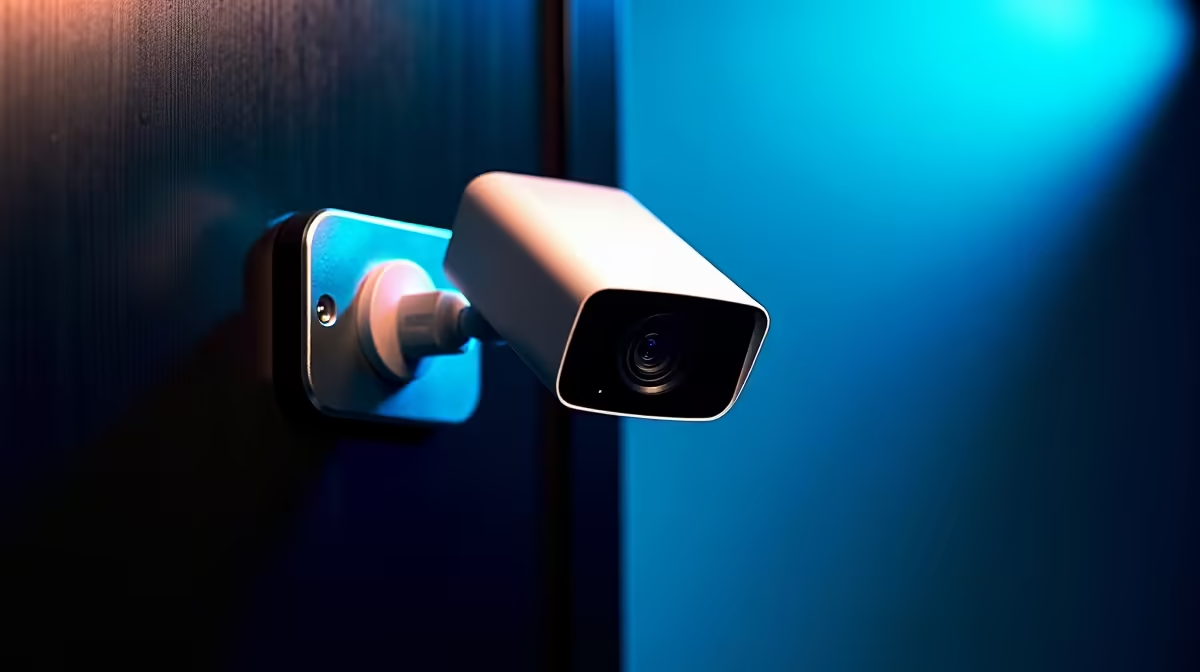
Cloud security cameras charge a monthly fee to do object detection on a server you do not control. Frigate flips that model: it is a local network video recorder that pulls a camera's RTSP stream and runs AI object detection on your own hardware, with no subscription and no footage leaving your network. Add a Google Coral Edge TPU and inference drops to under 10 milliseconds per frame. Here is how to point an IP camera at it and get detections running.
Quick Answer
To add an IP camera to Frigate, find the camera's RTSP URL, add it under the cameras block in Frigate's config.yml with a low-resolution substream feeding the detect role and the main stream feeding record, then restart Frigate. A Coral Edge TPU is optional but takes detection from 50-100ms on a CPU down to under 10ms.
Step 1: Get Your Camera's RTSP Stream Working First
Frigate detects objects in an RTSP video feed, so the stream has to work before anything else does. Most IP cameras expose a URL in the form rtsp://username:password@camera-ip:554/path, where the path differs by brand. Check the camera's manual or web interface for the exact path.
Best practice is to use two streams from the same camera. The high-resolution main stream handles recording, and a low-resolution substream (often 640x480 or similar) handles detection. Running AI on the substream slashes the processing load while the recorded footage stays sharp. Confirm both URLs play in a tool like VLC before you touch the config, because a stream that fails in VLC will fail in Frigate too.
Step 2: Define the Camera in config.yml
Frigate is configured entirely through a YAML file. A minimal two-stream camera entry looks like this:
cameras:
  front_door:
    ffmpeg:
      inputs:
        - path: rtsp://user:[email protected]:554/main
          roles:
            - record
        - path: rtsp://user:[email protected]:554/sub
          roles:
            - detect
    detect:
      width: 640
      height: 480
Each camera gets its own named block. The roles lines tell Frigate which stream to record and which to analyse. Match the detect width and height to your actual substream resolution, or detections will be misaligned.
Routing Streams Through go2rtc
Frigate bundles go2rtc, a stream proxy that lets multiple consumers share one camera connection. Pointing your inputs through go2rtc avoids hammering a camera that only allows a couple of simultaneous connections, and it enables smoother live view in the dashboard. For a first camera you can skip it, but it is the standard approach once you add more.
Step 3: Choose Your Detector
Out of the box Frigate runs detection on the CPU, which works but is slow and load-heavy, typically 50 to 100 milliseconds per frame. The configuration looks like this for the default CPU detector or for a Coral Edge TPU:
detectors:
  coral:
    type: edgetpu
    device: usb
Set type: edgetpu and the device to usb for the USB Coral, or pci for the PCIe and M.2 versions. Frigate ships a compatible TensorFlow Lite model at /edgetpu_model.tflite, so no separate model download is needed for a standard setup. On NVIDIA hardware you can instead use a TensorRT detector to offload work to the GPU.
Step 4: Add the Coral Edge TPU for Real Speed
The Coral is the single biggest performance upgrade for a Frigate box. It is a dedicated machine-learning accelerator that runs the detection model in hardware, dropping inference to under 10 milliseconds per frame and freeing the CPU for recording and the rest of your smart home. One Coral comfortably handles detection for several cameras at once.
The USB version is the easiest to deploy on almost any machine, including a Raspberry Pi 5 or a small mini PC. If you are running Frigate in Docker, pass the Coral through to the container by mapping the USB device, then restart so Frigate picks it up. PCIe and M.2 variants suit a more permanent install inside a desktop or server. Frigate runs happily on modest hardware, but pairing it with a Coral is what makes local AI detection feel instant rather than sluggish.
Step 5: Tune Detection and Verify
Restart Frigate after editing the config and watch the logs for stream errors. In the web dashboard, the debug view overlays detection boxes on the live feed so you can confirm the camera is seeing objects. From there, narrow the objects list to what you care about (person, car, animal) and draw detection zones to ignore a busy pavement or a neighbour's driveway. Tightening zones cuts false alerts more than any other single setting.
A Coral, a capable host, and a couple of cameras give you a private security system with no recurring fee. The supporting kit, from USB hubs to storage and cabling, sits in the broader smart home and appliances category, and the day-to-day extras you will reach for during the build are easy to pull from the accessories best sellers.
Frequently Asked Questions
Do I have to use a Coral TPU with Frigate?
No. Frigate runs detection on a CPU by default, and that works for one or two cameras on a reasonably powerful machine. The Coral is optional, but it cuts inference time to under 10ms and lets one box handle several cameras without the CPU struggling.
How do I find my camera's RTSP URL?
Check the camera's manual or its web interface, where the RTSP path is usually listed. The format is rtsp://user:pass@camera-ip:554/path. Test the full URL in VLC first; if it plays there, Frigate can use it.
Can Frigate work with Home Assistant?
Yes. Frigate integrates with Home Assistant to surface camera feeds, detection events, and snapshots as entities and notifications. Many people run both on the same machine, with Frigate handling detection and Home Assistant handling automations.
Why use a substream for detection?
Running AI on a low-resolution substream dramatically reduces processing load, while the high-resolution main stream is still recorded in full quality. This split lets even modest hardware keep up with multiple cameras.
What kind of storage does Frigate need?
Continuous recording writes a lot of data, so a dedicated drive is sensible. An SSD or a surveillance-rated hard drive sized to your retention period and camera count keeps recordings smooth and avoids wearing out a small boot drive.
Ready to build a private, subscription-free camera system? Browse the smart home and appliances range at Evetech for cameras, accelerators, and storage to run Frigate entirely on your own hardware. Local AI detection, no cloud, no monthly fee.