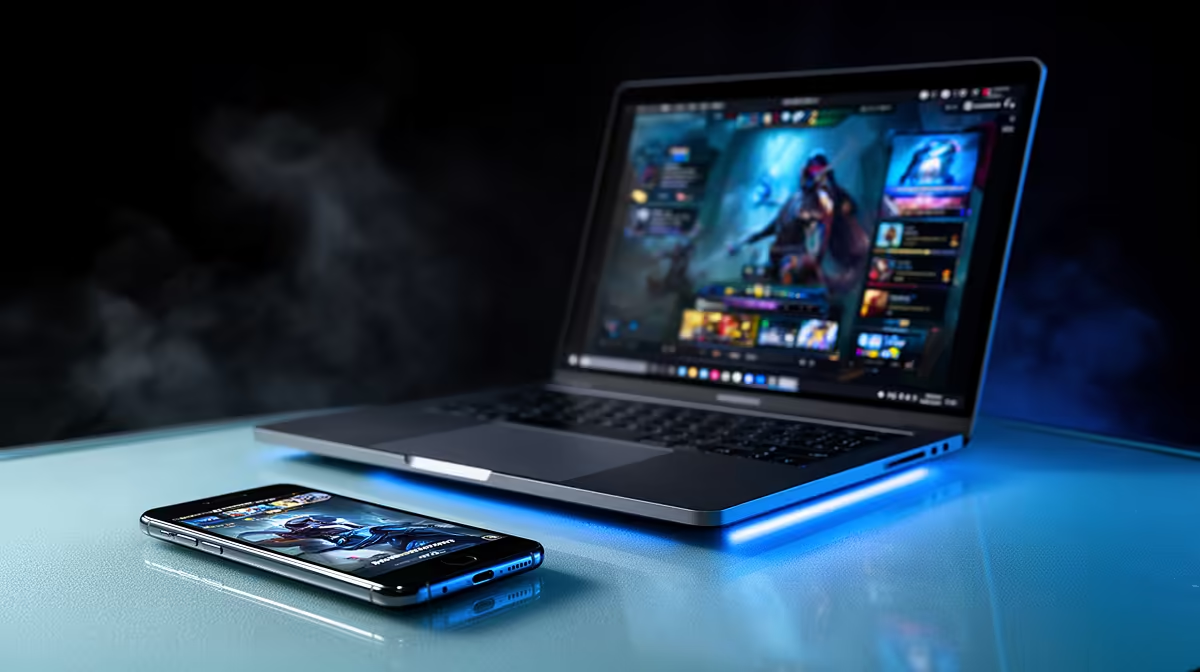
Reaching across the desk to tap your phone every few minutes breaks your focus, and iPhone Mirroring removes that interruption entirely. This Mac feature streams your locked iPhone onto your computer screen so you can open apps, type replies, and tap through notifications using the trackpad and keyboard you already have your hands on. The phone screen stays dark the whole time, so nobody nearby sees what you are doing.
Quick Answer
iPhone Mirroring is built into recent versions of macOS and works with an iPhone XS or later running iOS 18. Once both devices are signed in to the same Apple Account and sitting near each other, you open the Mac app and your phone appears on screen. Setup takes a couple of minutes, after which you control the iPhone entirely from the Mac.
What You Need Before You Start
A few requirements have to line up before iPhone Mirroring works. Get these sorted first and the rest is quick.
- A compatible Mac running a recent macOS version that includes the feature.
- An iPhone XS or later running iOS 18 or newer.
- The same Apple Account signed in on both the Mac and the iPhone.
- Wi-Fi and Bluetooth turned on for both devices, kept within close range of each other.
- Two-factor authentication enabled on your Apple Account.
If your iPhone is older than the XS or still on an earlier iOS version, the feature will not appear, so a software update or a newer phone is the path forward.
Setting Up iPhone Mirroring Step by Step
With the requirements met, the connection itself is straightforward.
- Place your iPhone near your Mac and make sure it is locked. The phone does not need to be unlocked to begin.
- Open the iPhone Mirroring app from the Mac Dock or Applications folder.
- Follow the on-screen prompt to pair the two devices the first time. You may be asked to confirm on the iPhone.
- Choose your authentication preference, deciding whether the Mac asks for permission each time or remembers your choice.
- Wait for the Home Screen to appear in the app window. Your iPhone interface is now mirrored on the Mac.
From here you click app icons with the trackpad, type with the keyboard, and swipe between Home Screen pages. Notifications from the iPhone also surface on the Mac, so you can act on them without picking up the phone.
Living With It Day to Day
The standout detail is privacy. While mirroring is active, the iPhone screen stays dark and locked to anyone looking at the physical device. Your activity is visible only on the Mac in front of you. That makes it genuinely useful in a shared office or a study space where the phone sits in your bag or across the desk.
Because the feature leans on the same Continuity foundation as Handoff and Universal Clipboard, it sits comfortably alongside the rest of the Apple ecosystem. If you are weighing up a machine to run it on, the MacBook range available at Evetech covers the models that support iPhone Mirroring out of the box. For the full picture across Apple and Windows portables, the current best-selling laptops at Evetech are a useful place to compare what your budget reaches.
Troubleshooting Common Snags
If the app refuses to connect, the usual culprits are simple. Confirm both devices are on the same Apple Account, that Bluetooth and Wi-Fi are active, and that the iPhone is not already unlocked and in active use elsewhere. The feature pauses if you pick up and unlock the phone, handing control back to the device in your hand. Bring the two closer together if the connection drops, since range matters for the underlying wireless link.
Frequently Asked Questions
Which iPhones support iPhone Mirroring?
iPhone Mirroring requires an iPhone XS or later running iOS 18 or newer. Older models do not support the feature regardless of the Mac you pair them with.
Does my iPhone screen stay private during mirroring?
Yes. The iPhone screen remains dark and locked while mirroring is active, so anyone near the physical phone cannot see what you are doing. The interface appears only on your Mac.
Can I use my iPhone while it is being mirrored?
No, not at the same time. If you pick up and unlock the iPhone, mirroring pauses and control returns to the phone. You resume on the Mac once you set the phone down again.
Do both devices need to be on the same network?
They need Wi-Fi and Bluetooth on and should be close together, signed in to the same Apple Account. The feature uses a direct wireless link rather than relying solely on a shared network connection.
Why does iPhone Mirroring not appear on my Mac?
The most common reasons are an unsupported iPhone, an iOS version older than 18, or the two devices being signed in to different Apple Accounts. Updating software and confirming the account match resolves most cases.
A capable Mac makes iPhone Mirroring effortless and ties your whole Apple setup together. Browse the MacBooks at Evetech to find a model that supports iPhone Mirroring and keeps your phone and laptop working as one.