


Quick Answer
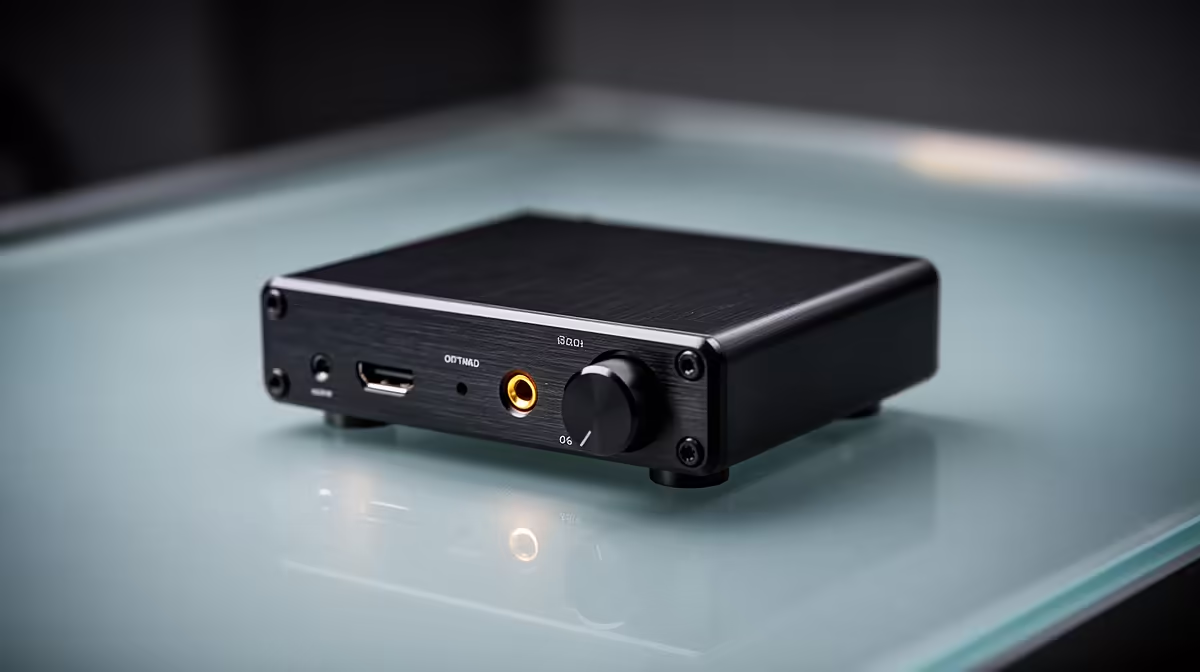
A USB DAC handles audio, not video, so it cannot cause color banding; if you see banding after adding a USB DAC, it is a coincidence and the real cause is your display settings. Set the GPU output to 10-bit RGB Full and check the cable. A quality external USB DAC at Evetech starts near R1,500 for clean audio, separate from any display issue.
Why a USB DAC Cannot Cause Banding
A USB DAC, digital-to-analogue converter, converts audio signals for your headphones or speakers and has no connection to the video pipeline. So if banding appeared around the time you installed one, the timing is coincidental, the banding stems from your monitor settings, GPU colour output, or display cable. It is worth separating the two issues clearly: enjoy the DAC for cleaner sound, and address banding entirely within your display configuration, where it actually lives on a Windows 11 PC.
Fixing the Real Banding Cause
Open your GPU control panel and set output colour depth to 10-bit with colour format RGB Full, then confirm your monitor is at native resolution and refresh in Windows 11 settings. Update GPU drivers and monitor firmware, and use a certified DisplayPort or high-speed HDMI cable, since a poor cable can force a lower colour mode. If your panel is 8-bit with FRC, enabling 10-bit in software smooths gradients. Only enable HDR if your monitor genuinely supports it. Test with a gradient image to confirm the fix.
Getting the Most From Your DAC
While the DAC does not affect video, set it up properly for the audio quality you bought it for: select it as the default Windows 11 output device, set the sample rate to match your content (commonly 24-bit/48kHz for games), and update its drivers. Keep it on a clean USB port away from interference. With audio and video treated as the separate systems they are, you get both clean sound from the DAC and smooth gradients from a correctly configured display.
FAQ
Can a USB DAC affect my monitor's colours?
No. A USB DAC only processes audio and has no role in the video pipeline. Banding that appears after installing one is coincidental; the cause is your display settings, GPU output, or cable.
What actually fixes color banding on Windows 11?
Setting the GPU output to 10-bit RGB Full, running the monitor at native resolution and refresh, updating drivers, and using a certified display cable. These address the colour pipeline where banding truly originates.
How should I configure my USB DAC?
Set it as the default Windows 11 output, match the sample rate to your content such as 24-bit/48kHz for gaming, update its drivers, and use a clean USB port. That delivers the clean audio the DAC is designed for.
Pro Tip
audio and video separately: enjoy your USB DAC for sound, and fix banding by setting the GPU to 10-bit RGB Full with a certified display cable.







