Quick Answer
Screen flickering after a Ryzen 7 9800X3D is usually a refresh-rate, VRR, cable-bandwidth, driver or power-stability problem. Lock the screen to 60Hz first, then retest 144Hz or 240Hz with the correct HDMI or DisplayPort cable. In SA, do that before replacing AMD Ryzen 7 9800X3D with B850 or X870E boards class hardware, where related parts often sit around R9,000-R12,500.
Lock Down Refresh And Cable Bandwidth
Start with the monitor at 60Hz, SDR mode and one cable connected directly to the GPU or device. If the image is stable at 60Hz but flickers at 144Hz, 240Hz, HDR or ultrawide resolution, the fault is likely cable bandwidth, VRR behaviour or driver timing. For this topic, keep 8 cores, 3D V-Cache and DDR5 6000 MT/s in mind. ## Check The Changed Part Review the part that changed and undo only risky display-facing options. For GPUs, reseat PCIe power and test without overclock tools. For AM5, DDR5 and CPU upgrades, clear unstable EXPO/XMP settings and confirm BIOS support. For handhelds, docks and USB-C displays, test the charger, dock and monitor separately.
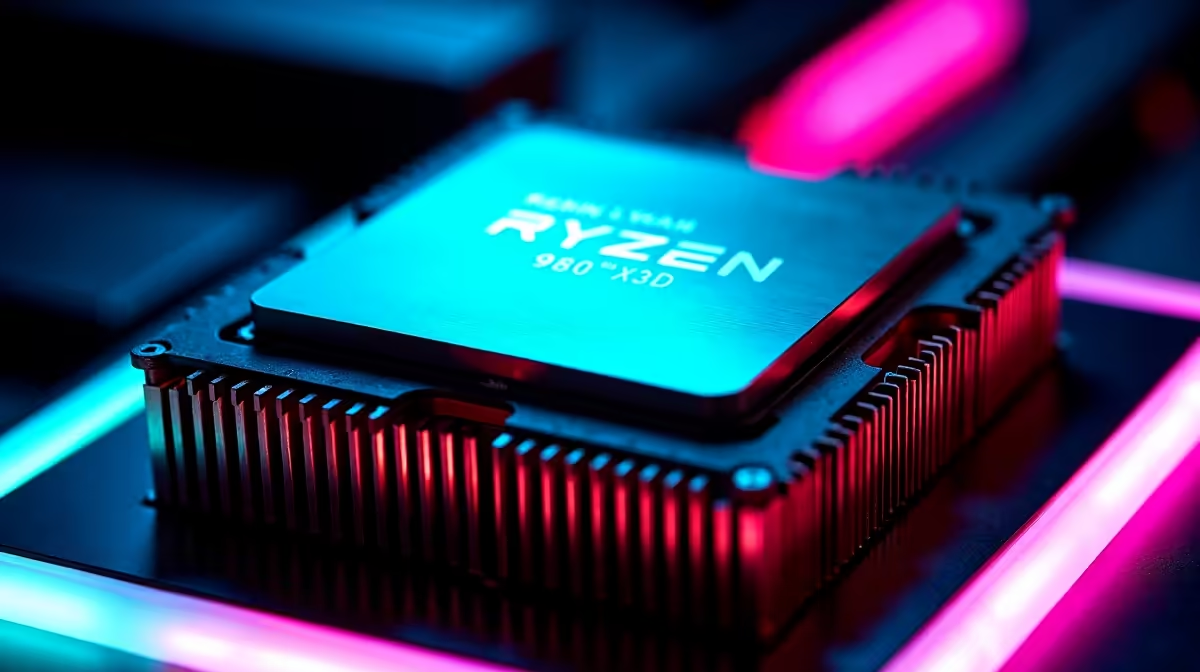
Named hardware such as AMD Ryzen 7 9800X3D with B850 or X870E boards should be tested with one known-good driver and a certified cable. This is a common local esports CPU for 1440p and 240Hz gaming.
Driver, BIOS And Replacement Checks
Install the current GPU driver cleanly, then check Windows display settings, HDR, variable refresh rate and hardware-accelerated GPU scheduling. If flicker appears only inside games, disable overlays. Replace the cheapest proven fault first; a certified cable around R1,200 or less is different from replacing a GPU or motherboard.
FAQ
Why did flickering start after a Ryzen 7 9800X3D?
The upgrade likely changed a driver, cable route, refresh mode or power state. Flicker that appears only at high refresh is usually a bandwidth or VRR issue, not a failed screen.
Should I turn off VRR or FreeSync first?
Yes, for testing. Turn VRR off, set 60Hz, confirm stability, then enable the target refresh mode again once the image is stable.
What specs matter for a replacement cable or monitor?
Match the cable to the resolution and refresh target, such as 1440p 240Hz or 4K 120Hz. For SA buyers, compare that need with the R9,000-R12,500 category before replacing larger parts.
Practical check
Save one stable 60Hz profile and one target refresh profile. If flicker returns, switch profiles before changing hardware.