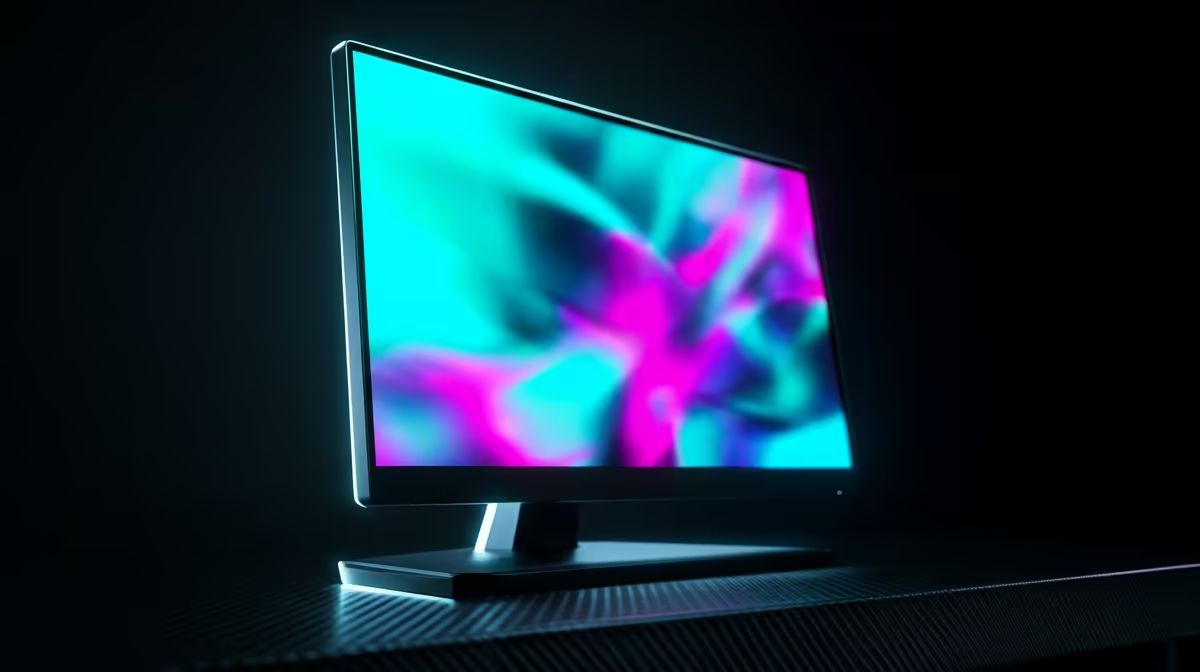
Flicker on a OLED Gaming Monitor under Windows 11 is annoying but usually a refresh-rate, cable or driver mismatch rather than a dead panel.
Quick Answer
Match the refresh rate, do a clean driver install, and turn off HDR on the desktop; that resolves the bulk of OLED Gaming Monitor flicker without new hardware.
Set the correct refresh rate
In Windows 11 go to System then Display then Advanced display and pick the panel's native refresh. A OLED Gaming Monitor set above what it supports will flicker; drop it to a confirmed value such as 144Hz or 165Hz.
Disable problem features
Turn off adaptive sync at the desktop, disable HDR when idle, and switch off hardware acceleration in browsers. These desktop-level toggles stop intermittent flicker on a OLED Gaming Monitor without new parts.
Do a clean GPU driver install
Use the GPU vendor's clean-install option or DDU in Safe Mode, then reinstall the latest driver. Most OLED Gaming Monitor flicker after an update is a half-applied driver, fixed in one pass.
Putting it together
Treat flicker as a process: lock the native 144Hz or 165Hz refresh, clean-install the driver, swap to a certified cable, then disable adaptive sync and HDR on the desktop. Retest after each change so you know which one steadied the OLED Gaming Monitor, and you avoid spending on parts you do not need.
FAQ
Does refresh rate cause flickering?
It can. Setting a refresh the panel cannot sustain makes it flash. Pick the native value such as 144Hz or 165Hz in Windows 11 display settings.
Can RGB or overlay apps cause flicker?
Yes, lighting suites and capture overlays sometimes strobe the display. Close them one at a time to find the offender, then update or remove it.
Is flicker a sign my panel is dying?
Rarely at first. Cable, refresh-rate and driver issues account for the vast majority. Only suspect the panel if flicker survives a new cable and clean driver.
certified spare cable on hand; for a OLED Gaming Monitor it is the cheapest insurance against display faults.