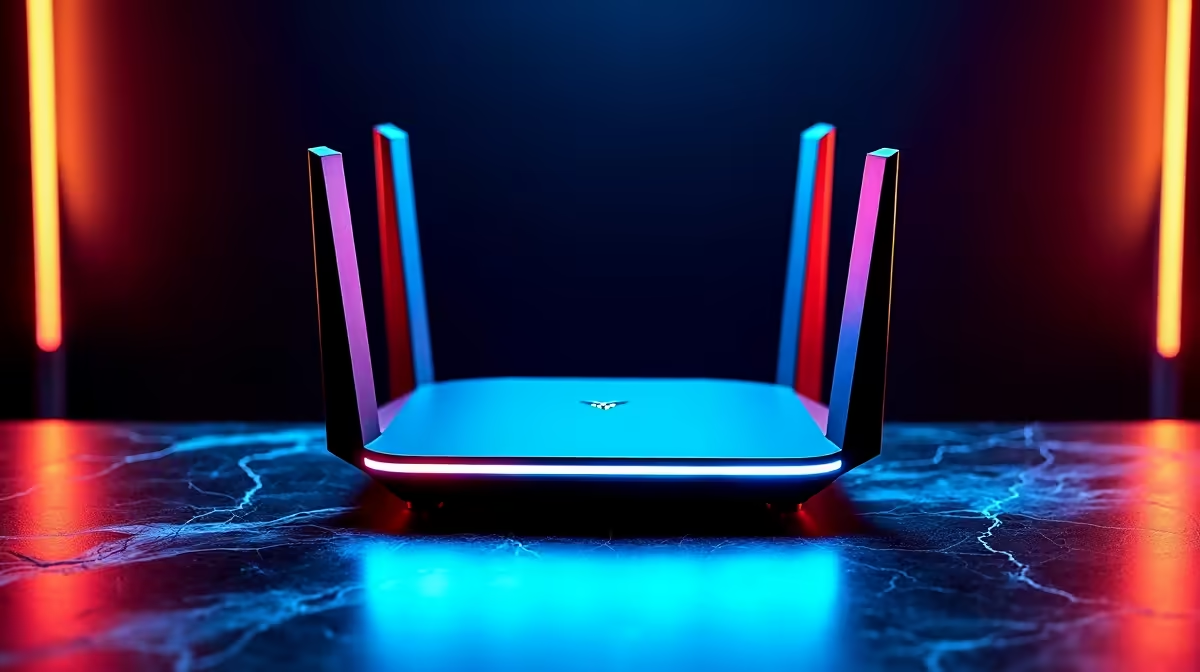
A Wi-Fi 7 router stuttering on Windows 11 usually means the adapter driver, band, or MLO setting is wrong, not that the router is faulty. Configure the Windows 11 side and the lag spikes stop.
Quick Answer
Update the Wi-Fi 7 adapter driver on Windows 11, join the 6GHz band at 160MHz width, and enable Multi-Link Operation on both router and PC. A tuned Wi-Fi 7 link holds online ping under 20ms with no spikes.
Windows 11 adapter configuration
A stale driver makes Wi-Fi 7 behave like Wi-Fi 6. Install the newest adapter driver, then in adapter properties disable power saving so Windows 11 never throttles the radio mid-game. Confirm the link reports 6GHz speeds. A Wi-Fi 7 adapter for the PC runs roughly R800 to R1,500 and is needed to reach 6GHz speeds.
Band, width and MLO
Force 6GHz, set 160MHz width, and enable MLO so the link bonds bands for steadier latency. In most SA homes 6GHz is uncongested, keeping packet loss and the stutter it causes near zero.
QoS and a wired option
Turn on gaming QoS so game packets beat downloads for priority. For absolute consistency a short Cat6 run removes wireless variables, though tuned Wi-Fi 7 on Windows 11 gets very close for online play. Keep the router firmware current too so MLO and 6GHz behave as intended across your Windows 11 sessions.
FAQ
Why is Wi-Fi 7 slow on my Windows 11 PC?
Usually an outdated adapter driver or power saving throttling the radio. Update the driver and disable adapter power management.
Does MLO need enabling on both ends?
Yes, the router and the Windows 11 adapter must both support and enable it. With both on, latency stays steady on a busy network.
Is 6GHz good across a flat?
At close range it is excellent and lowest latency. Through thick walls it weakens, so 5GHz may hold steadier across distant rooms.
Pair a Wi-Fi 7 router with a Wi-Fi 7 ready Windows 11 PC. Run 6GHz with MLO and gaming QoS for spike-free online sessions.