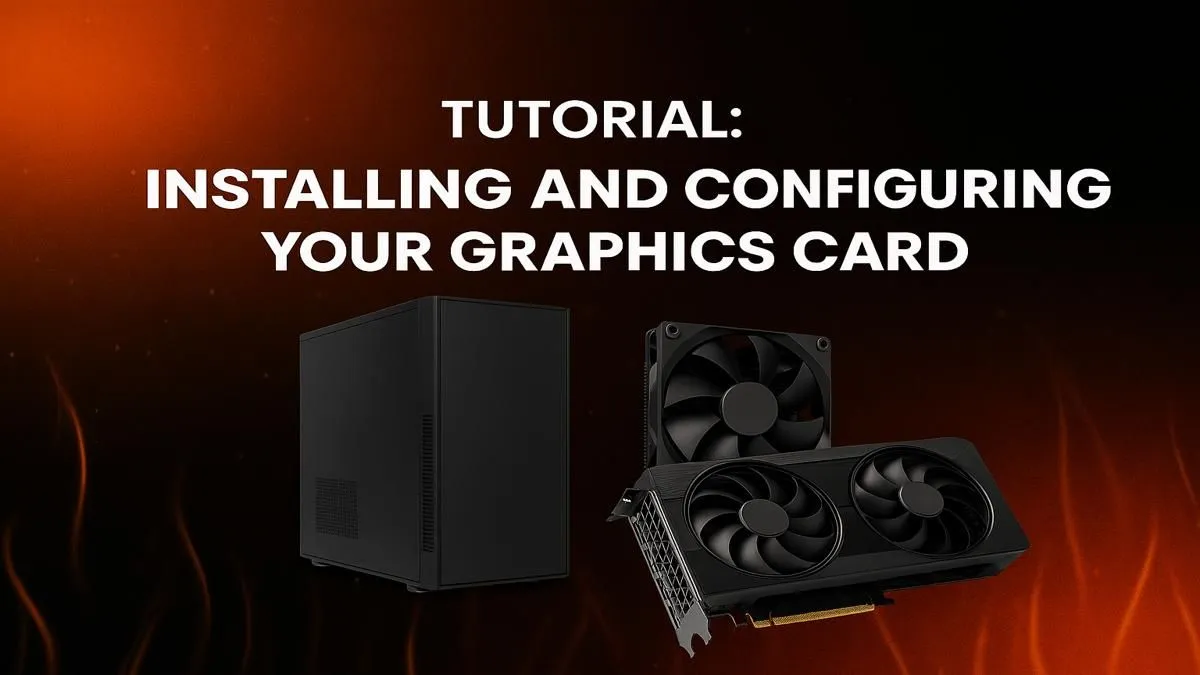
So, that massive box has arrived. Inside sits your shiny new graphics card, promising glorious frame rates and stunning visuals. The excitement is real... but so is that little voice asking, "What if I break it?" Don't stress. Knowing how to install a graphics card is easier than you think. This guide will walk you through the process step-by-step, turning that PC-building anxiety into pure gaming satisfaction. Let's get that beast installed. 🚀
Before You Begin: Prep Work is Key
A smooth graphics card installation starts before you even open your PC case. Getting a few things in order first will save you a headache later. Think of it as the setup phase before a big boss fight.
First, software. If you're upgrading, it's best practice to completely remove your old graphics drivers. A free tool called Display Driver Uninstaller (DDU) is the gold standard for this. Running it in Safe Mode ensures a clean slate for your new card's drivers, preventing potential conflicts.
Next, physical prep. You’ll only need one tool: a Phillips-head screwdriver. Ensure your PC is completely powered down, switched off at the wall, and unplugged. Press the power button a few times to discharge any lingering electricity. Finally, double-check that your powerful new card actually fits in your case! It's always a good idea to measure up before you check out the best graphics card deals to avoid any surprises.
The Step-by-Step Graphics Card Installation Guide 🔧
Alright, with the prep done, it's time for the main event. Take a deep breath; this is the fun part. We'll guide you through fitting your new graphics card securely.
1. Open Your PC Case
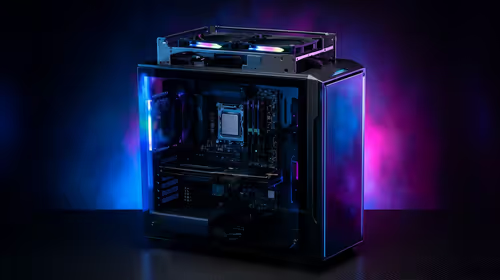
Place your computer tower on its side on a flat, stable surface. Remove the side panel—usually held on by two thumbscrews at the back—that gives you access to the motherboard.
2. Locate the Primary PCIe Slot
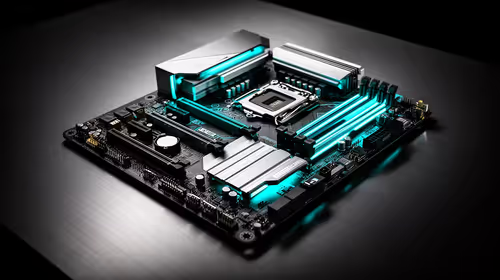
Look for the long slots on your motherboard. The one closest to your CPU is typically the primary PCIe x16 slot, and it's where your graphics card lives. It's the fastest lane on the motherboard highway, built specifically for GPUs.
3. Remove the Old Card (If Upgrading)
If you have an old card, unplug its power connectors first. Then, undo the screw(s) holding its metal bracket to the back of the case. Finally, find the small plastic clip at the end of the PCIe slot and gently press it down to release the card. You can now carefully pull the old card straight out.
That Pesky PCIe Clip ✨
The PCIe release clip can be tricky to reach, especially with a large CPU cooler in the way. Don't force it! Use the eraser end of a pencil or a plastic tool to gently press it down if your fingers can't reach. This little clip is crucial for securing your GPU, so be gentle with it.
4. Install the New Graphics Card
Remove the corresponding metal slot covers (the "blanks") from the back of your PC case where the new card's display outputs will go. Align your new GPU with the PCIe slot and gently but firmly press it down. You'll hear a satisfying click as the retention clip locks it into place. Secure the card's metal bracket to the case with the screw(s) you removed earlier.
5. Connect the Power
Modern GPUs are thirsty for power. Locate the PCIe power cables coming from your power supply unit (PSU). They are often labelled "VGA" or "PCIe" and have 6-pin or 8-pin connectors. Plug them securely into the power sockets on the top or side of your new graphics card. Whether you're installing from the latest powerful AMD Radeon options or Team Green, this step is vital.
Final Steps: Drivers and Testing
With the hardware part of your graphics card installation complete, it's time to close up the case, plug everything back in, and boot up your PC.
Your screen resolution might look strange at first—that's normal. Windows will likely use a basic display driver. Your job is to head directly to the manufacturer's website to download the latest official drivers for your model. This is non-negotiable for getting the performance you paid for, whether you chose one of the latest NVIDIA GeForce cards or an AMD powerhouse.
Once the drivers are installed (you'll need to restart your PC), you're officially done! The best way to celebrate? Fire up your favourite game, crank the settings to Ultra, and enjoy the buttery-smooth frame rates you've just unlocked.
Ready for a Game-Changing Upgrade?
Knowing how to install a graphics card puts you in control of your PC's performance. The next step is choosing the right one for your budget and your games. Explore our huge range of PC Components and find the perfect parts to build or upgrade your ultimate rig.