


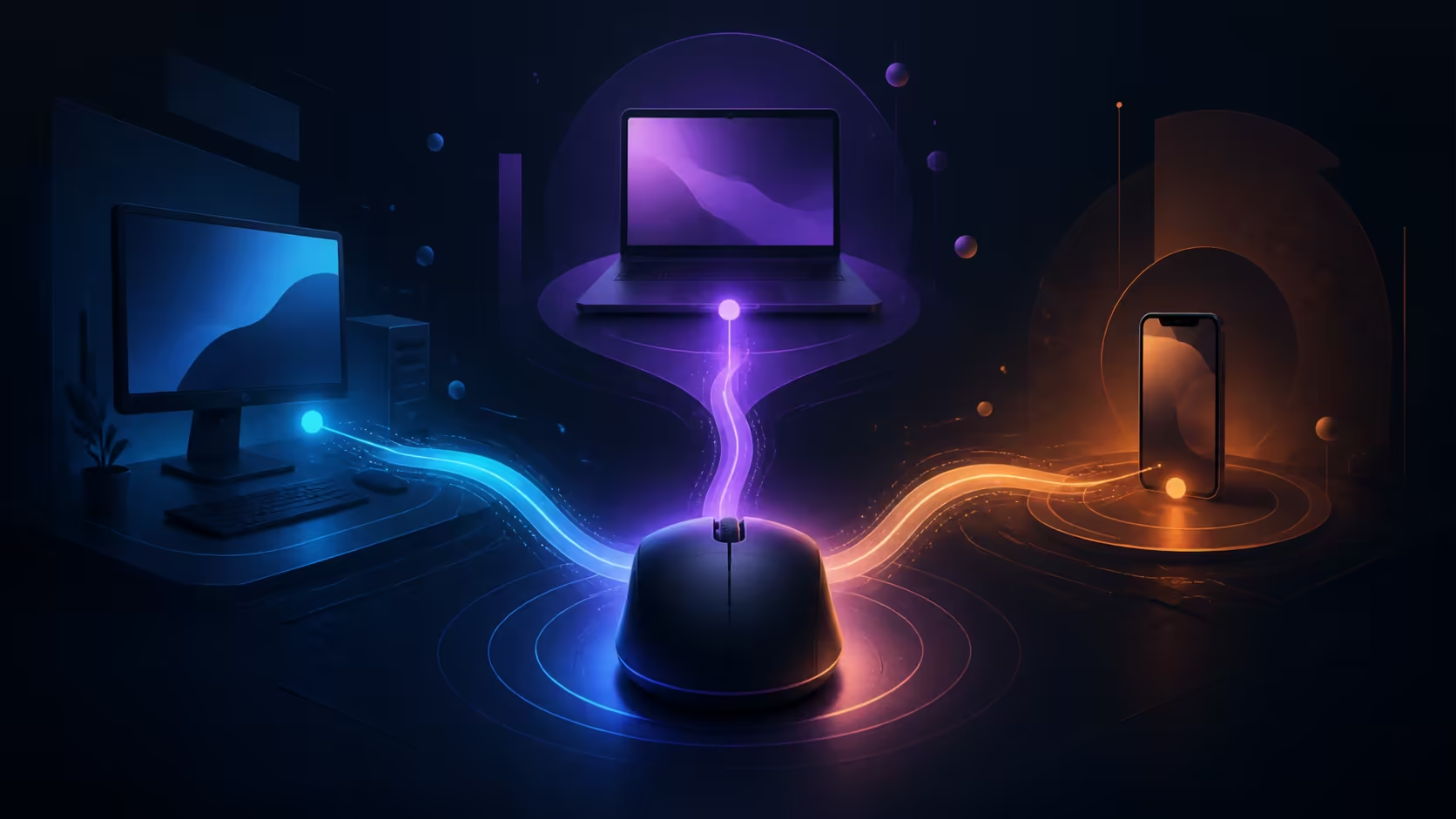
A mouse that follows you from a gaming tower to a notebook and then a tablet needs a connection plan, not repeated guesswork. Setting up a tri-mode wireless gaming mouse begins by assigning one link to each device and testing them separately. The R499 MARVO M529W NIRO B40 supports 2.4GHz, Bluetooth and wired operation across Windows, macOS, iOS and Android.
Quick Answer
Use 2.4GHz for the main gaming PC, Bluetooth for a compatible mobile device, and the wired connection when you want a direct link. At R499, the NIRO B40 covers all three routes, with six adjustable DPI levels up to 10,000 and a 500mAh battery.
🖥️ Give every host a clear role
Start with the device used most often. For a desktop gaming system, connect the 2.4GHz receiver to a stable USB port and select the matching mode on the mouse. Let Windows or macOS finish recognising it before changing sensitivity. Moving straight into a game before the pointer behaves normally on the desktop makes basic setup faults harder to isolate.
Bluetooth is useful for a laptop, tablet or phone that already has its own pairing controls. Open the host's Bluetooth menu, place the mouse in its Bluetooth mode and complete the pairing nearby. iOS and Android can both use the NIRO B40, although pointer settings and interface behaviour are controlled by the mobile operating system.
The broader gaming mice range is useful when comparing how many connection paths different models provide. Tri-mode earns its keep when each route has a deliberate purpose rather than being treated as three interchangeable labels.
🔌 Build the connections one at a time
Test 2.4GHz first with Bluetooth temporarily out of the picture. Move the pointer, click through menus and confirm that the selected DPI step feels controllable. Then switch away from that host and pair the second device. This sequence prevents one computer's remembered Bluetooth entry from being confused with the receiver link on another.
Wired mode is the simplest diagnostic path because it removes radio pairing from the chain. It also gives you a usable direct connection when you want to continue at a desk. Keep the cable routed with enough slack for full mouse movement rather than letting it drag against the edge of the desk.
Buyers comparing the NIRO B40 with other wireless mouse choices should map the available ports and Bluetooth support on every intended host. A tablet without a convenient receiver port may suit Bluetooth, while a fixed tower can keep the receiver installed.
🎯 Tune sensitivity per screen
The NIRO B40 offers six adjustable levels reaching 10,000 DPI. Begin well below the maximum and choose the step that lets you reach the display edges without overshooting icons. A high-resolution desktop monitor may favour a different step from a phone or tablet, so do not force one setting onto every screen.
For games, keep the operating-system pointer behaviour stable and make controlled changes inside the title. Test the same training area or repeatable movement after each adjustment. The goal is predictable control, not the largest number available.
At R499, the mouse also sits naturally among gaming mice under R1,000. Its value comes from using its connection and sensitivity options intelligently, not merely owning them.
🧩 Make switching repeatable
Before changing hosts, pause the active task and save any work. Select the intended mouse mode, wait for that device to respond and only then judge whether the change succeeded. If Bluetooth does not reconnect, open the receiving device's settings rather than cycling every control at once.
Keep a short note of which mode belongs to which host and the preferred DPI step for each. That small record turns an occasional multi-device chore into a predictable routine. It also helps another household member understand why the mouse appears inactive after someone used it on a different system.
Rehearse the complete device loop
Finish setup with one round trip: move from the receiver computer to a Bluetooth host, complete a small selection task, connect through the cable at the fixed desk, and return to the first machine. Keep DPI unchanged so only the route is being tested. Its supported platform list covers Android and iOS alongside macOS and Windows, but each host still needs an assigned path. Record the receiver port, Bluetooth device name, cable location and charging point beside the map. Repeating the loop after a short idle period confirms that the R499 tri-mode arrangement remains understandable beyond the first successful connection.
Frequently Asked Questions
Which connection should I use first on a gaming PC?
Begin with the 2.4GHz receiver on the main gaming PC. It creates a dedicated wireless path and leaves Bluetooth free for another compatible device.
How do I add a phone or tablet?
Select Bluetooth mode on the mouse, open the mobile device's Bluetooth controls and complete the pairing. Keep both devices close during the initial connection.
Will the mouse work on Windows and macOS?
Yes. The NIRO B40 supports both Windows and macOS, as well as iOS and Android for mobile use.
What should happen before moving to another device?
Finish the current task, select the connection assigned to the next host and wait for its pointer response. Avoid changing DPI at the same moment, because that adds an unrelated variable.
How much does this multi-platform mouse cost?
The MARVO M529W NIRO B40 costs R499. That price includes tri-mode connectivity, six DPI levels and a 500mAh battery.
Ready to organise one mouse around every screen you use? Explore Evetech's gaming mouse categories and choose a connection layout that makes moving between desktop and mobile devices feel deliberate.











