


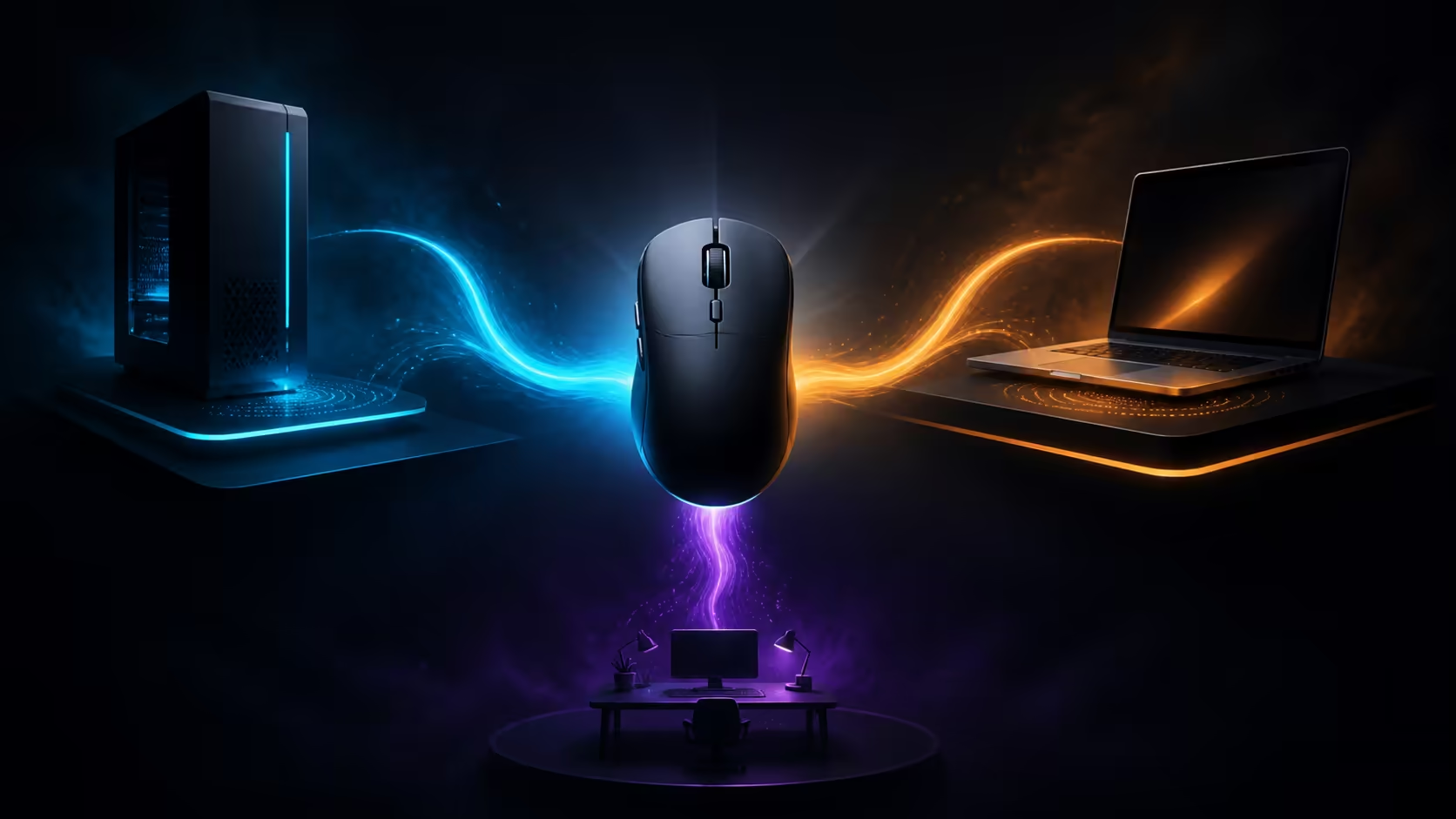
A single mouse can serve a gaming tower and a work laptop without turning the desk into a cable puzzle. The cleanest tri-mode wireless gaming mouse setup assigns one connection to each job, keeps the receiver close to the mouse, and stores the charging cable where it can be reached. Corsair's HARPOON v2 brings 2.4GHz, Bluetooth and USB-C together for R1,299.
Quick Answer
Use 2.4GHz for the gaming PC, pair Bluetooth with the laptop, and keep USB-C available for charging or wired play. The R1,299 Corsair HARPOON v2 adds a 140-hour battery, six programmable buttons, an 80g asymmetric right-handed shell and a MARKSMAN 26K sensor, making it practical to build separate gaming and work routines around one mouse.
🔌 Give each connection a clear role
Start with the computer where response matters most. Insert the 2.4GHz receiver into the gaming PC, switch the mouse to its matching mode and let the operating system finish recognising it before launching a game. A front port can work, but a short extension or a nearby hub may provide a cleaner path when a metal case or crowded rear I/O area sits between the receiver and mouse.
Bluetooth is the convenient second route for a laptop because it avoids occupying another USB port. Open the laptop's Bluetooth menu, place the mouse in pairing mode and select it from the available devices. Test pointer movement and both main clicks before closing the menu. This division also makes the mental map simple: receiver for play, Bluetooth for portable work.
USB-C completes the three-mode arrangement. Keep the cable routed with enough slack for normal swipes so a low battery does not end the session. A direct wired path is also useful when diagnosing a wireless problem because it lets you compare movement on the same sensor and shell.
The wider gaming mice selection is useful when comparing connection layouts across several models. Port availability should be considered alongside fit, battery and button access rather than after purchase.
🎯 Set the sensor before changing game values
The MARKSMAN 26K optical sensor has a 26,000 DPI ceiling, but the maximum is not a setup target. Choose a moderate starting step, leave it unchanged and adjust the game's sensitivity until a comfortable arm movement produces the turn you expect. This creates a repeatable baseline instead of mixing two controls at once.
Test with ordinary actions: selecting small desktop icons, tracing a straight line and following a moving target. If the pointer feels too nervous, lower the selected DPI step. If broad movement runs out of mouse space, increase it gradually. Keep only a few useful stages so the DPI control cannot send the cursor to an extreme value by accident.
🧩 Build separate button maps for play and work
Six programmable buttons are enough for a focused layout without forcing every command onto the mouse. In an FPS profile, side controls might handle push-to-talk and a frequently used action. A work profile can reserve them for browser navigation or another repeated shortcut. Keep the left and right clicks stable across profiles so switching computers does not upset basic muscle memory.
Introduce one remap at a time and use it for a day before adding the next. A logical layout is easier to remember than a dense one, particularly when the same physical button changes purpose between the PC and laptop. Write the map in a short note until the positions become automatic.
Buyers comparing cordless options can narrow the wireless mouse range by considering whether a second connection is genuinely useful. Tri-mode flexibility has the most value when each mode already has a defined device or fallback role.
🔋 Finish with a charging and switching routine
A 140-hour battery rating gives substantial room between charges, yet a routine is still better than waiting for a warning during a match. Connect USB-C after a long week of use or before an event where interruption would matter. Store the receiver, cable and mouse together when travelling so the three-mode advantage remains usable away from the main desk.
Before moving between computers, pause the current task and switch modes deliberately. If the cursor appears on the wrong screen, return the selector to the intended connection instead of repeatedly clicking. That small habit prevents accidental edits and makes shared-desk use calmer.
At R1,299, the HARPOON v2 sits inside Evetech's mouse options below R2,000. Use the price ceiling to compare complete fit and connectivity, not just the largest sensor number.
Rehearse the two-device handoff
Open a harmless document on the laptop and a training scene on the PC. Move from Bluetooth to 2.4GHz, check where the pointer appears, perform one action and return. Then attach USB-C and repeat the same movement. This rehearsal teaches the selector sequence before a real deadline or match. It also exposes a receiver, pairing or cable problem while no important work is at risk. Keep the order written beside the desk until the handoff feels routine.
Frequently Asked Questions
Which connection should I configure first for gaming?
Configure 2.4GHz first on the gaming PC. It establishes the main play route before Bluetooth and USB-C are added for the laptop and wired fallback.
When is Bluetooth the more useful mouse connection?
Bluetooth is useful for a laptop that needs its USB ports free. It also avoids moving the 2.4GHz receiver away from the gaming tower.
What role does USB-C have in a tri-mode setup?
USB-C provides charging and a wired operating path. Keeping its cable accessible prevents a depleted battery from stopping the mouse.
Can the same button layout suit both gaming and work?
It can, but separate focused layouts are often easier to use. Keep essential clicks consistent and change only the secondary actions that benefit each task.
How do I prevent the mouse from controlling the wrong device?
Assign each connection to one computer and switch modes before interacting with the next screen. A fixed receiver-PC and Bluetooth-laptop pattern is easy to remember.
What does the HARPOON v2 add to a two-device setup?
It provides three connection modes, six programmable controls and a 140-hour battery in an 80g right-handed shape. Those features let one device cover play, work and a wired contingency.
How much does this tri-mode Corsair mouse cost?
The Corsair HARPOON v2 is R1,299. Fit, available ports and the intended connection map should all be settled before treating that price as the final buying test.
Ready to give every computer its own clean mouse route? Explore Evetech's gaming and wireless mouse categories, then choose a tri-mode layout that matches the devices already on your desk.











