You plug a portable monitor into your laptop's USB-C port, and nothing happens. No second screen, no signal, just a charging icon. The problem is almost never the cable, it is that you connected to a charge-only USB-C port when you needed a video-capable one. Modern laptops carry several USB-C ports that look identical but do completely different jobs, and learning to read the tiny symbols next to them saves you a lot of confusion.
Quick Answer
A video-capable USB-C port carries either a DisplayPort symbol or a Thunderbolt lightning bolt beside it; a plain, unlabelled port typically handles power and data only. Check the symbol next to the port, or the laptop's spec sheet, before connecting an external display to avoid a no-signal result.
Why identical-looking ports behave differently
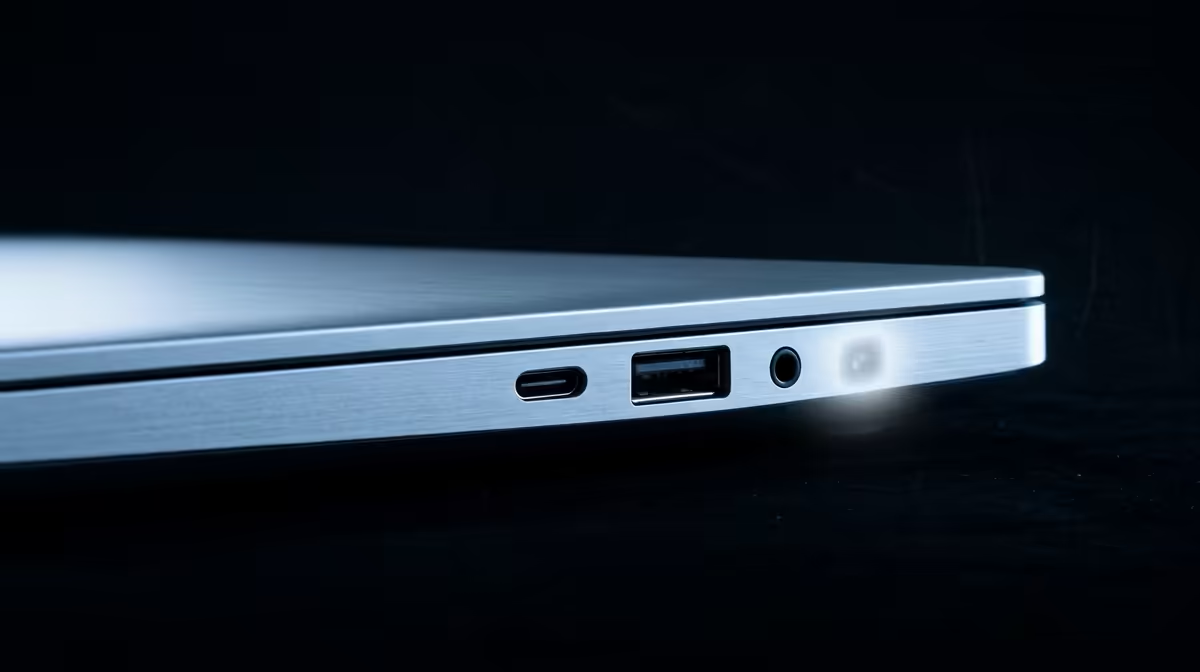
The USB-C oval is a physical form factor, nothing more. Two ports with the exact same physical plug can support wildly different capabilities depending on what the laptop maker wired behind them. One might carry video, high-speed data and fast charging; the next might only do basic data and power. Nothing about the port's appearance tells you which is which, so you have to look for the markings.
Video over USB-C relies on a feature called DisplayPort Alt Mode, where the port reroutes some of its lanes to carry a display signal. A port without Alt Mode physically cannot send video, no matter what cable or adapter you use. That is why the right port matters more than the right accessory.
If you are choosing a portable display to pair with your laptop, the portable monitor range at Evetech lists which connection each model uses, so you can confirm compatibility before you buy rather than after.
Step-by-step: identify a video-capable USB-C port
Work through these in order. The first match tells you what the port can do.
Step 1: Look for the DisplayPort symbol
Check the icon printed or moulded next to the port. A small "D" shape with a "P" inside it, or an arrow-like DisplayPort logo, means the port supports DisplayPort Alt Mode and can drive an external display. This is the most direct signal that video will work.
Step 2: Look for the Thunderbolt bolt
A lightning-bolt symbol marks a Thunderbolt port. Thunderbolt 3, 4 and 5 always include video output, full data speeds and charging, so a bolt-marked port is your best bet for an external monitor. On many laptops the Thunderbolt port is the most capable one on the chassis.
Step 3: Note the unmarked ports
A USB-C port with no symbol beside it, or only a plain USB "SS" (SuperSpeed) label, typically handles power and data but not video. Connect a monitor here and you will get charging or file transfer, but no picture. Treat unmarked ports as data-and-power only unless the spec sheet says otherwise.
Step 4: Confirm against the spec sheet
Symbols can be missing or worn, especially on older or budget machines. Open the laptop's official specification page and find the USB-C section. It will state which ports support DisplayPort Alt Mode or Thunderbolt. This is the definitive answer when the markings are unclear.
Step 5: Test before you rely on it
Before an important presentation, plug the monitor into the port you identified and confirm it works. If you get no signal on the first port, try another USB-C port, since the video-capable one may sit elsewhere on the chassis. Once you know which port works, stick with it.
Common traps that waste time
The biggest one is assuming all USB-C ports are equal. They are not, and many laptops deliberately put video on only one or two of them to save cost. A second trap is blaming the cable. A charge-only cable can be a problem, but far more often the port itself simply lacks video output, and no cable fixes that.
A third is confusing data speed with video capability. A port can run fast data and still not output video, because the two features are wired separately. Always check specifically for DisplayPort or Thunderbolt, not just for "USB-C 3.2" or a speed rating.
After you find the right port
Once you have identified the video-capable port, choosing the display is the easy part. A portable monitor that draws power and video from a single USB-C cable keeps your setup tidy, especially for a laptop bag. To see which models support single-cable operation and which need separate power, the best-selling monitors at Evetech lay out the connection details clearly.
Frequently Asked Questions
How do I know if my USB-C port supports video output?
Look for a DisplayPort arrow symbol or a Thunderbolt lightning-bolt icon next to the port. Either marking confirms video output. If there is no symbol, check the laptop's spec sheet for DisplayPort Alt Mode or Thunderbolt support.
Why does my monitor charge but show no picture over USB-C?
You have likely connected to a power-and-data-only port that lacks video output. Move the cable to a port marked with a DisplayPort or Thunderbolt symbol, which is the one that can carry a display signal.
Will any USB-C cable carry video?
Not always. A poor-quality or charge-only cable can block video, but more commonly the port itself lacks video capability. Use a full-featured cable and connect to a DisplayPort or Thunderbolt-marked port.
Is a Thunderbolt port always able to output video?
Yes. Thunderbolt 3, 4 and 5 ports include video output as standard, along with data and charging. A bolt-marked port is reliably the best choice for an external monitor.
Can a portable monitor run from a single USB-C cable?
Many can, drawing both power and video from one video-capable USB-C port. Some need a separate power input, so check the monitor's spec before relying on single-cable operation.
Now that you can spot a video-capable USB-C port, pick a screen that plugs straight in. Browse the portable monitor range at Evetech to find single-cable models that pair cleanly with your laptop's display-ready port.