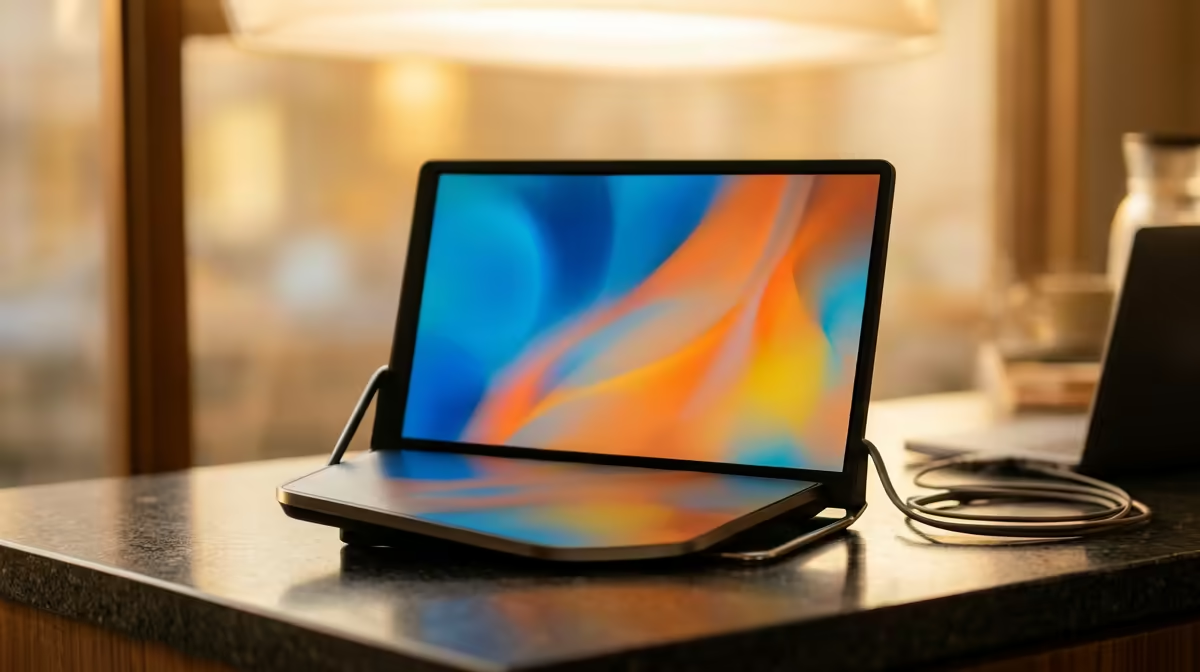
Adding a portable monitor as a laptop second screen while you travel is one of the rare upgrades that needs almost nothing: a single full-function USB-C cable carrying both video and power. Plug it in and a modern laptop extends its desktop automatically, no drivers, no settings hunt. The trick is knowing which port to use and how to arrange the two screens so your mouse moves the right way. This guide walks the full setup from cable to calibrated layout.
Quick Answer
On most laptops made in the last few years, one full-function USB-C cable delivers DisplayPort Alt Mode video and power to a portable monitor simultaneously. Connect it and the desktop extends on its own, with no driver installation needed.
Step 1: Confirm Your Laptop Has the Right USB-C Port
Not every USB-C port carries video. The one you need supports DisplayPort Alt Mode, which lets the port output a display signal. Manufacturers usually mark it with the DisplayPort or Thunderbolt logo beside the connector. Thunderbolt ports always carry video, so if your laptop has one, use it.
If you are unsure, check your laptop's specification for the phrase DisplayPort Alt Mode or Thunderbolt against the port. A plain USB-C data port will charge devices but will not drive a screen, and plugging into it is the single most common reason the monitor stays black.
Step 2: Use a Single Full-Function USB-C Cable
The cable matters as much as the port. A full-function USB-C cable carries video, data and power together. A cheap charge-only cable will power the monitor but send no picture, which looks like a faulty screen when it is really a faulty cable. Most portable monitors ship with the correct cable in the box, so start with that one.
Connect one end to the monitor and the other to the DisplayPort Alt Mode port on your laptop. The monitor should power on and display the extended desktop within a few seconds.
Step 3: Let the Desktop Extend Automatically
Modern operating systems detect the second display and extend the desktop without any setup. You should see your wallpaper appear on the portable screen, with the two displays now acting as one continuous workspace.
If the second screen mirrors your laptop instead of extending it, open your display settings and choose the extend option. On Windows the shortcut is the Windows key plus P, which brings up the projection menu so you can pick extend in one step.
Step 4: Arrange the Screens to Match Reality
In display settings you will see two numbered rectangles representing your screens. Drag them so their on-screen positions match where the monitors physically sit on your desk. If the portable monitor stands to the right of your laptop, place its rectangle to the right. Get this wrong and your cursor will jump off the wrong edge, which is disorienting on a train tray table.
Set the Main Display
Decide which screen holds your taskbar and primary apps, then mark that one as the main display. Many people keep the laptop as the main screen and push reference material, chat or a video call onto the portable.
Match Scaling and Orientation
If text looks tiny or huge on the second screen, adjust its scaling independently so both screens read comfortably. Portable monitors with a kickstand can also be rotated to portrait for reading long documents or code, in which case set the orientation to match in display settings.
Step 5: Handle Power on the Move
A portable monitor drawing power from your laptop's USB-C port will shorten the laptop's battery life, since it is now feeding two screens. For longer sessions away from a wall socket, choose a monitor with its own power input or a power-passthrough port so it can run from a separate charger or power bank. That keeps your laptop battery for the laptop.
When you are choosing a screen, the portable monitor range at Evetech lets you compare panel size, resolution and power options side by side. To see which travel-friendly screens are most popular right now, the Evetech monitor best sellers are a quick reference before you commit.
Frequently Asked Questions
Do I need to install drivers for a USB-C portable monitor?
No. Modern laptops recognise a DisplayPort Alt Mode display automatically and extend the desktop with no driver installation. If nothing appears, the issue is almost always the port or the cable, not missing software.
Why is my portable monitor black even though it powers on?
You are likely using a charge-only cable or a USB-C port that does not support video output. Switch to a full-function cable and one of the ports on your laptop that has the DisplayPort or Thunderbolt marking on it.
Can one USB-C cable carry both video and power?
Yes, that is the whole appeal. A full-function USB-C cable handles DisplayPort Alt Mode video alongside power delivery, so a single connection runs the screen.
How do I stop my cursor jumping to the wrong screen?
Open display settings and drag the two screen rectangles so their arrangement matches the physical placement on your desk. The cursor crosses where the rectangles touch, so align them to reality.
Will a portable monitor drain my laptop battery?
It will, since the laptop is powering both displays. For longer mobile sessions, pick a monitor with its own power input or passthrough so it draws from a charger or power bank instead.
Want a second screen that fits in your laptop bag? Browse the portable monitor range at Evetech, compare size, resolution and power options, and pick the travel display that suits how you work on the go.