Coders, writers and anyone who lives in long documents quickly discover that a tall, narrow screen beats a wide one for reading top to bottom. Turning a portable monitor on its side to run vertical is one of the cheapest productivity upgrades going, and it takes about a minute once you know the two moves involved.
Quick Answer
Setting a portable monitor to portrait takes two steps: physically rotate the panel onto its side, then change the display orientation to Portrait in your operating system. The catch is that built-in folio kickstands only hold landscape, so for vertical use you will need a separate stand that supports the rotated panel.
Why go portrait at all
A vertical screen shows far more of a long page at once. A full code file, a contract, a long email thread or a social feed all read better when the screen is taller than it is wide. Pair it beside your main landscape display and you get a fast reference column for documentation while you work on the primary screen. It is one of those changes that feels small until you stop reaching for the scroll wheel every few seconds.
Step-by-step: rotate the panel and the picture
Step 1: Physically rotate the monitor
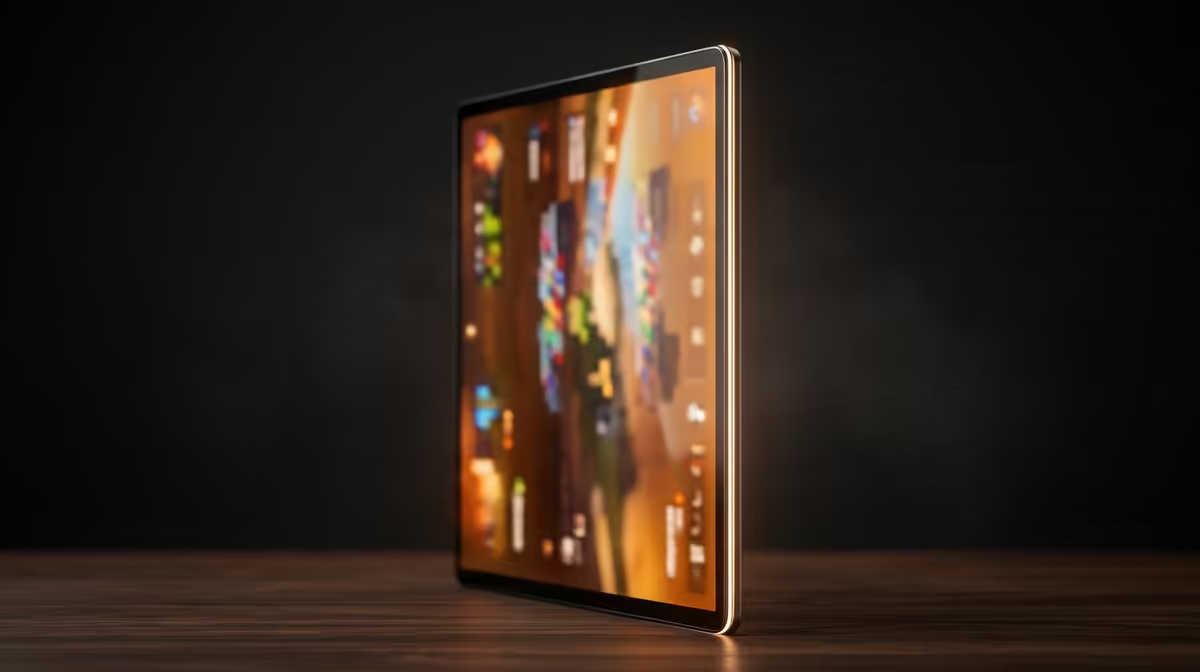
Stand the portable monitor on its short edge so the panel is now taller than it is wide. Here is the snag most people hit: the folio cover that ships with most portable monitors is designed to prop the screen in landscape only. Tipped on its side, that kickstand will not hold the panel steady. You will want a separate stand or arm rated for the screen's weight that can grip it in the vertical position. Set it at a comfortable viewing height before you touch any software.
Step 2: Set the orientation in Windows
On Windows, right-click the desktop and open Display settings. Select the portable monitor from the diagram of your screens, find Display orientation, and switch it from Landscape to Portrait. The image rotates to fill the now-vertical panel. If it appears upside down for your stand, choose Portrait (flipped) instead. Apply, and keep the change when prompted.
Step 3: Set the orientation on macOS
On a Mac, open System Settings, go to Displays, and select the portable monitor. Look for the Rotation control and pick 90 degrees so the desktop turns to match the panel. If the image ends up the wrong way for how your stand holds the screen, choose 270 degrees instead. The Mac remembers the setting for that display next time you plug it in.
Step 4: Line the screens up
With the panel rotated, open your display arrangement and drag the portable monitor's box so its position matches where it physically sits next to your main screen. Get the top and bottom edges roughly aligned so your cursor crosses between the two displays smoothly instead of jumping. This is the step people skip, and it is the difference between a tidy dual setup and a fiddly one.
Getting the stand right
Because the kickstand limits you to landscape, the stand is the part worth thinking about. A small desktop arm or a dedicated portable-monitor stand that clamps the panel vertically keeps it stable and lets you set the height. Match the stand to your screen size and weight so it does not tip. A 15-inch panel is heavier than a 13-inch one, so a stand rated only for smaller screens may wobble. Many third-party monitor arms clip onto a desk edge and can rotate to any angle, which gives you the option to flip back to landscape whenever you need wider real estate. You can browse suitable vertical-friendly screens in the portable monitor range at Evetech, and for mounting and desk-display ideas the monitors SA buyers pick most often are a helpful starting point.
Which tasks benefit most
Portrait orientation earns its place for a specific set of tasks. Long-form writing is the clearest win: you see two or three times as many lines at once, which cuts context-switching as you edit. Coding benefits similarly, especially when working with files that do not scroll horizontally. Reading PDFs, legal documents, or research papers in portrait feels more like a physical page and less like squinting at columns. Social media management and web analytics dashboards also benefit, since most web content is designed for a tall scroll. Where portrait falls short is in tasks that want width -- spreadsheets with many columns, video editing timelines, and gaming all belong on a landscape display.
Frequently Asked Questions
Why will the kickstand not hold my monitor in portrait?
Folio kickstands on most portable monitors are built to prop the panel in landscape only. Rotated onto its side, the panel is unbalanced for that stand, so you need a separate stand or arm that grips it vertically.
How do I rotate the screen image to portrait in Windows?
Right-click the desktop, open Display settings, select the portable monitor, and change Display orientation to Portrait. Use Portrait (flipped) if the image is upside down for your stand.
How do I set portrait mode on a Mac?
Open System Settings, go to Displays, select the monitor, and set Rotation to 90 degrees. Choose 270 degrees if the picture ends up the wrong way round for your stand.
Will portrait mode lower the image quality?
No. Rotation only changes orientation, not resolution or sharpness. The screen shows the same number of pixels, simply arranged tall instead of wide.
Is a portrait monitor worth it for coding?
For long files and documentation it is excellent, because you see far more vertical content at once and scroll less. Many developers run a vertical second screen purely as a reference column.
Want a screen that works just as well stood on its side? Explore the portable monitor range at Evetech and pair it with a stand that supports portrait so you can read tall from day one.