Preparing Your PC for a GPU Upgrade
There is nothing quite like the smell of a fresh PCB arriving at your doorstep in South Africa. You have spent your hard-earned ZAR on a beastly upgrade, but now comes the nervous part. If you want to install a graphics card safely, you need a clear plan. One wrong move could lead to a very expensive paperweight... and nobody wants that. Let’s get your rig ready for peak performance. 🔧
Before you touch your hardware, ensure your workspace is clean and well-lit. Static electricity is the silent killer of modern graphics cards and other sensitive components. You should ideally work on a non-conductive surface like a wooden table. Avoid standing on a carpet while working... friction is your enemy here. Ensure you have a standard Phillips-head screwdriver nearby.
The Clean Slate Pro Tip ⚡
Before physically swapping your hardware, download a utility called Display Driver Uninstaller (DDU). Use it to wipe your old display drivers in Windows Safe Mode. This prevents software conflicts that often occur when switching between different GPU architectures or brands, ensuring your new card runs at its full potential from the first boot.
How to Install a Graphics Card Safely (Step-by-Step)
The physical installation is the most satisfying part of any build. Start by shutting down your PC and flipping the power supply switch to the "off" position. Unplug the kettle lead from the wall. Press the PC power button a few times to discharge any remaining energy in the capacitors.
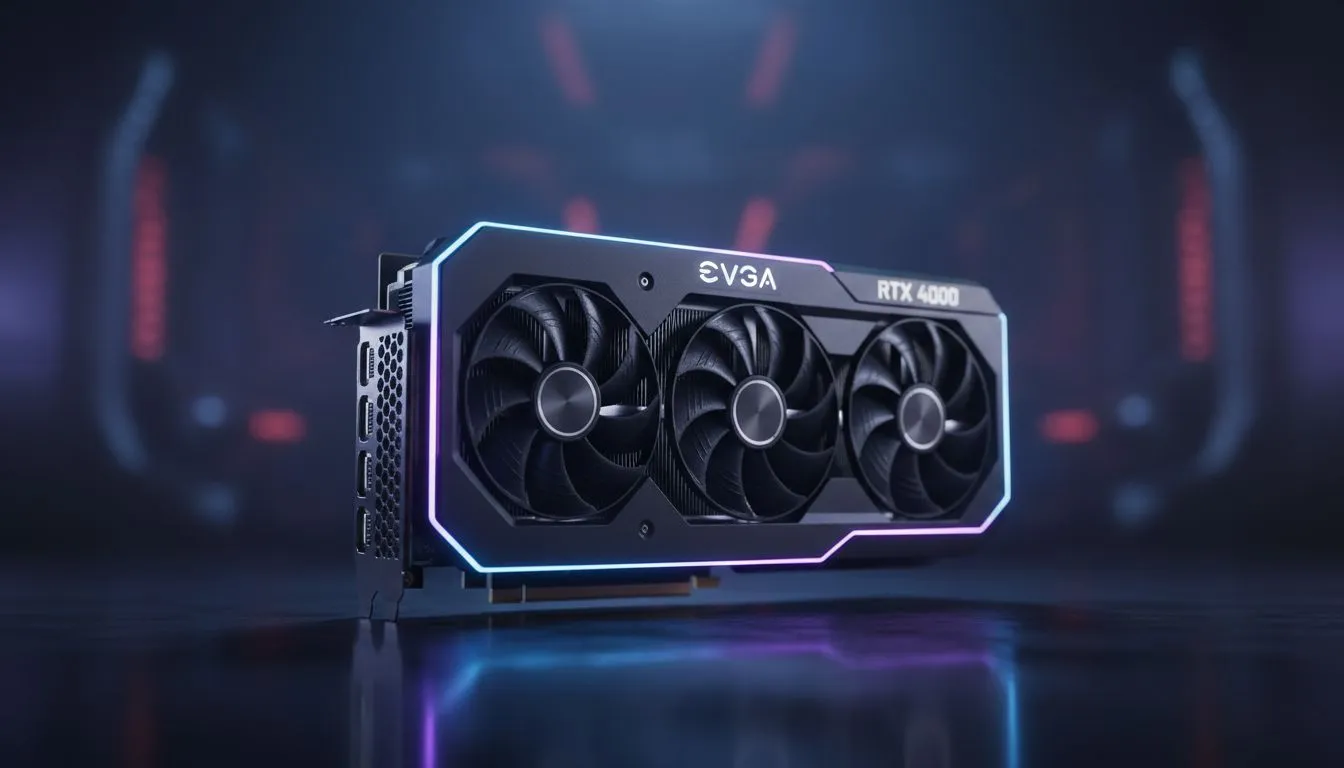
Once the side panel is off, locate the PCIe x16 slot. This is usually the topmost long slot on your motherboard. If you are upgrading to one of the high-end GeForce Graphics Cards, you might need to clear some space. Remove the metal PCIe bracket covers on the back of your case that align with the slot.
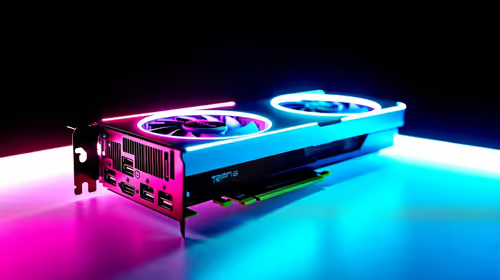
Carefully align the gold contacts of your GPU with the slot. Press down firmly but evenly until you hear a satisfying "click" from the plastic retention clip. If you are using a premium card from a brand like MSI, keep in mind that these can be quite heavy... you might want to consider a GPU support bracket to prevent "sag" over time. ⚡
Powering Up and Driver Setup
Your card is now seated, but it still needs juice. Most modern Radeon Graphics Cards and Nvidia equivalents require dedicated 8-pin or 16-pin power cables from your PSU. Ensure these are clicked in fully. A loose power cable is a common cause of "no signal" errors on the first boot. 🚀
Once everything is plugged in, reattach the side panel and reconnect your monitor cable directly to the GPU... not the motherboard. Boot up your PC and head to the official manufacturer website to download the latest drivers. This ensures you get the best frames and the most stable experience in your favourite titles.
Ready to Find Your Perfect Match?
Upgrading your GPU is the fastest way to transform your gaming experience. For the best deals on the latest hardware in South Africa, we have you covered. Explore our massive range of graphics cards and find the perfect machine to conquer your world.