


What Monitor Should You Keep When Upgrading to an RTX 50 Card?
Quick Answer
Keep your monitor when its resolution, refresh rate, adaptive-sync behaviour and ports still match the games you play. A good 1440p high-refresh or 4K panel can carry straight into an RTX 50-series upgrade.
Replace it when the new GPU spends most of its time producing frames the screen cannot show, the resolution no longer suits your image-quality target, or the panel itself has weak motion, contrast or ergonomics.
Test the new card on the current screen first when you can. You may find that a frame cap, higher settings or better ray tracing uses the extra GPU performance without another purchase.
Step 1: Identify the Exact Monitor
Read the model number from the rear label, monitor menu or purchase record. Record native resolution, maximum refresh rate, adaptive-sync range and available inputs.
Do not stop at a family name. Manufacturers can sell several panels with similar names and different port limits. The manual tells you which input carries the full refresh, colour depth and variable-refresh features.
Check the physical side too. Measure screen size, viewing distance and stand adjustment. A monitor can be technically capable and still be uncomfortable for your desk.
Step 2: Define the RTX 50 Upgrade
RTX 50-series cards cover different performance tiers. The monitor that suits one model and game library may leave another underused.
Choose the card from the games, resolution and frame-rate target you want. Review current GeForce graphics-card options alongside popular GPU choices, then verify the exact product, PSU and case requirements.
Do not buy a GPU from the monitor's maximum refresh alone. Current performance moves with ray tracing, upscaling, frame generation, CPU and game patch.
Step 3: Check What Your Screen Can Show
A 1080p 60Hz screen displays at most 60 fresh images each second. A powerful GPU may still improve frame-time stability and let you raise settings, but much of its high-frame-rate ability remains invisible.
A 1080p 240Hz screen is different. It can be a strong partner for competitive gaming where latency matters and the CPU can feed high frame rates.
At 1440p 144Hz to 180Hz, you get a broad balance of sharpness and speed. This is the easiest type of monitor to carry into many RTX 50 builds.
A 4K high-refresh screen gives the GPU a heavier pixel load and creates room for a later upgrade. Demanding games may still need upscaling or tuned settings.
Step 4: Test the CPU Limit
At lower resolution and competitive settings, the CPU can decide maximum frame rate before the GPU reaches full use. A new graphics card will not remove that limit.
Use current benchmarks for your processor and games. Check GPU utilisation and frame times during your own play. Low GPU use with one or more busy CPU threads can point to a CPU or game-engine ceiling.
A higher-resolution monitor moves more work to the GPU, but buying pixels is not a fix for a weak CPU. Decide whether you want image quality or higher competitive frame rate.
Step 5: Verify Adaptive Sync
Variable refresh keeps the display aligned with the frames the GPU produces. It remains valuable on a fast card because demanding scenes, ray tracing and frame-time spikes keep output from staying fixed.
Check whether the monitor works with a GeForce GPU through its intended input. Look for tested behaviour, supported range and low frame-rate compensation.
An older FreeSync monitor may work without formal G-SYNC Compatible certification. Test for flicker, blanking and wake problems before deciding it must be replaced.
Step 6: Inspect the Connection Path
Resolution, refresh, colour depth and HDR all consume link bandwidth. The GPU and monitor need a common port mode that carries the combination you want.
Read both manuals. Some monitors reach maximum refresh only through DisplayPort, while another input has a lower limit. Display Stream Compression can enable a higher mode when both ends support it.
Use a suitable certified cable. An old lead can create intermittent blanking or force a lower mode, making a healthy screen look obsolete.
Step 7: Judge the Panel, Not Just Its Ceiling
Fast refresh means little when pixel response cannot keep up. Read measured reviews for response time and overshoot across several refresh rates.
Contrast, uniformity and colour also shape the upgrade. A good older IPS panel can remain excellent for mixed work and gaming. A VA screen with deep blacks may still win in your dim room.
HDR is a separate reason to change. If the old display has no local dimming and modest brightness, a capable OLED or mini-LED panel can deliver a visible upgrade that the new GPU is ready to drive.
Step 8: Match Common Monitor Types
Keep a 24-inch 1080p 144Hz screen for an entry RTX 50 card or a competitive setup. Replace it when you want more desktop detail or a larger image.
Keep a 27-inch 1440p 165Hz display for mixed gaming. It gives most cards room to show high frame rates while demanding games use adaptive sync.
Keep a 32-inch 4K 144Hz monitor when sharpness and high settings matter. The screen ceiling can outlast several GPU generations.
Review a 60Hz panel more critically. It can remain sound for slow strategy games or creative work, but it leaves high-refresh performance unseen.
Step 9: Decide Whether Ultrawide Still Fits
A 3440 x 1440 ultrawide is heavier to render than standard 1440p and lighter than 4K. It can be a good carry-over screen for an RTX 50 card.
Game support matters. Some competitive titles restrict the wider field of view, and older games may need fixes or show black bars.
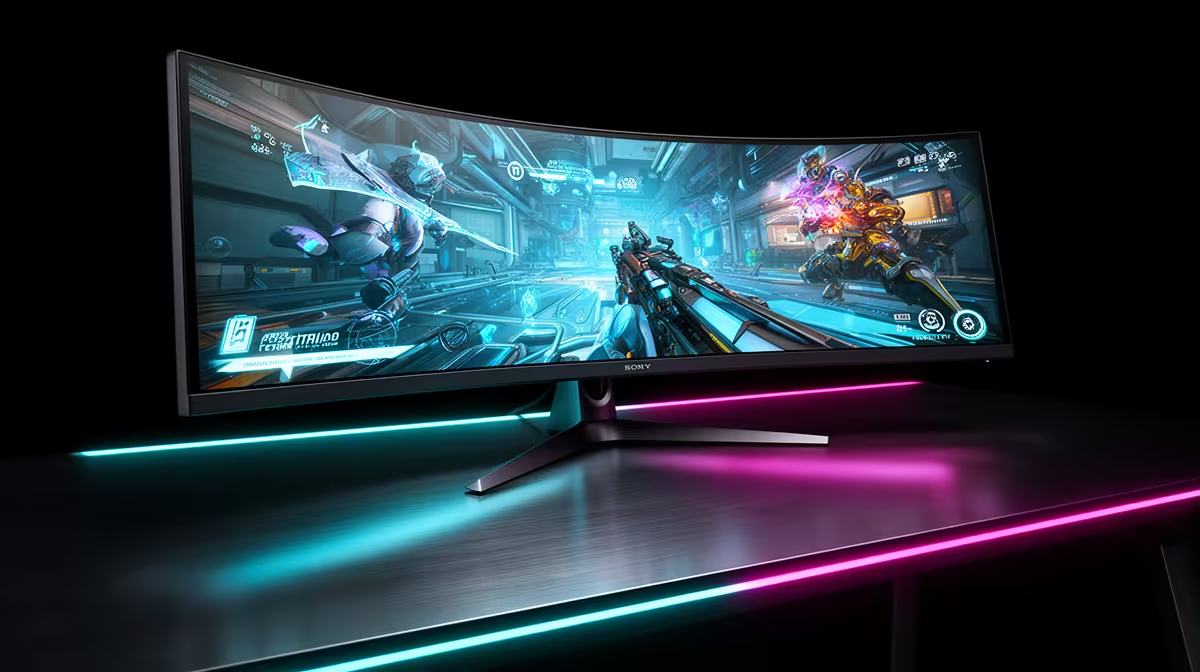
A 5120 x 1440 super ultrawide approaches the pixel load of 4K. Check the exact card's current benchmarks at the screen's resolution before expecting maximum refresh.
Step 10: Use the Current Screen as a Baseline
Install the GPU with the correct PSU capacity, connectors and case clearance. Use the native monitor resolution and highest supported refresh.
Run the games you know. Record frame rate, frame-time consistency, GPU use and the settings you enjoy. Try adaptive sync and a sensible frame cap.
If the experience feels smooth and the image suits you, keep the monitor. If you keep hitting the refresh ceiling in competitive games, higher refresh may help. If the GPU has headroom while the image looks coarse, higher resolution is the stronger upgrade.
Keep or Replace: A Fast Decision Table
Keep the monitor when it offers the resolution you want, a refresh ceiling close to your game targets and stable adaptive sync. Keep it when replacing it would force a compromise elsewhere in the build.
Replace it when you are stuck at 60Hz despite playing fast games, need more desktop detail, want meaningful HDR or cannot connect the desired mode.
Delay the choice when the new GPU has not been tested. A week with the current panel gives you better evidence than a specification comparison alone.
Set Up the Reused Screen Properly
Windows can return to 60Hz after a driver or GPU change. Select the intended refresh and native resolution.
Enable variable refresh in the monitor and NVIDIA controls. Recheck colour range, bit depth and HDR settings because the connection may be detected as new.
Start with a balanced overdrive mode. Recalibrate brightness for your room. Update monitor firmware only through the manufacturer's official route.
FAQ
How do you know whether the current monitor suits the card?
Compare your game's delivered frame range with the screen resolution, refresh and adaptive-sync range, then test the actual pairing.
Does 1080p waste an RTX 50 card?
It can leave image-quality performance unused, while a high-refresh competitive setup may use the card well. The card tier and game target decide it.
Is 1440p still a fair match?
Yes. A good 1440p high-refresh monitor balances sharpness and speed across many current games.
Should the GPU or monitor come first?
Upgrade the part that blocks the experience you want. A 60Hz limit points towards the screen; poor game performance at the desired settings points towards the PC.
When does the monitor need replacing?
Replace it for a clear gain in refresh, resolution, HDR, motion or ergonomics. A new GPU by itself does not create that requirement.
Test the RTX 50 card at your monitor's native mode, then replace the panel only when measured frame range or image goals expose a real limit.











