


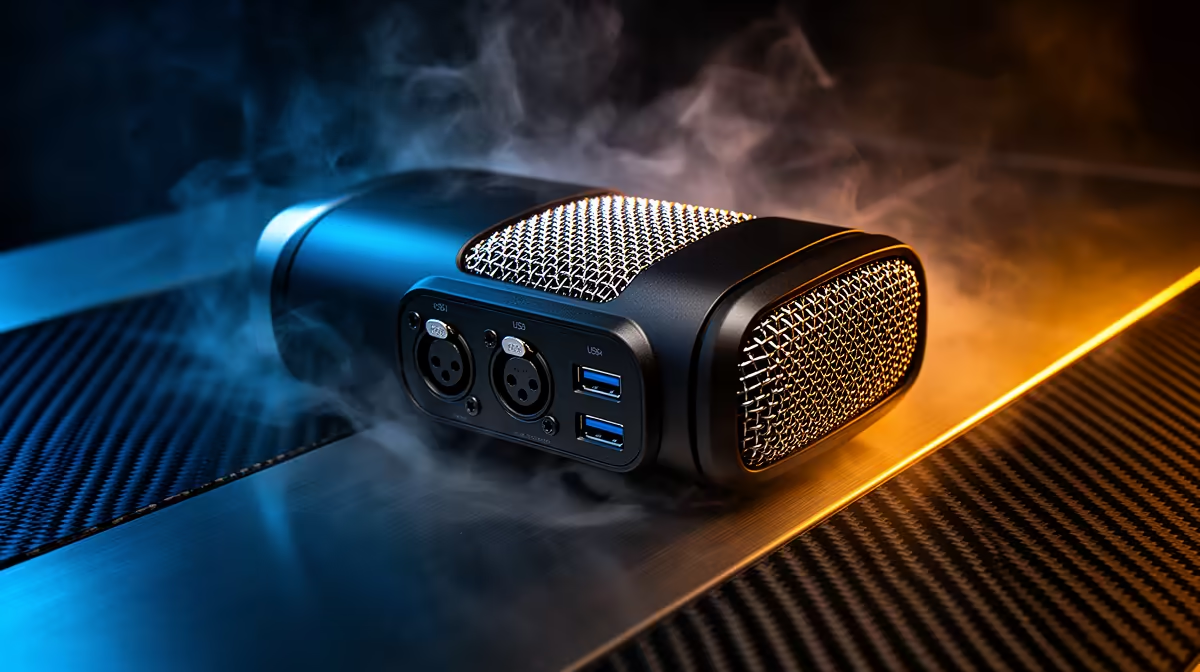
A dual USB/XLR gaming microphone gives you two complete signal paths in a single body: a USB output that works immediately with any PC, and an XLR output that connects to an interface whenever you are ready to scale. Most creators start on USB, stream consistently for a few months, then add an interface and shift to XLR without touching the microphone. Getting the setup right from the first session means a cleaner signal, better monitoring, and a configuration that transfers to the XLR side without re-learning the basics.
Quick Answer
Start on USB for plug-and-play streaming. Set input gain so peaks land near minus 12dB, plug headphones into the mic for direct monitoring, and position the capsule 10 to 15 centimetres from your mouth on a boom arm. When you add an interface, move to XLR for cleaner preamp gain and a free USB port.
🔌 Starting on USB: The First-Session Setup
USB setup takes under five minutes. Connect the mic to a USB port, open your audio settings in Windows and confirm the microphone appears as an input device, then select it in your streaming or recording software. No drivers are required on modern operating systems. The mic powers from the USB bus.
The first adjustment that matters is input gain. Open your streaming software, speak at your normal stream volume while watching the input meter, and adjust the gain knob on the microphone until your loudest consistent peaks land around minus 12 decibels. That headroom keeps your signal clean when you raise your voice during an exciting moment in a game. Peaks that hit zero will clip, and clipping distorts in a way that cannot be fixed in post.
The direct monitoring jack is often overlooked at setup and regretted later. Plugging your headphones into the 3.5mm output on the mic body gives you a near-zero latency feed of your own voice, under 10 milliseconds, as you speak. Software monitoring routes your voice through the PC's audio stack, which adds delay that makes it feel like you are talking with a slight echo behind you. Hardware monitoring is cleaner, and it lets you hear exactly what the mic is picking up from the room, including any noise sources you might want to address before the stream starts.
🎯 Placement and Gain for Gaming Sessions
Gaming introduces a specific challenge that voice calls do not: the microphone sits on a desk near a mechanical keyboard. Even a quiet switch produces a sharp transient that a sensitive condenser capsule picks up clearly. A supercardioid or cardioid dynamic capsule on a dual USB/XLR mic rejects a significant amount of that side and rear noise, but placement amplifies the benefit.
Mount the mic on a boom arm and position the capsule roughly 10 to 15 centimetres from your mouth, with the mic body slightly to the side of your gaming position rather than directly in front of your keyboard. This orientation puts the keyboard in the rejection zone behind the capsule rather than beside it, where the pattern is weaker.
If your mic has an adjustable gain knob, resist the urge to push it high to compensate for distance. Gain and proximity work against each other. Moving closer and running less gain produces a cleaner signal than sitting far back with the gain boosted. At high gain settings, the capsule amplifies the room equally with your voice, which narrows the difference between your voice and the background.
Pro Tip ⚡
Before your first stream on USB, record a 60-second test clip while running your usual game in the background. Play it back through headphones and listen for keyboard bleed, fan noise and game audio bleed from your headset. Adjust placement before the stream rather than realising mid-session that your mic is picking up more room than voice.
🚀 Moving to XLR When the Time Comes
Adding an audio interface changes what the XLR side of the mic can do. The interface provides phantom power for condenser capsules and a hardware preamp that amplifies the microphone signal before it reaches your PC. For a dynamic capsule that needs a clean, quiet gain stage, a dedicated interface preamp is noticeably better than the preamp built into the USB circuit on most mics.
When you are ready to make the switch, connect the XLR cable from the mic to an input channel on the interface, set the interface as the audio input in your streaming software, and match your levels using the interface's gain dial rather than the mic's USB knob. From this point, the USB port on the mic becomes either idle or available for a secondary device.
The XLR setup also opens one more input to your PC, since the microphone is no longer occupying a USB slot. For a gaming desk already running a headset, a controller, a keyboard and a mouse through a USB hub, that freed port has practical value.
Frequently Asked Questions
Should I start a dual mic on USB or XLR first?
Start on USB. It requires no interface, no phantom power source and no driver installation. You are streaming within minutes of unboxing. XLR becomes the better choice once you have added an interface to the chain, which is worth doing when you want extra clean preamp gain or need to run a second microphone alongside the first. Using USB first also lets you learn the mic's character before adding interface variables.
What gain level should I aim for on the mic knob?
Set input gain so your loudest speaking peaks reach approximately minus 12 decibels in your streaming or recording software's meter. This leaves enough headroom before the signal clips during excited commentary or sudden shouts. Clipping distorts the audio in a way that is not recoverable in editing. Starting conservatively and adjusting upward is safer than setting gain high and pulling it back after distortion appears on a stream.
How do I monitor my own voice without software delay?
Plug your headphones into the 3.5mm monitoring jack on the microphone body rather than routing audio through your PC. This provides direct monitoring with latency under 10 milliseconds, which is inaudible in practice. Software monitoring through a PC audio stack typically introduces 20 to 80 milliseconds of delay depending on buffer settings, which creates an audible echo that makes natural speech feel strange.
When does it make sense to switch to the XLR output?
Switch when you add an audio interface to your setup. The interface preamp is cleaner than the USB circuit preamp at similar gain levels, and the interface gives you hardware volume control, additional inputs and compatibility with any XLR microphone you add later. It is also worth switching when your PC's USB bandwidth is becoming a constraint and you want to free a port from the microphone.
How far should the mic sit from my face while gaming?
Position the capsule 10 to 15 centimetres from your mouth on a boom arm. This distance keeps your voice level strong while the cardioid or supercardioid pattern rejects keyboard noise and game audio from behind and to the sides. Further back requires higher gain, which raises the noise floor. Closer risks plosive overload on hard consonants, though a pop filter handles that if your style is loud or energetic.
Ready to set up your dual USB/XLR microphone the right way? Explore the gaming microphone range at Evetech and find a dual-output mic that starts on USB and scales to XLR when your setup grows.











