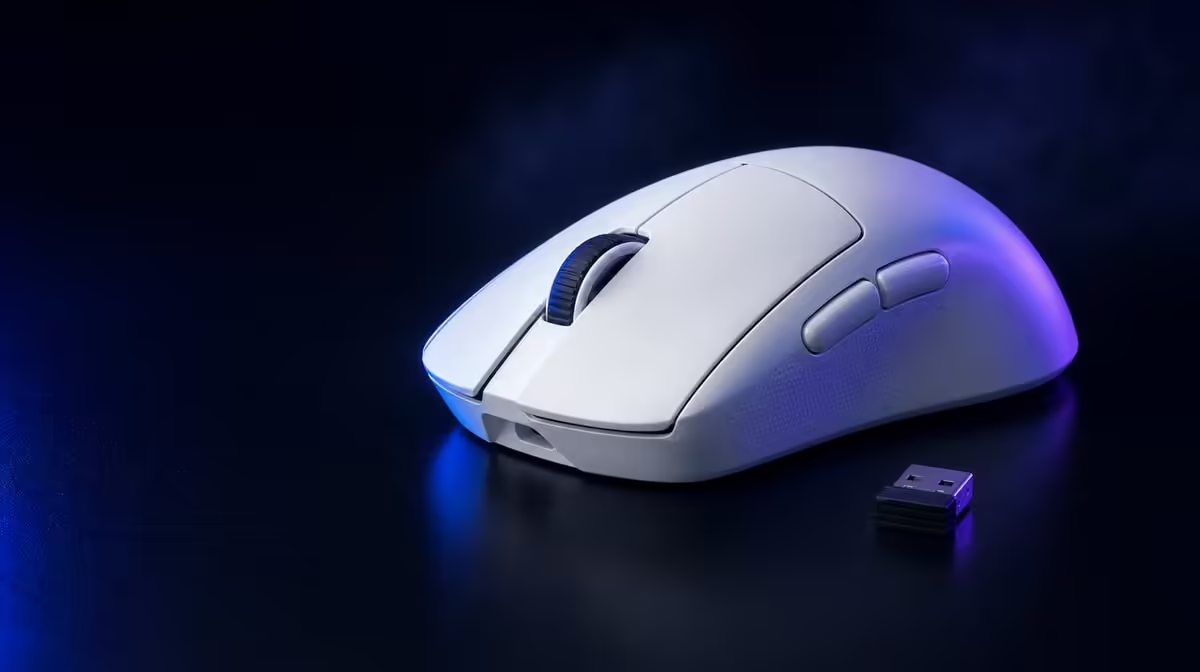
A wireless mouse becomes competitive only after the connection, receiver, sensitivity and game settings agree. Setting up the G305 X SUPERLIGHT for performance should begin from a stable baseline rather than every maximum value. The mouse offers tri-mode connectivity, a Hero 44K sensor and up to an 8kHz report rate, giving the player several variables to control.
Quick Answer
Start on the connection intended for competitive play, place the receiver for a clear route, choose a familiar DPI and use a stable report rate before testing higher settings. At R1,499, the G305 X SUPERLIGHT adds six programmable buttons and more than 130 rated battery hours, so the full setup can be tuned without forcing the 44,000 DPI or 8kHz ceilings.
🔹 Establish one clean connection
Tri-mode connectivity means the mouse can serve different desks and devices, but each route should have a defined role. Use the performance-focused connection for the first gaming baseline, reserve Bluetooth for convenient pairing where appropriate and use the wired route when its physical connection suits the test.
Keep other variables fixed while comparing modes. Use the same game, PC, USB path, display and sensitivity. A connection result gathered after changing several settings cannot identify what helped.
Evetech's Logitech gaming mouse range provides the closest family comparison once the intended connection is known.
Place the receiver deliberately
Keep the wireless receiver away from obvious obstructions and crowded cable bundles where practical. The exact desk determines the cleanest location. Test at the normal seating position, not with the mouse held beside the receiver.
Record which USB connection and placement produced the stable baseline. If the PC moves or the desk changes, repeat this physical check before altering sensitivity.
🔹 Set sensitivity from hand movement
The Hero 44K sensor offers a 44,000 DPI ceiling, but the player needs a controllable setting rather than the maximum. Begin with a familiar DPI and in-game sensitivity, then move through a repeatable target exercise.
Measure whether one comfortable sweep reaches the intended turn without running out of pad or forcing a cramped correction. Change only one sensitivity value at a time and keep the test duration long enough to include both fine aiming and quick turns.
Prepare the surface
Clean the sensor opening and use a consistent surface. Dust, debris or a changed pad can make a sensitivity comparison look like a software issue. Keep cable or charging arrangements from dragging against the mouse during wired checks.
Browse Evetech's broader gaming mouse category when shape, surface contact or another control layout needs comparison.
🔹 Choose a report-rate baseline
The mouse supports up to 8kHz reporting. Start with a rate the complete PC and game handle consistently, then test higher options. More possible updates do not help if frame timing, USB behaviour or system load becomes less stable.
Use a repeatable aim routine and observe both the mouse result and the game's frame behaviour. Keep background tasks similar. If 8kHz produces no useful improvement or introduces inconsistency, the lower stable setting is the better configuration.
Map six buttons conservatively
Assign only actions that reduce awkward keyboard reaches without disturbing aim. Test each of the six programmable inputs separately, then rehearse the full map in a low-pressure session. A button remembered slowly is not yet useful.
🔹 Verify endurance and save the profile
More than 130 rated battery hours provide a useful planning figure, while actual endurance depends on mode, report rate, active use and power behaviour. Note the charge level at the start and end of several normal sessions before setting a charging routine.
Keep a simple profile record: connection, receiver position, DPI, game sensitivity, report rate and button map. The accessory best-seller view can provide a wider purchase-day reference; check current availability separately.
Confirm the result in real play
Use the configured mouse through several matches rather than one short aim test. Look for repeatable tracking, comfortable turns, remembered buttons and a connection that remains stable when the household and PC are used normally.
Create a fault-isolation copy
Save a second profile with default buttons, a moderate DPI and the known-stable report rate. If the main configuration develops delayed input, a missed command or strange tracking, switch to this baseline before changing the game.
If the baseline works, reintroduce the custom report rate and button map one element at a time. If both profiles fail, inspect receiver placement, the chosen connection, the surface and wider PC behaviour.
This recovery profile should remain simple enough to explain from memory. It turns a complicated setup into a short diagnostic sequence and prevents several settings from being reset without evidence.
Test across a normal week
Use the mouse for competitive play, general desktop work and one long session. Note connection stability, button comfort and charge level after each. A setup that performs well for ten minutes may still need a different receiver location or charging routine.
Do not alter the winning profile after every isolated mistake. Look for a repeated pattern across several sessions before changing DPI or report rate.
Package the profile for another PC
Write the settings in plain language rather than relying only on software memory. Include the intended connection, receiver position, DPI, game sensitivity, report rate and button functions. When the mouse moves to another computer, recreate the baseline before testing changes.
The new PC may have a different USB route, game performance or display, so confirm stability again. Portability comes from a clear setup record, not from assuming the old maximum settings will behave identically everywhere.
Keep the first session short and diagnostic. Confirm tracking, every assigned button and the expected connection indicator before entering competitive play.
Frequently Asked Questions
Should setup begin at 44,000 DPI?
No. Begin with a sensitivity the player can control and use the maximum only as sensor range, not a target.
Must the report rate start at 8kHz?
No. Establish a stable baseline first, then raise the rate while monitoring game and system consistency.
Which connection should be tested first?
Use the route intended for the main gaming workload, keeping the receiver or cable arrangement stable during comparison.
How should six buttons be mapped?
Give each input one memorable action and avoid assignments that change the aiming grip or create accidental presses.
Does the 130-hour figure predict every setup?
It is a rating baseline. Connection mode, report rate and daily behaviour affect the real charging interval.
Ready to build a repeatable wireless mouse profile? Compare gaming mice at Evetech, then record one stable connection, sensitivity, report rate and button map before chasing higher numbers.