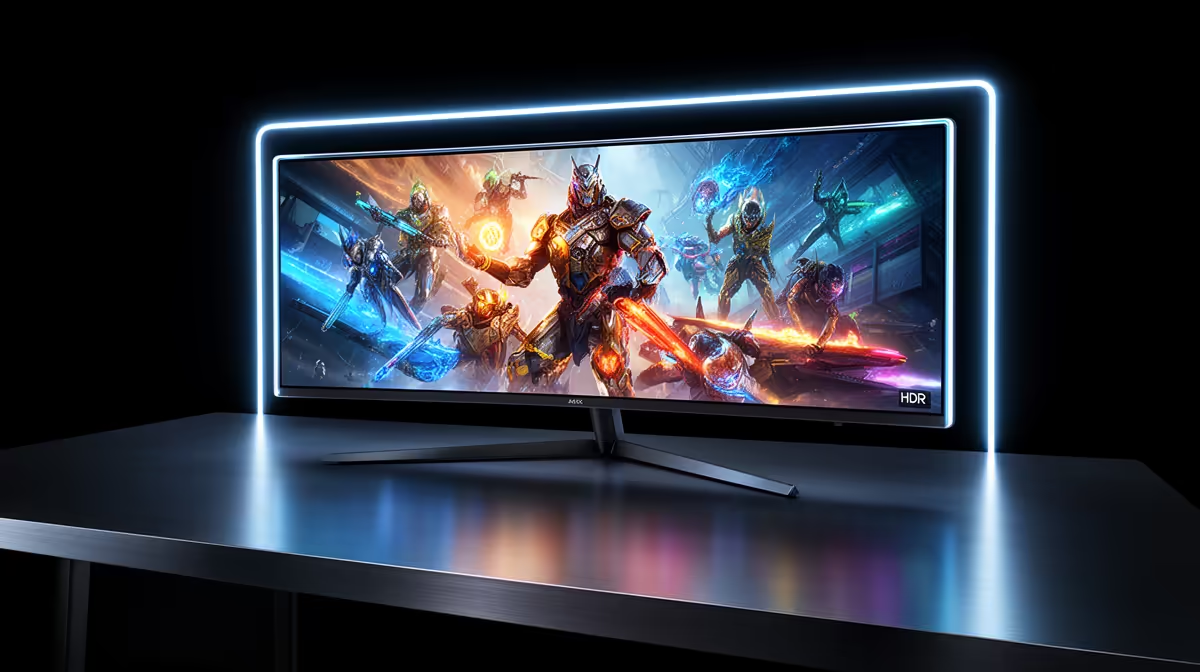
Windows 11 can look superb on an OLED monitor, but the first login may show a washed-out SDR desktop or coloured edges around small text. The panel may be healthy. HDR state, scaling and the OLED's subpixel layout all influence what you see. Work through this Windows 11 OLED setup once, with a familiar document and game ready for comparison.
Quick Answer
Select native resolution and the intended refresh rate first. Run ClearType at your normal scaling, then compare app-specific text rendering because ClearType cannot fully correct every OLED subpixel layout. For HDR, enable it on the right display, use the Windows HDR Calibration app where supported and adjust SDR brightness within HDR mode. Keep Auto HDR only when you prefer its result in the games you play.
🖥️ Set the physical mode before tuning the picture
Open Settings, System, Display and Advanced display. Confirm the OLED's native resolution and maximum useful refresh. A new connection can quietly start at 60Hz or inherit a non-native mode from the previous screen.
In the graphics control panel, confirm an appropriate RGB colour output and full range for a PC monitor when the connection supports it. A mismatched limited range can make blacks and whites look wrong before HDR enters the conversation.
Evetech's OLED monitor range lets you compare native resolutions and inputs before applying the Windows steps.
🔤 Run ClearType, then trust your eyes in real applications
Search Windows for "Adjust ClearType text" and complete the samples from your normal chair. OLED monitors may use triangular or other non-standard subpixel arrangements, while much Windows text rendering expects a familiar stripe.
ClearType can improve the result without changing the hardware. Try 125% or 150% scaling on a high-density screen, because larger glyphs make colour fringing less visible. Sign out and back in after a scaling change so older applications redraw correctly.
Some browsers and productivity tools use their own rendering paths. Open the exact code editor, spreadsheet or website that bothered you. A monitor that looks excellent in a game can still be the wrong work screen if daily text remains uncomfortable.
🌈 Calibrate HDR on the OLED itself
Select the OLED under Display settings and enable HDR. Run the Windows HDR Calibration app when the monitor and system support it. Follow the black, peak-brightness and saturation patterns without chasing clipping for a larger number.
Set the monitor to its intended HDR picture mode and avoid applying a second aggressive dynamic-contrast layer. Then open a game with a known HDR implementation and complete its internal calibration too.
☀️ Balance SDR content while HDR stays enabled
Windows maps ordinary desktop content into the HDR output when HDR remains on. Use the SDR content brightness slider until a white browser page looks comfortable beside native HDR material. Too high can make the desktop glaring; too low can make it dull.
If you work mainly in SDR and only play HDR games occasionally, toggling HDR for those sessions is a reasonable routine. The Windows shortcut makes that quicker. Save separate monitor modes if the display supports them.
🎮 Treat Auto HDR as a game-by-game preference
Auto HDR can add expanded luminance to compatible SDR games. Some titles look lively; others lose the artistic balance you know. Compare a dark room and a bright outdoor scene, then keep it only where it improves the experience.
Native game HDR should normally take priority over an automatic conversion. Check that overlays and capture tools still behave as expected.
Use Evetech's wider gaming-monitor category and monitor best-sellers for LCD context if text rendering remains the decisive concern.
🛡️ Finish with desktop care
Set a short display-off timer, allow the monitor to enter standby and leave its pixel-shift and compensation tools enabled. Auto-hide the taskbar if the same desktop stays open all day. These changes do more for OLED care than an animated wallpaper left running indefinitely.
Take a screenshot or photo of the completed display settings. A driver update or new cable can change refresh, colour range or HDR state, and the reference makes recovery much faster.
Frequently Asked Questions
Why does text look fringed on OLED in Windows 11?
Many OLED panels use a subpixel layout that differs from the RGB stripe assumed by common text-rendering techniques.
Does Windows 11's HDR calibration tool help OLED?
Yes on supported systems. It helps Windows map black and peak brightness to the monitor's capabilities.
Should SDR content use a different setting on OLED?
Adjust the Windows SDR brightness balance when HDR stays on, or toggle HDR off for an SDR-first workday.
Is auto-HDR worth enabling for games on an OLED monitor?
It can be in compatible SDR games. Compare the artistic result per title rather than enabling it as a universal rule.
How do I fix blurry or fringed text on an OLED monitor?
Use native resolution, rerun ClearType, test higher scaling and check application-specific font smoothing.
Does scaling affect text clarity on OLED in Windows 11?
Yes. Higher scaling makes glyphs larger and can make subpixel fringing less apparent on dense panels.
Ready for Windows to look as considered as the first OLED game? Compare high-density OLED monitors at Evetech, then run the native-mode, text and HDR setup on the exact applications you use every day.