Quick Answer
To program 32 fully programmable keys for complex macros, work in four stages: map your command list to physical key positions, record each macro with correct inter-step delays, assign to keys by profile layer (base and Hypershift), then save to both driver cloud and onboard memory. Plan the layout on paper before recording any macro to avoid rebuilding the structure midway.
Stage 1: Plan Your Key Map Before Recording 📋
Programming 32 keys without a plan leads to inefficient layouts that require relearning. Start offline: write down every command you need to bind, grouped by frequency and hand position. High-frequency commands belong on keys your strongest fingers reach without moving the palm (the middle cluster on most 32-key layouts). Moderate-frequency commands go on the top row or lower cluster. Rare commands (emotes, secondary utility) go to the thumb cluster or Hypershift layer. A 32-key layout with Hypershift supports 64 command slots.
Stage 2: Record Macros With Correct Timing 🎮
Open your keypad driver (Razer Synapse, Logitech G HUB, or equivalent) and navigate to the macro editor. Record each macro in sequence. For ability rotation macros, insert 20 to 50 ms delays between each keystroke to ensure game-engine frame registration. For macros that include mouse inputs (click sequences, drag actions), insert 50 to 100 ms delays around mouse events to account for game rendering response time. Name each macro descriptively as you record it: FFXIV-SCH-Heal-Rotation rather than Macro-01. After recording, play back the macro in the test window to verify step order and timing before assigning to a key.
Stage 3: Assign and Organise Across Profiles 🗂️
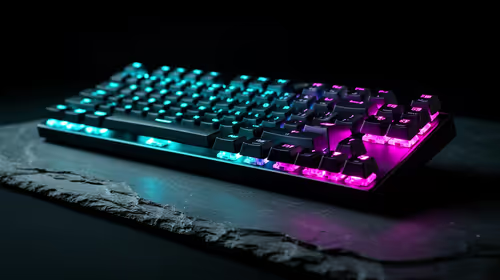
Create one named profile per game title in your driver. Assign macros from your recording library to the physical key positions mapped in Stage 1. Assign base-layer commands first, then hold Hypershift in the driver UI to configure the secondary layer. Use per-key RGB to colour-code functional groups: movement keys blue, ability rotation keys green, utility and Hypershift-layer keys amber. Save the profile to onboard memory after completing each game's profile.
Back Up Your Macro Library After Every Major Update ⚡
Export your full profile set from the driver to a local file after adding any new game profile or significantly updating an existing one. Store this backup on a USB drive or cloud storage. Driver reinstallations (common after major Windows updates) can clear profile data not backed up. A full 32-key layout with complex macros may take 3 to 5 hours to rebuild from scratch, making the 2-minute export routine genuinely worth it.
FAQ
How long does it take to program all 32 keys with complex macros?
For a single game with 32 base-layer and 32 Hypershift-layer commands including macro recording, allow 2 to 4 hours for the full process done methodically. Rushing leads to timing errors in macros that only surface during actual gameplay. Spreading configuration across two sessions with a test session in between improves the final result.
Can I copy macros from one profile to another on a keypad?
Yes. Most driver software supports copying individual macro bindings or full profiles. In Razer Synapse, right-click a profile and select Duplicate to create a copy, then modify the duplicate for a different game. This saves significant time when two games share a similar command structure.
Do macros saved to onboard memory work on any PC, including at LAN events in SA?
Yes. Onboard memory stores both the key binding and the macro sequence in device hardware. The keypad works as a fully programmed device on any PC with a USB port, regardless of driver installation status. This is the primary reason flagship keypads with genuine onboard memory are worth the additional ZAR cost for competitive SA players.
Ready to build out a full 32-key macro library? Evetech stocks fully programmable gaming keypads with onboard memory and cloud profile support. Browse the keypad section to find models with 32-plus keys and Hypershift capability.