


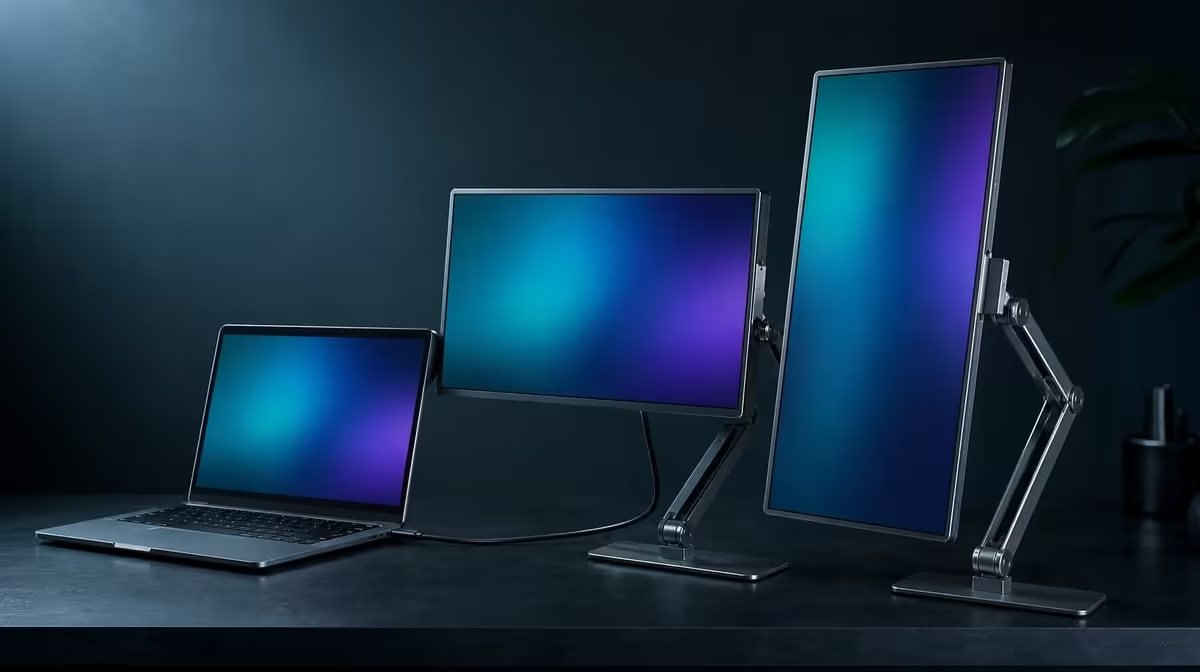
A rotating image is only one part of a successful mode change. Using 180-degree auto-rotation across work modes also requires the laptop's window layout, touch assignment and the Delta stand to remain coherent as a panel moves from landscape to portrait or presentation.
Quick Answer
Position the Delta Pro Touch beside the laptop, move one screen into the required working angle within its 180-degree span and let the sensor update the image. The R11,999 dual QHD monitor should then be checked for window placement, touch mapping and stand balance in every orientation used for work.
🔄 Begin from a known landscape baseline
Set both 16-inch panels to 2560 x 1600 and arrange them correctly in the laptop display settings. Open one familiar window on each screen, test a few touch points and note which panel the application occupies.
The baseline matters because a rotation problem is hard to diagnose when the original screen order was already wrong. Keep the laptop in the same physical position and confirm the stand is settled before moving a panel.
Compare current portable-monitor choices by how well their orientation options match the intended laptop workflow, not by movement alone.
📐 Move deliberately through the 180-degree range
Change one panel at a time and pause for gravity sensing. Watch the image orientation rather than dragging application windows immediately. If the picture does not settle as intended, return to the known position and inspect the laptop's rotation settings before repeating.
For portrait work, open content that genuinely benefits from vertical space, such as a long document or tall canvas. For a presentation arrangement, place the shared view where another person can see it without forcing the base or laptop into an unstable position.
👆 Recheck input after every physical change
Tap the centre and corners of the moved panel and confirm the response lands under the contact. Drag across the screen edge and verify the pointer does not jump to the other display. Repeat on the stationary panel to ensure its mapping remains intact.
Auto-rotation changes image orientation, not the logic of every touch-aware application. A program may keep tools or windows in an old position. Reopen or rearrange it only after display and input mapping are known to be correct.
Evetech's full PC-monitor category offers context for fixed screens when a workflow rarely needs physical orientation changes.
🧭 Save mode-specific workspace notes
Create a short note for landscape production, portrait review and presentation. Record panel position, window roles, touch test and the laptop applications used. A repeatable mode change is more useful than one successful rotation demonstrated once.
Move back to the main working arrangement and check that both QHD panels return to their expected screen order. Restart the laptop and repeat the most-used transition. This catches a configuration that depends on a temporary software state.
Use Evetech's monitor best-seller page as a live market reference when considering the Delta Pro Touch at R11,999. Confirm current availability when the setup tests are complete.
Keep the moving area clear of cables and the laptop lid. Gravity sensing can change orientation, but it cannot protect a connector from a badly routed lead or stabilise an unsuitable surface.
Test portrait as a complete mode
Open a long document, code view or vertically organised canvas and place its companion tools on the second panel. Choose readable scaling and confirm the laptop pointer crosses the expected edge.
Use touch near the new top and bottom of the portrait panel. Accurate centre input alone can miss an orientation problem at the edges.
Build a presentation handover
Angle the shared Delta screen towards the audience while the laptop retains private controls or notes. Move one labelled window to the presentation screen and confirm touch affects the correct content.
Rehearse returning from presentation mode without closing the application. The value of rotation includes leaving and recovering the arrangement, not merely reaching it.
Separate gravity sensing from software lock
If the picture does not turn, return the panel to a known position and inspect whether the laptop or application has locked orientation. Change only one control, move the panel again and record the result.
A program that refuses to rearrange windows is not the same as a display that failed to rotate. Preserve those observations as separate diagnostic branches.
Audit support under repeated movement
After several mode changes, check whether the ergonomic stand remains in its selected position and whether cable slack is still safe. Apply ordinary touches to both panels.
The workstation passes when it can move, settle, accept input and return to the main laptop layout without creeping across the desk.
Check scaling in every saved orientation
A portrait document and a landscape canvas can expose different readability problems even when both panels remain at 2560 x 1600. Open the real content for each mode and confirm menus, page text and touch targets stay comfortable.
Keep the resolution native and adjust interface scale or application zoom when needed. Save that observation with the orientation note so the laptop workspace restores usability as well as screen direction.
Frequently Asked Questions
What triggers the Delta's orientation change?
Gravity sensing responds as the panel moves within its 180-degree range.
Does rotation move every application window?
No. Window layout and software position still need review after the image turns.
Why test touch again?
The picture can rotate while touch remains assigned incorrectly.
Can portrait mode help long documents?
It can suit vertically organised content when the laptop and application layout support the arrangement.
What physical check follows every movement?
Confirm stand balance, cable slack and a clear path around the laptop.
Ready to make landscape, portrait and presentation modes repeatable? Compare Evetech's portable monitors with the laptop applications, touch mapping and physical positions your work actually uses.











