


Quick Answer
Wi-Fi 7 stuttering after a Windows 11 update is usually a driver, channel or roaming issue rather than proof that the router is faulty. For SA gamers, test Ethernet first, update the wireless driver, then lock a clean 5GHz or 6GHz channel before replacing hardware in the R2,500-R8,000 range.
Separate PC Faults From Router Faults
Plug the PC into Ethernet and play or run a latency test for 15 minutes. If Ethernet is clean, the fibre line and game server are probably fine; focus on Wi-Fi drivers, band steering and channel congestion. If Ethernet also stutters, collect ISP, ONT and router evidence before logging a fault.
Windows 11 Checks
Update the Wi-Fi adapter driver from the laptop or motherboard vendor, then reboot. Disable aggressive power saving for the wireless adapter and check whether the update changed your preferred band. A Wi-Fi 7 router can still behave badly if the PC falls back to 2.4GHz or keeps roaming between bands.
Router Settings To Try
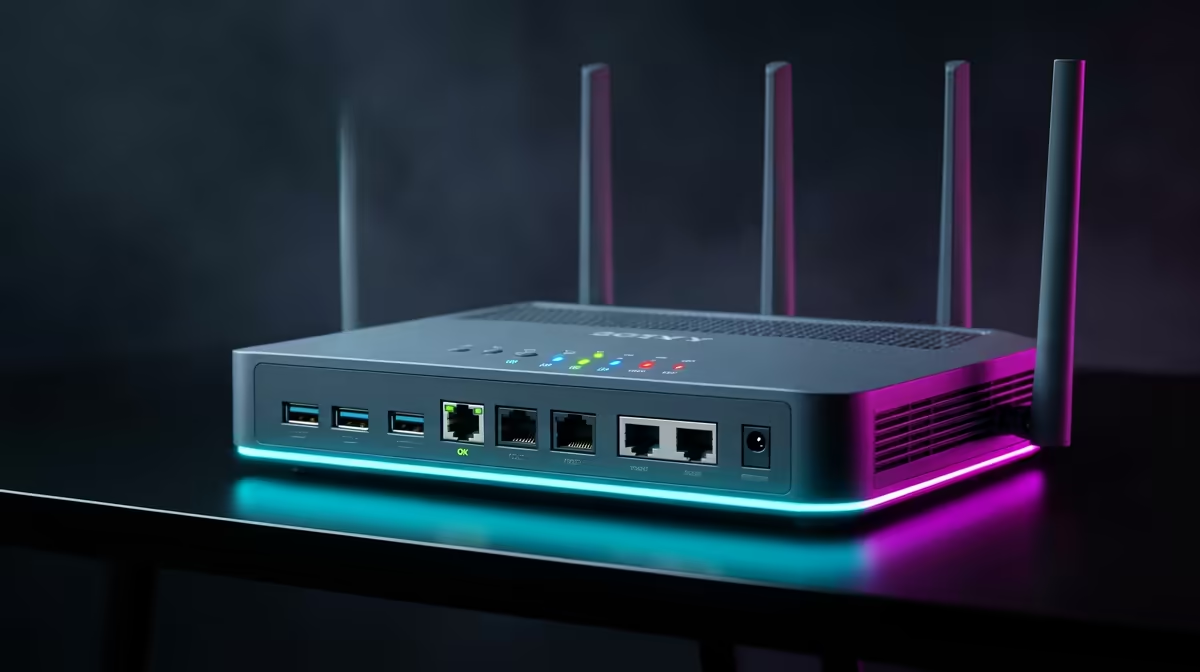
Use TP-Link BE550, ASUS RT-BE88U, Wi-Fi 7 router as reference points when comparing features, but fix settings first. Choose WPA2/WPA3 compatibility if older devices struggle, test 80MHz or 160MHz channel width, and place the router away from the TV cabinet. In dense complexes, a quieter 5GHz channel can beat a faster-looking 6GHz setup with weak signal.
FAQ
Should I replace the router immediately?
No. Prove the problem with Ethernet and driver tests first. Replacement only makes sense when the router is unstable across several devices.
Can a Windows update cause stutter?
Yes, updates can change drivers, power behaviour or adapter settings. Reinstalling the correct driver often fixes the issue.
What speed do SA gamers need?
50-100Mbps is enough for one player if latency is clean. Packet loss and Wi-Fi quality matter more than headline speed.
screenshot of Ethernet results and one of Wi-Fi results; that evidence makes ISP or warranty support much easier.











