Quick Answer
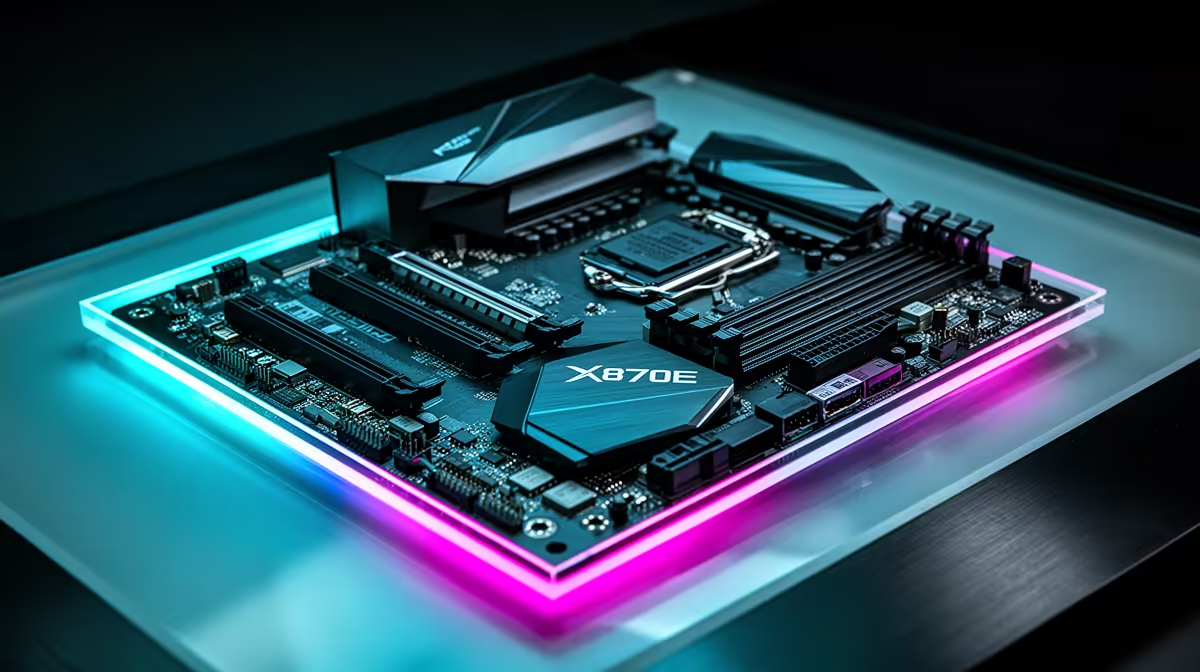
X870E ghosting after Windows updates is a display-chain issue in most builds, not a motherboard fault. Check monitor overdrive, 144Hz or 165Hz refresh mode, cable quality, GPU driver state, and panel response time before replacing an X870E board.
Practical Checks for This Symptom
Use a clean display test: set the monitor to 120Hz or 144Hz, disable HDR and aggressive overdrive, then try a second DP 1.4 or HDMI 2.1 cable. If the issue follows one cable or input, the motherboard is not the source. If it follows every input after a driver rollback, inspect GPU seating and PCIe slot settings.
SA Buying Context
X870E boards such as ASUS ROG Strix X870E-E, MSI MPG X870E Carbon WiFi, and Gigabyte X870E AORUS Master sit in the premium AM5 range, commonly around R6,000-R14,000 depending on Wi-Fi, VRM, M.2 slots, and USB4 support. For gaming, a Ryzen 7 9800X3D or Ryzen 9 9950X3D with 32GB DDR5-6000 CL30 and a modern NVMe drive is a sensible baseline; unstable tuning can hurt 1% lows more than it improves peak FPS.
Before spending, write down the exact X870E Motherboard Ghosting After a Windows Update requirement, the part you already own, and the target monitor, workload, or delivery city. That note helps SA buyers separate a real upgrade from a return risk: confirm warranty cover, boxed accessories, cable support, wattage or clearance numbers, and physical dimensions in millimetres before comparing products. If two options look close, choose the one that solves the measured constraint instead of the one with the louder spec sheet.
FAQ
Should I replace an X870E motherboard for ghosting?
Not first. Replace it only after BIOS defaults, drivers, memory, storage, cables, thermals, and PSU checks keep pointing back to the board.
What X870E price band should SA buyers expect?
Most premium X870E options sit roughly between R6,000 and R14,000. Paying more only makes sense if you need stronger VRM cooling, USB4, extra M.2 slots, or Wi-Fi 7.
Which spec should I test before buying parts?
Test 32GB DDR5-6000, the GPU PCIe link, NVMe health, and a 144Hz or 165Hz display path. Those checks catch many faults that look like motherboard trouble.
Pro Tip
Before buying a new X870E board, save BIOS settings, test stock memory, and repeat the same 10-minute workload so the ghosting pattern is proven.