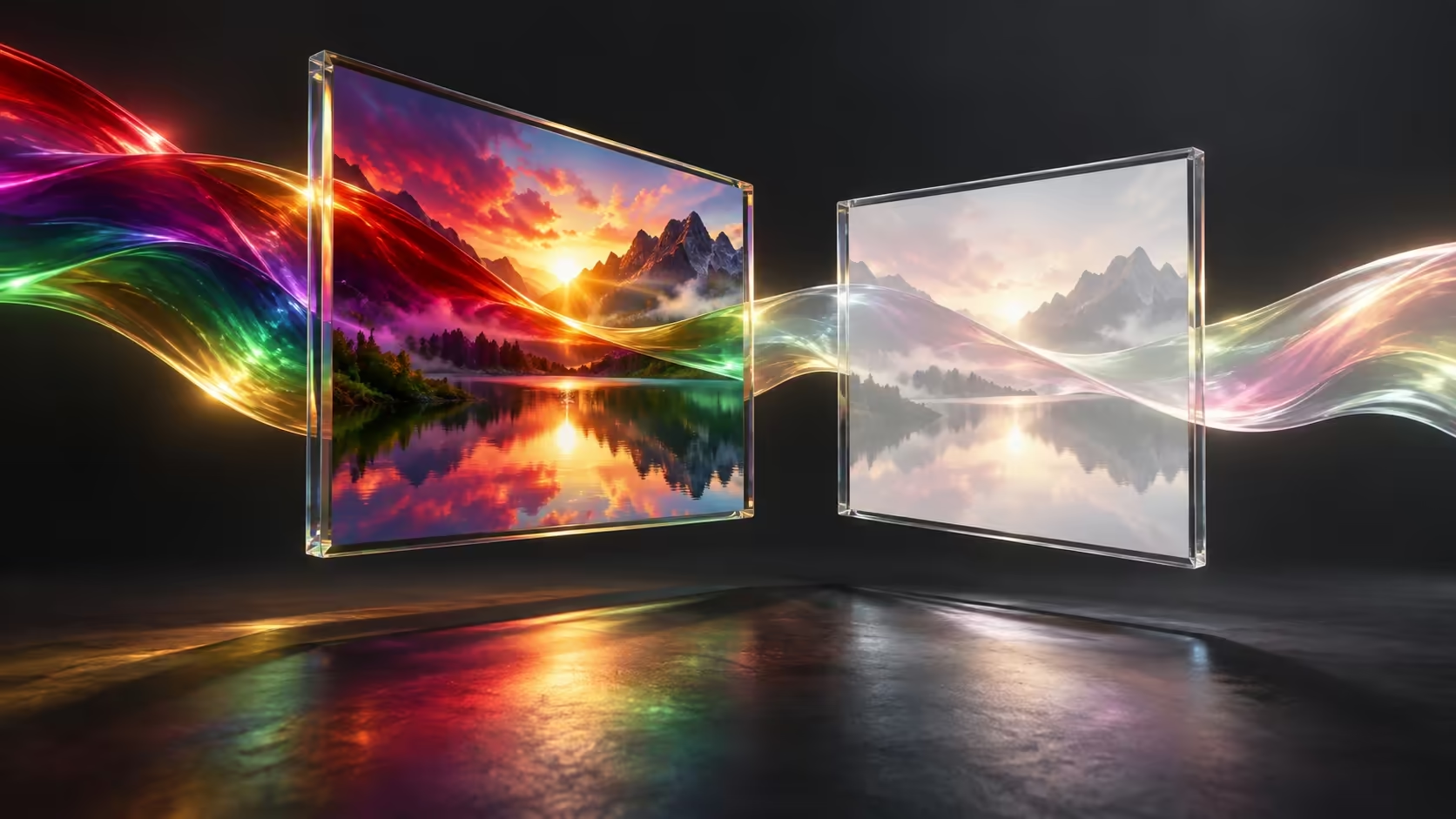
Your game can look rich and clear while the screenshot you send looks pale. HDR screenshots washed out in another application does not immediately point to a bad monitor. The saved picture has passed through capture software, a file format and a viewer, so begin by separating that path from the image you saw while playing.
Quick Answer
Compare the identical screenshot in another viewer, then make a controlled capture of the same scene with HDR temporarily disabled. This R0 test helps distinguish the captured file and its colour handling from a display problem. Keep your original image and settings, and restore HDR after the comparison rather than changing the whole monitor to disguise one bad export.
🖼️ Keep the file fixed while testing viewers
Start with one saved image. Open that file locally in two applications without editing or resaving it between tests. If its appearance changes, the viewing path deserves attention before you alter the game, graphics driver and display together.
Record the capture tool and the file type as well. A screenshot copied through a messaging app may not be the same file that your capture tool saved. Compare the local original first; otherwise you may blame capture for a change introduced later during sharing.
Windows supports HDR-aware rendering and colour management, but that does not mean every application handles every saved image identically. Avoid deciding that one viewer is correct solely because it looks more saturated. The useful evidence is the repeatable difference and where in the path it appears.
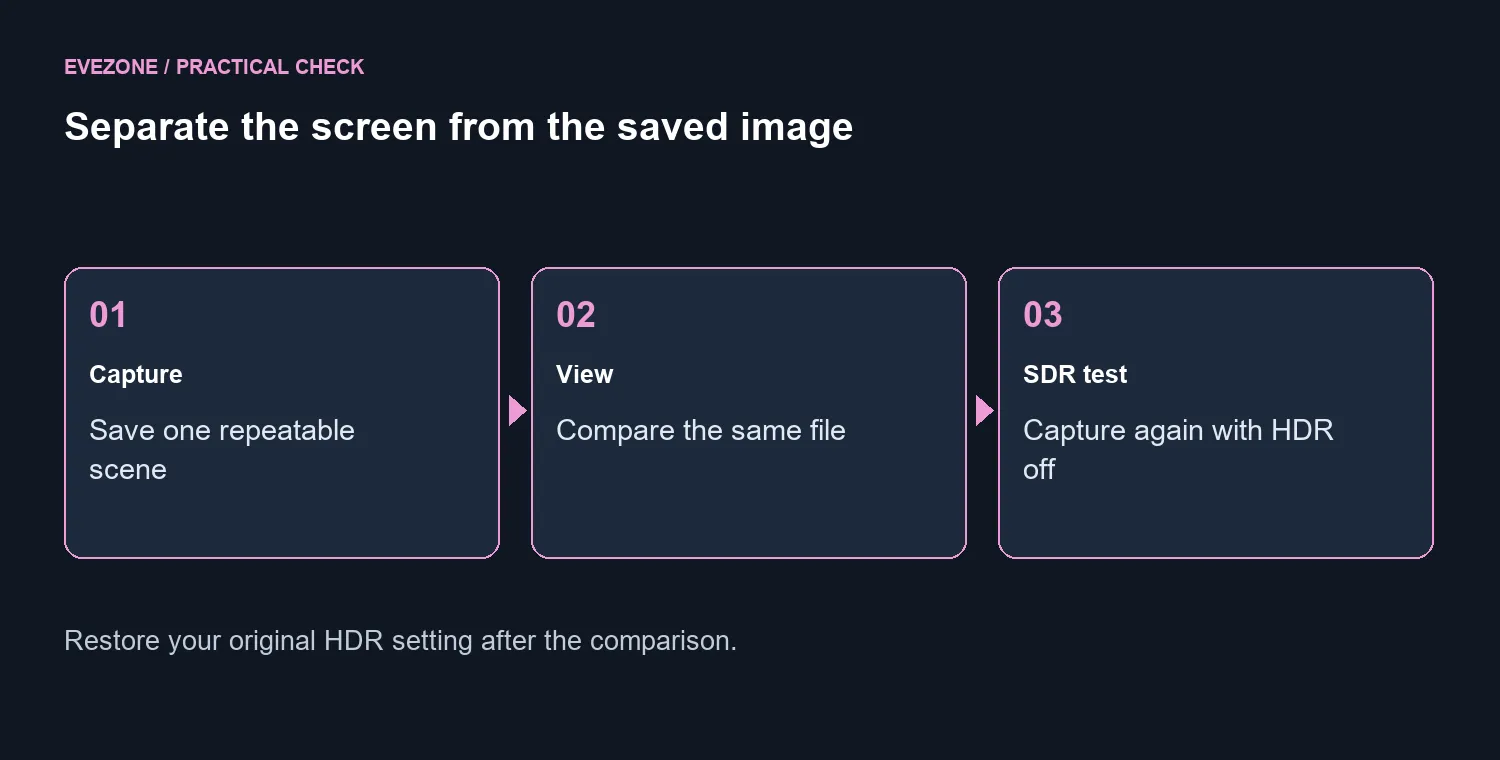
🌓 Make one controlled SDR comparison
Note your current configuration, open Settings, System, Display and select the screen you are testing. In its HDR settings, temporarily turn HDR off. Reopen the same scene if necessary and make a second capture with the same tool, then compare the files in the same viewer.
Treat this as a diagnostic comparison, not proof of a universal fix. If the SDR capture behaves normally, you have narrowed the problem to the HDR workflow. You can use an SDR capture for an ordinary shared image while investigating a capture and viewing combination that preserves the HDR result you want.
Microsoft also documents a separate SDR-content brightness adjustment within HDR settings. That controls how SDR content appears alongside HDR on the selected display. Some applications need restarting after a change. Do not use this slider as a blind correction for every exported image, and do not assume the same setting will look identical on another monitor.
💡 Replace hardware only after isolating the cause
If the live game and desktop look right but one saved image does not, a display purchase is premature. The 21 September catalogue listed the Lenovo Legion 27Q-10 QHD 240Hz monitor at R5,099 in stock. Spending that amount would not, by itself, correct a software capture or viewing mismatch.
OLED monitors can be relevant to a genuine display upgrade, but panel technology and screenshot correctness answer different questions. Check whether a problem follows the same file to another screen before treating the original display as the cause.
For a wider purchase comparison, browse gaming monitors with resolution, connections and your actual viewing needs in mind. Keep that shortlist separate from troubleshooting. A calm, repeatable test is more useful than adjusting saturation until one picture resembles what you remember.
Frequently Asked Questions
Should I permanently switch HDR off?
Not solely because one screenshot looks wrong. An SDR comparison is a test; choose your normal display mode according to the content and hardware you use.
Can a screenshot file be changed by sharing it?
A sharing workflow may convert or resize an image. Compare the untouched local original before diagnosing a copy received through another application.
What details help when asking for support?
Include the capture application, saved file type, viewers tested, selected display and whether the controlled SDR capture changes the result. Preserve the original file for comparison.
Choose a display upgrade for the screen you use. Check your capture workflow first, then compare Evetech monitors when you have a clear display requirement.