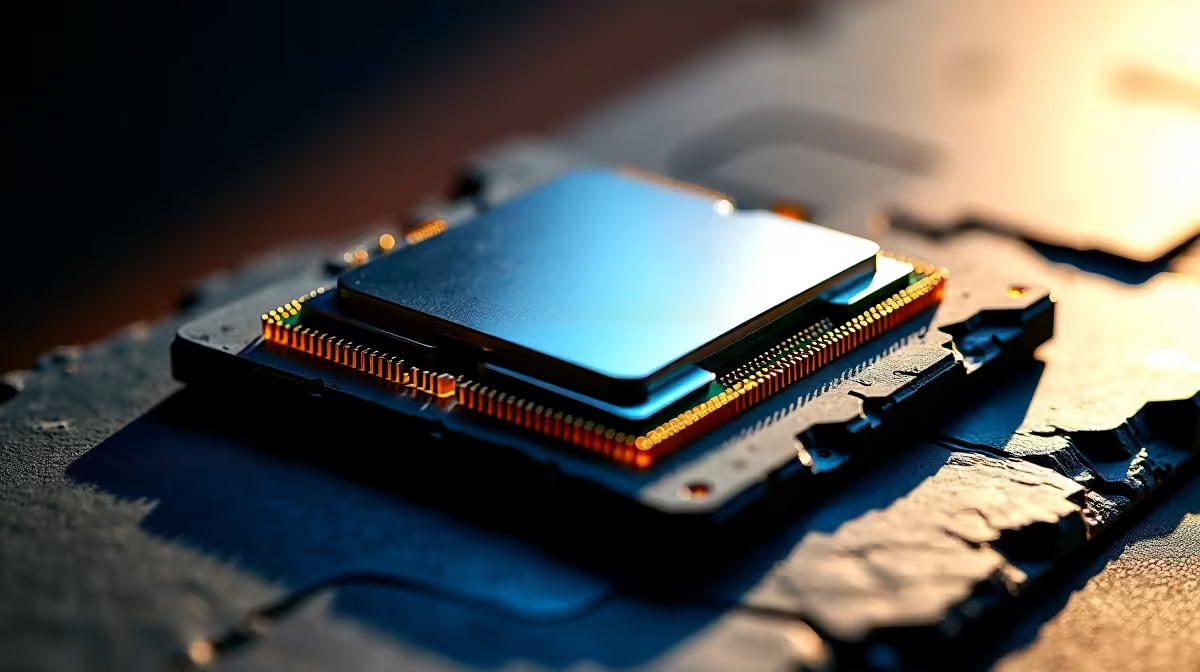
If you’ve just installed a Ryzen 5 9600X and your motherboard is displaying a BIOS update required message - or the system won’t POST at all - this is a normal and fixable situation. Newer AMD CPUs often require an updated AGESA firmware to be recognised by older boards.
Quick Answer
How do I update the BIOS for a Ryzen 5 9600X? Download the latest BIOS for your specific motherboard from the manufacturer’s website, copy it to a FAT32-formatted USB drive, and flash it using your board’s BIOS update utility (Q-Flash, EZ Flash, M-Flash, or similar). If the board won’t POST with the new CPU, use BIOS Flashback if available, or temporarily install an older supported CPU to update first.
🔧 Step-by-Step BIOS Update Process
Step 1: Identify your motherboard Note the exact model name - it’s printed on the board itself or visible in your existing BIOS. You need the precise model, not just the chipset, because different boards from the same manufacturer use different firmware files.
Step 2: Download the correct BIOS Go to your motherboard manufacturer’s support page (ASUS, MSI, Gigabyte, or ASRock depending on your board) and navigate to your board’s driver/BIOS downloads section. Download the latest stable BIOS version that lists Ryzen 9000 series or AM5 Zen 5 CPU support in the changelog.
Step 3: Prepare a USB drive Format a USB drive to FAT32. Copy only the BIOS file to the root directory of the USB - do not place it inside a folder. Rename the file if the manufacturer’s instructions require a specific filename.
Step 4: Enter BIOS and flash
- Power on with your previous CPU installed (if applicable)
- Press Delete or F2 to enter the BIOS
- Navigate to the update utility (Q-Flash for Gigabyte, EZ Flash for ASUS, M-Flash for MSI, Instant Flash for ASRock)
- Select your USB drive and the BIOS file
- Confirm and wait - do not power off during flashing, typically 3–5 minutes
Step 5: Reconfigure after flash After a successful update, the BIOS will reset to defaults. Re-enable XMP/EXPO for your RAM, check your boot device order, and verify fan curves are set correctly before installing your OS or proceeding.
📊 What If the Board Won’t POST with the 9600X?
If your motherboard displays nothing or only an error LED with the Ryzen 5 9600X installed, the board almost certainly lacks AGESA support for Zen 5 in its current firmware. You have two options:
Option A - BIOS Flashback: Many mid-to-high-end AM5 boards (X670E, B650E, and some B650) support BIOS Flashback, which allows firmware updates without a working CPU. Place the renamed BIOS file on a USB drive, insert it into the designated Flashback USB port (usually marked in red or labelled), and hold the Flashback button for 3 seconds. The LED will flash during the update and go solid when complete.
Option B - Borrow a compatible CPU: If your board doesn’t support Flashback, you’ll need to temporarily install a Ryzen 5000 or Ryzen 7000 CPU that is already supported to boot into the BIOS and update the firmware, then swap in the 9600X.
❓ Frequently Asked Questions
Will updating the BIOS delete my data? No. A BIOS update only modifies the firmware chip on the motherboard. Your storage drives, OS, and files are unaffected. However, your BIOS settings will reset to defaults and need to be reconfigured.
Which motherboards support the Ryzen 5 9600X without a BIOS update? Boards that shipped with AGESA 1.1.0.0 or later pre-installed may support the 9600X out of the box. Check the manufacturer’s CPU support list for your specific board to confirm.
My BIOS update failed mid-flash. What do I do? Do not power off. Some boards have dual BIOS chips and will auto-recover. If the system is completely unresponsive, contact the board manufacturer’s support - RMA may be necessary for a bricked board without a backup BIOS.
Evetech carries AMD Ryzen 5 Processors and Graphics Card Deals — check live stock and pricing before you buy.
Ready to Find Your Perfect Match? Shop at Evetech