The save you care about may be on the PC you just shut down, while another device is ready to launch an older copy. A Steam Cloud conflict is the wrong moment to click quickly and hope. Pause the handover, identify the last session with the progress you want, and preserve the local files before choosing which version should continue.
Quick Answer
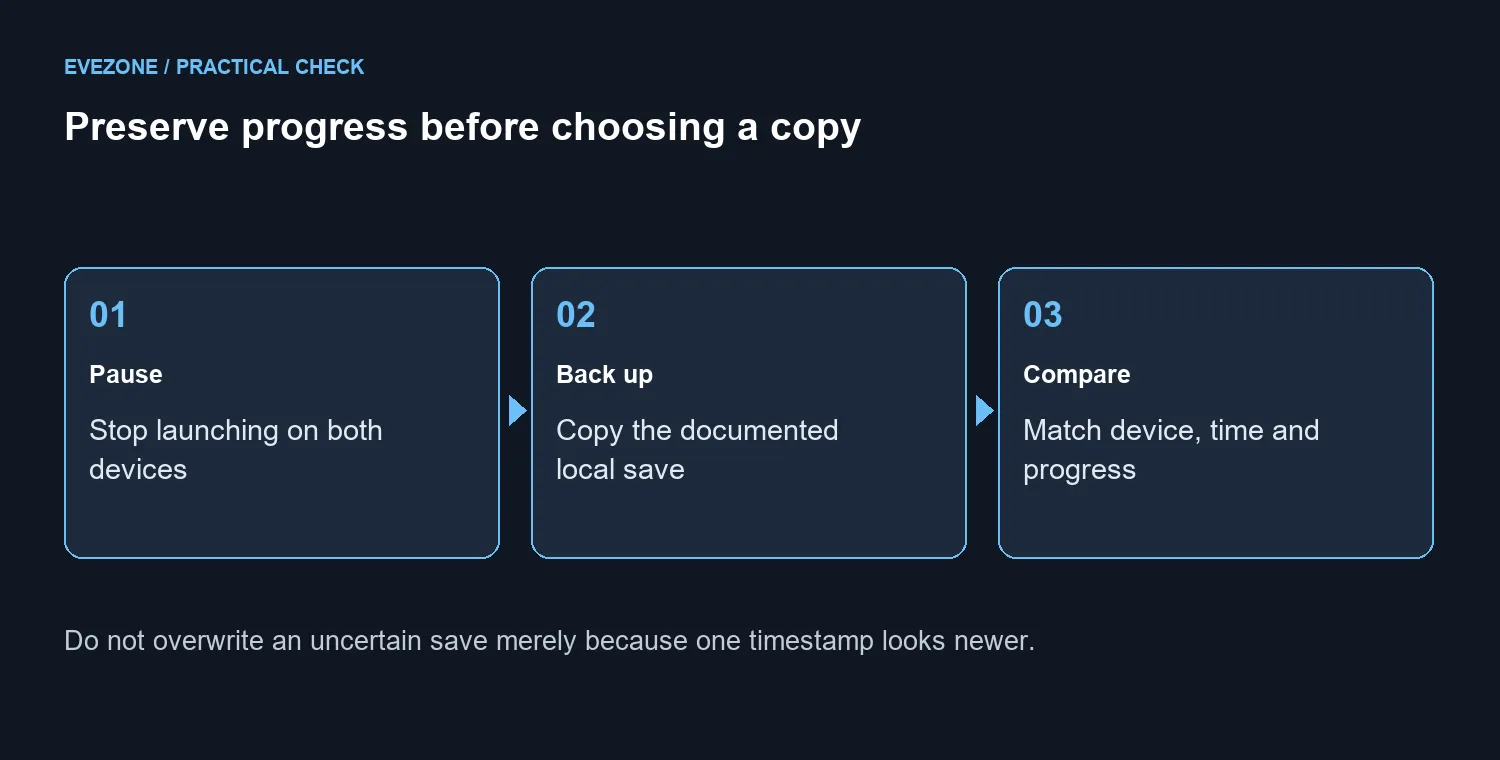
Close the game on both devices, make a separate copy of the documented local save folder, and compare the last played device, session and timestamps. Spend R0 on this diagnosis before considering new storage. A larger SSD cannot decide which save contains the progress you meant to keep, and blindly picking the newest time can still select the wrong state.
☁️ Understand what is supposed to move
Steamworks describes cloud files being synchronised before and after game sessions, with configured changes uploaded after the game exits. The developer chooses the files and paths involved, and cross-platform behaviour depends on that integration. A game being in your Steam library does not by itself prove that every save or setting follows you to another computer.
That distinction matters when moving between a desktop, laptop or handheld. Record which machine held the correct progress before the warning appeared. If the problem started after another person used the device, include that detail in your support request; Valve has previously fixed a Cloud conflict involving files left from a different user.
💾 Preserve a copy before choosing a winner
Use the game's own documentation to find its save folder. With the game closed, copy that folder to a separate backup location and give the copy a clear date and device name. Do not move the only copy out of its original location, delete folders to provoke a new prompt, or assume reinstalling the game will restore lost progress.
Read the choices in the conflict window carefully. Match the timestamp with the session you remember and the device you used. If you cannot identify the wanted version, stop and ask the game's support team before overwriting either side. State what happened and what backup you have; do not publish personal account details in a public discussion.
Once the intended save is selected, open the game on one device and check the progress. Exit normally and give syncing time to complete before trying the other machine. Avoid creating two new sessions while still trying to establish which original copy was correct.
🧰 Buy storage only for a separate storage problem
A cloud warning does not prove the drive is failing or full. Check capacity or drive health only when there is separate evidence, such as a low-space warning or repeated local file errors. The internal SSD range is relevant to a capacity upgrade, not to deciding between two competing saves.
If a genuine space shortage remains after the save issue is resolved, compare the SSD best sellers against your computer's supported drive type and available slot. Preserve important files before any storage migration. A new drive should make room for your library without becoming another uncontrolled change during recovery.
For future handovers, finish the game, wait for sync and then switch devices. That simple sequence is easier to repeat than reconstructing which session happened first. Keep a separate backup of important progress where the game permits it; synchronisation is useful, but it is not a substitute for knowing which copy you are about to replace.
Frequently Asked Questions
Should I always choose the newer timestamp?
No. Compare the device, last session and known progress as well; a timestamp alone cannot prove which save you want.
Does every game use Steam Cloud?
No. Cloud integration and the files included are chosen by the developer.
When are cloud files normally synchronised?
Steamworks documents synchronisation before and after game sessions, including upload after the game exits.
Will a larger SSD fix a save conflict?
A larger drive does not decide which save is correct. Investigate storage only if separate capacity or drive faults exist.
Can I keep a copy before resolving the warning?
Yes. With the game closed, copy its documented local save folder to a separate backup location before making changes.
What should I do before moving to another PC?
Exit the game and allow Steam to finish syncing on the device that holds the progress you want to keep.
Need more room after resolving the save warning? Compare Evetech SSDs for a planned capacity upgrade, with your important files backed up first.