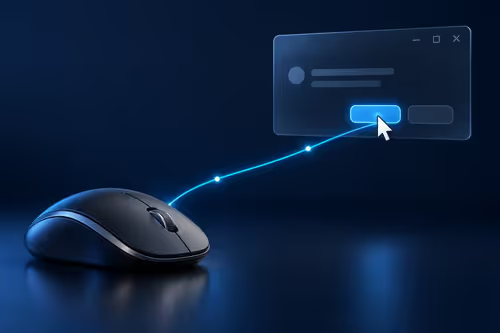
A selection that keeps following the mouse after you release a button can be Windows ClickLock doing its intended job. The feature removes the need for a continuous press during dragging. Check that behaviour before blaming a stuck switch, especially if the mouse moves normally and the problem occurs around selections.
Quick Answer
Open Additional mouse settings and inspect Turn on ClickLock on the Buttons tab. Compare the current state with a simple drag using unimportant content. The setting check costs R0. A MARVO WS005 combo was R179 on 9 October; purchase is a separate decision if the button has a genuine hardware fault.
🖱️ Observe when the drag becomes latched
Use a short disposable text passage or a file you can safely move. Pay attention to the press, hold and release sequence rather than repeating the action rapidly. A drag latch is different from unwanted repeated clicks. Write down whether the selection remains attached after a deliberate hold and whether another click changes the state.
Avoid practising with essential folders, live work or content whose accidental movement would be difficult to undo. A controlled example lets you understand the behaviour without creating another problem. Keep the same application and pointer settings while you inspect the feature, so the comparison has a clear starting point.
🛠️ Compare the Buttons setting with the symptom
Find the ClickLock option in Mouse Properties and note whether it is currently enabled. Its settings allow the hold behaviour to be adjusted. If the latch is unwanted, change that option and repeat the simple test. If it helps someone drag comfortably, preserving or tuning it may be the better outcome than disabling it entirely.
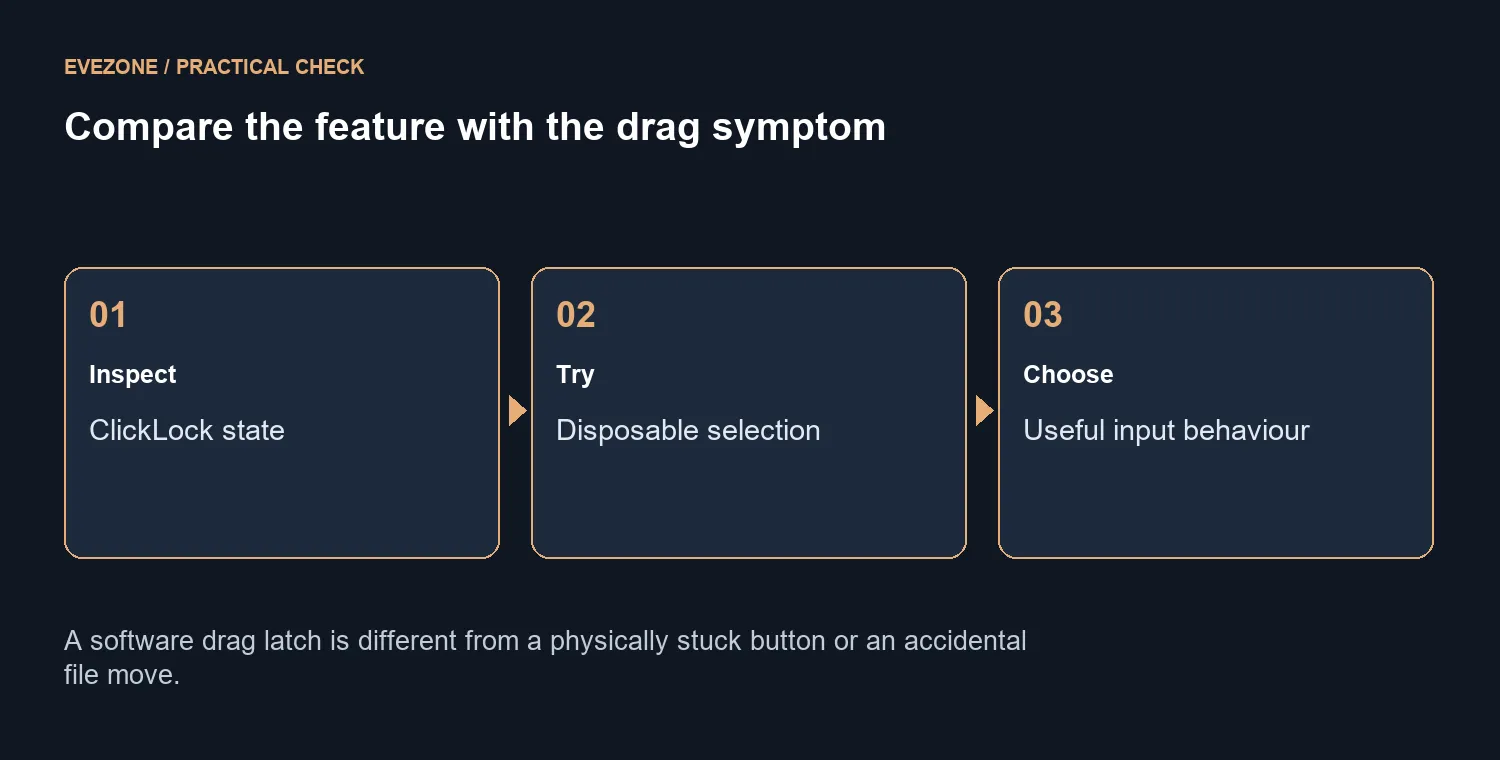
The feature is an accessibility choice, not proof that the device is failing. A user who cannot comfortably sustain a button press can benefit from it. On a shared desk, establish whose preferences you are changing. A successful fix is input that behaves as intended for the person using it, with the reason for the change understood.
🔎 Investigate a physical button only when needed
If unwanted dragging continues with the feature off, or the button feels mechanically jammed, separate that observation from the software preference. Compare simple selection in another application and describe what a single deliberate press does. Do not assume that a timing control can repair a damaged switch or that every file movement is caused by ClickLock.
Choose from gaming mice when a replacement is supported by the remaining symptom or a comfort need. Keyboard and mouse combos may suit a basic desk; the R179 MARVO read gives local context. Buying hardware before checking the latch can reproduce the same behaviour on a brand-new device. Take the free setting comparison first, then judge the mouse on the problem that actually remains.
Frequently Asked Questions
What does ClickLock do?
It lets you highlight or drag items without keeping the mouse button held down for the whole movement.
Where do I inspect it?
Open Additional mouse settings and the Buttons tab. Review Turn on ClickLock and its settings.
Does a latched drag prove damage?
No. First compare the symptom with the feature state and repeat a simple controlled drag.
What should I use for testing?
Use disposable text or an unimportant file. Avoid moving essential folders while learning the behaviour.
Should ClickLock always be off?
No. It is useful for people who find a sustained press difficult. Keep it when it supports comfortable input.
Is replacement the first step?
The setting check is R0. A MARVO WS005 combo at R179 on 9 October is an option only if a separate hardware need remains.
Choose a comfortable way to drag. Browse Evetech mice after checking whether ClickLock is helping or interrupting your input.