Quick Answer
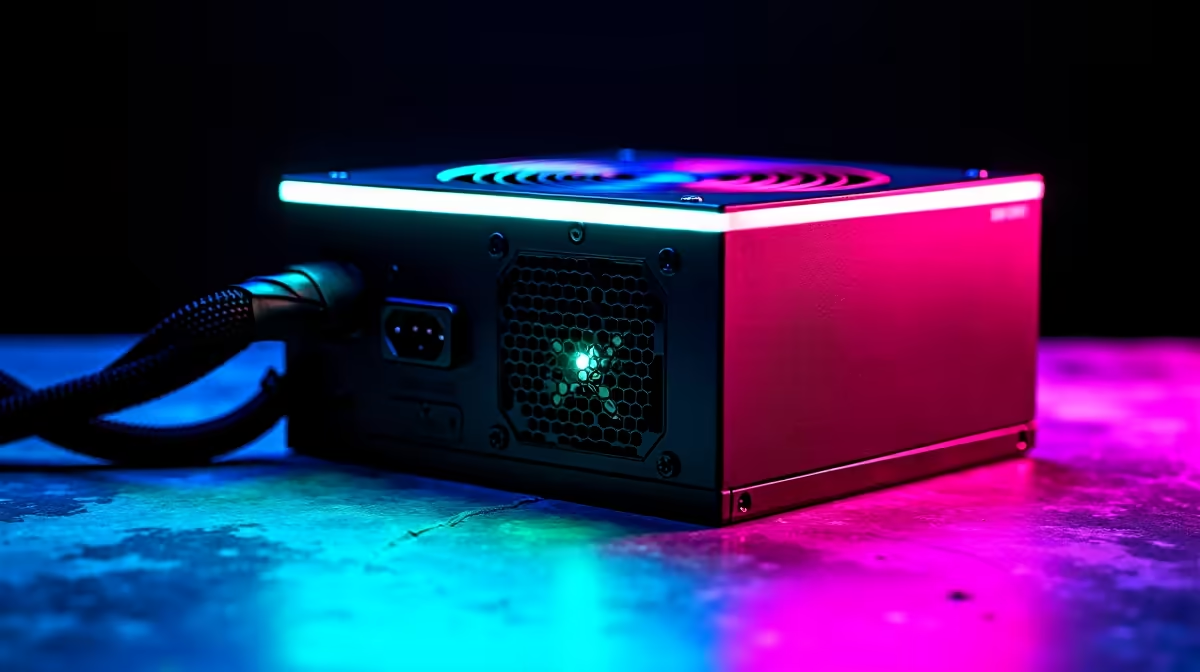
An 850W 80+ Gold power supply is a strong foundation for a high-performance gaming or workstation build. Setup is straightforward, but correct configuration -- cable routing, connector selection, and BIOS validation -- makes the difference between a stable system and one that introduces unnecessary risk. This guide walks you through the full process.
What 80+ Gold Efficiency Means for Your Build
The 80+ Gold certification indicates that the power supply delivers at least 87% efficiency at 20% load, 90% at 50% load, and 87% at full load. In practical terms, an 850W Gold PSU drawing at 50% load (425W from the wall) will deliver approximately 382W to your components with around 42W lost as heat.
When running on a UPS, every watt of inefficiency is wasted battery energy. An 80+ Gold PSU extends your UPS runtime compared to a Bronze or unrated unit at the same system load -- meaningful when you are trying to survive a two-hour Stage 4 slot.
Pre-Installation Checklist
Before mounting the PSU, verify the following:
- Confirm your case supports ATX PSU form factor (standard for all modern ATX, mATX, and most ITX cases)
- Identify whether the case has a bottom-mounted or rear-mounted PSU bay
- Check that your PSU is modular or semi-modular -- only attach cables you will actually use to keep the interior clean
- Read your motherboard manual to confirm the required CPU power connector (4+4-pin, 8-pin, or 8+8-pin for high-end boards)
- Count your GPU power requirements -- modern high-end GPUs may require two 8-pin or 16-pin (12VHPWR) connectors
Step-by-Step Setup and Installation
Step 1: Mount the PSU
With the case on a flat surface, slide the PSU into the designated bay with the fan facing the correct direction. If the case has a bottom vent with a dust filter, orient the PSU fan downward to draw cool air from beneath. If there is no bottom vent, orient the fan upward to exhaust into the case interior -- a less ideal but sometimes necessary configuration.
Secure with four screws through the rear panel of the case. Do not overtighten.
Step 2: Connect Motherboard Power
Route the 24-pin ATX connector from the PSU to the main power header on the motherboard. This is typically located on the right edge of the board. Press firmly until the latch clicks.
For the CPU power, locate the 4+4 or 8-pin connector and route it toward the top-left of the motherboard. On some PSUs these connectors are labelled CPU or ATX12V. Secure through the cable management channel behind the motherboard tray if possible.
Step 3: Connect GPU Power
Modern GPUs require either standard 8-pin PCIe connectors or the 16-pin 12VHPWR adapter (used by recent NVIDIA cards). Connect only PSU-native cables or validated adapters -- never chain connectors or use adapters not rated for your GPU's power draw. An 850W PSU can comfortably power most dual 8-pin GPU setups with headroom to spare.
Step 4: Connect Storage and Peripherals
SATA power connectors supply 2.5-inch and 3.5-inch drives. NVMe SSDs draw power through the M.2 slot on the motherboard -- no separate cable needed.
Step 5: Cable Management
Route unused cables behind the motherboard tray. Bundle them with the velcro ties typically included with modular PSUs. Good cable management improves airflow and makes future upgrades significantly easier.
BIOS Validation After First Boot
After completing the build and powering on, enter the BIOS (typically by pressing Delete or F2 during POST). Navigate to the hardware monitoring or system status section and confirm:
- CPU voltage is within expected range (typically 1.0V to 1.35V depending on processor)
- All CPU and chassis fan headers are detected
- No voltage anomalies on the 12V, 5V, or 3.3V rails
If your motherboard supports it, enable load-line calibration for the CPU VCore to prevent voltage droop under heavy load -- relevant for overclocking and sustained workloads.
Frequently Asked Questions
Is 850W enough for a high-end gaming PC?
For most single-GPU gaming builds including RTX 4090 and RTX 5080 configurations, 850W is sufficient with moderate headroom. Only heavily overclocked systems or multi-GPU workstation setups require more. An 850W Gold PSU is a balanced choice that covers current and near-future upgrade paths.
What Power Protection Does This Setup Need?
Yes, absolutely. South Africa's local operating conditions means abrupt power cuts are routine. A quality line-interactive UPS rated at 1000VA or higher will protect your system and provide enough runtime to save your work and shut down cleanly. The 80+ Gold efficiency rating helps maximise your UPS battery life during a slot.
Can I reuse my 850W PSU in a future build?
Generally yes, provided the PSU is in good condition and its connectors match the requirements of the new platform. Check that the new GPU does not require a 12VHPWR connector if your PSU only has 8-pin PCIe outputs -- adapters exist but native connectors are always preferred.
Ready to Find Your Perfect Match?
Find the right graphics card to pair with your 850W Gold build. Browse GPUs at Evetech