

RTX 4060 Ti Throttling Under Load: SA Temperature Guide
RTX 4060 Ti Throttling Under Load: Temperature. Everything you need to know with SA pricing, step-by-step instructions & expert recommendations.
Read moreEvery spec on motherboards explained in plain English. What matters for gaming and creator work in 2026, what's marketing fluff, and how each number translates to real-world performance.
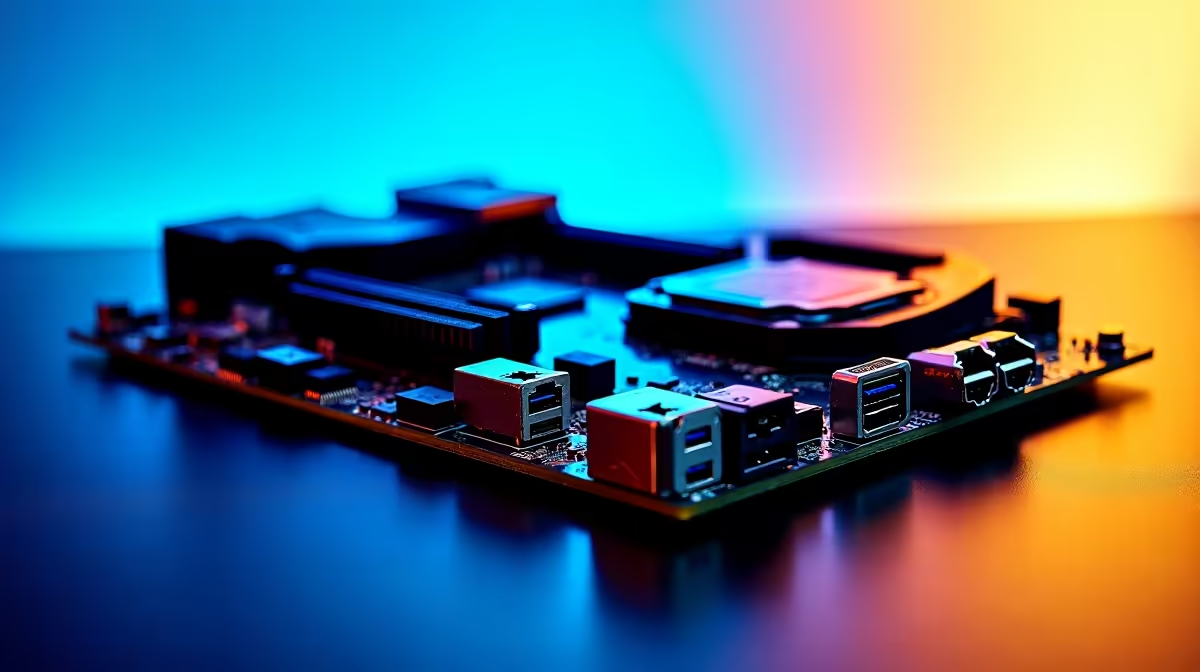
Looking at the back of your new rig can be confusing. Whether you are dropping serious ZAR on a high-end setup or building on a budget, plugging your monitor into the wrong slot is a classic mistake. If you need a clear guide to DisplayPort, HDMI and USB-C on gaming motherboards and when you will use each one, you are in the right place. Let us optimise those frame rates.
Before we dive into the specific cables, we need to address a common trap. If you bought a dedicated graphics card, you must plug your monitor directly into the GPU... not the motherboard.
However, the display outputs on modern motherboards are absolute lifesavers. You will use them if you are troubleshooting a dead GPU, setting up a home server, or running a CPU with integrated graphics.
Not all ports are created equal. Here is how the big three compare when you are plugging directly into your mainboard.
HDMI is the connection you already know from your living room TV. It is fantastic for general use, media consumption, and standard 60Hz gaming. When browsing reliable ASUS Intel motherboards, you will almost always find an HDMI port ready for basic display duties. It carries both audio and video beautifully for a hassle-free setup.
If you want high refresh rates at 1440p or 4K, DisplayPort is your best friend. It offers significantly higher bandwidth than older HDMI versions. Many high-performance ASUS AMD motherboards include DisplayPort outputs to support advanced APUs. If your processor has strong onboard graphics and you want to push serious pixels to a gaming monitor, DisplayPort is the way to go.
USB-C is rapidly becoming the ultimate all-in-one cable. Some premium boards now support DisplayPort over USB-C. This means you can run a single cable to a portable monitor or a modern display hub. If you are hunting for the best gaming PC deals in South Africa, keeping an eye out for USB-C display support is a smart move. It keeps your desk clean and future-proofs your setup.
If your PC turns on but your screen stays black, check where your cable is plugged in. Moving your HDMI or DisplayPort cable from the motherboard down to the dedicated graphics card fixes most new builder display issues instantly.
So when will you actually use the DisplayPort, HDMI and USB-C on gaming motherboards?
Use HDMI for your secondary 60Hz monitor. Use DisplayPort if you are relying on integrated graphics to drive a fast gaming display. Use USB-C for modern portable screens or minimalist laptop-style setups.
Remember that integrated graphics do not have their own dedicated video memory. They rely heavily on your system memory to render images. Pairing your processor with high-speed RAM kits will significantly boost your onboard display performance and keep your system running smoothly.
Ready to Build Your Perfect Rig? Understanding your hardware is the first step to PC gaming greatness. Whether you need a board with the latest USB-C display tech or a powerhouse GPU to bypass motherboard ports entirely, we have you covered. Explore our massive range of PC components and start building your dream machine today.
The motherboards, tools and accessories referenced in this article are stocked at Evetech.co.za with local SA warranty, ZAR pricing and nationwide delivery.
The article breaks down the real-world impact on gaming FPS, creator workflows and everyday responsiveness — not just raw spec numbers.
Only a handful of specs meaningfully change your experience. The guide ranks them by real impact so you spend on what counts.
We cover upgrade headroom, platform longevity and the specific features worth paying extra for if you plan to keep this build for several years.
The article includes a clear generational uplift summary so you can judge whether upgrading from your current hardware is worthwhile.
RTX 4060 Ti Throttling Under Load: Temperature. Everything you need to know with SA pricing, step-by-step instructions & expert recommendations.
Read more
Apex Legends Max Settings on RTX 4080. Tested & verified settings for best FPS and visual quality on SA hardware budgets.
Read more
GPU Buying Guide. Everything you need to know with SA pricing, step-by-step instructions & expert recommendations.
Read more
GPU Terms Guide. Everything you need to know with SA pricing, step-by-step instructions & expert recommendations.
Read more
AMD Adrenalin Download & Setup Guide: GPU. Clear setup instructions with SA-specific considerations, troubleshooting tips & recommended components.
Read more
Back-to-School GPU Buying Guide. Everything you need to know with SA pricing, step-by-step instructions & expert recommendations.
Read more
Snapdragon X2 NPU Explained: How 80 TOPS Changes. Plain-English explanation of what it means, why it matters & how it affects your buying decisions in SA.

HBM? High Bandwidth Memory Used in GPUs and AI. Plain-English explanation of what it means, why it matters & how it affects your buying decisions in SA.

How much should you spend on sim racing accessories in South Africa for a realistic setup? We break down budgets by quality tiers, so you buy smart gear and avoid overspending 🎮💸

G-Sync and FreeSync? Variable Refresh Rate. Plain-English explanation of what it means, why it matters & how it affects your buying decisions in SA.

AMD Laptop: Value. SA-focused analysis with local pricing data, real-world insights & actionable buying advice.

How MacBook Neo Handles 30+ Chrome Tabs with Only. SA-focused analysis with local pricing data, real-world insights & actionable buying advice.

Why Apple Put 8GB RAM in MacBook Neo: The A18 Pro. SA-focused analysis with local pricing data, real-world insights & actionable buying advice.

Upgrade your work laptop with a New Motherboard. Step-by-step instructions with SA-specific tips, common pitfalls to avoid & expert recommendations.

Maintain wired headset — Checklist: • inspect cables • clean earpads • store properly 🔧🎧 Practical steps to preserve sound quality and avoid premature replacements.

Fix crackling headset fast: step-by-step checks for cables, connectors, drivers, and settings to remove static or distorted audio on wired headsets 🎧⚙️

Stereo vs mono headsets: learn which delivers clearer calls, better spatial music, or simpler mono voice performance — pick the right headset for meetings, music, or gaming 🎧💬

- Compare gaming headset vs studio headphones; - Assess comfort, mic and sound; - Recommend best daily picks. Gaming headset vs studio headphones: learn which suits work, music and casual gaming. 🎧⚖️