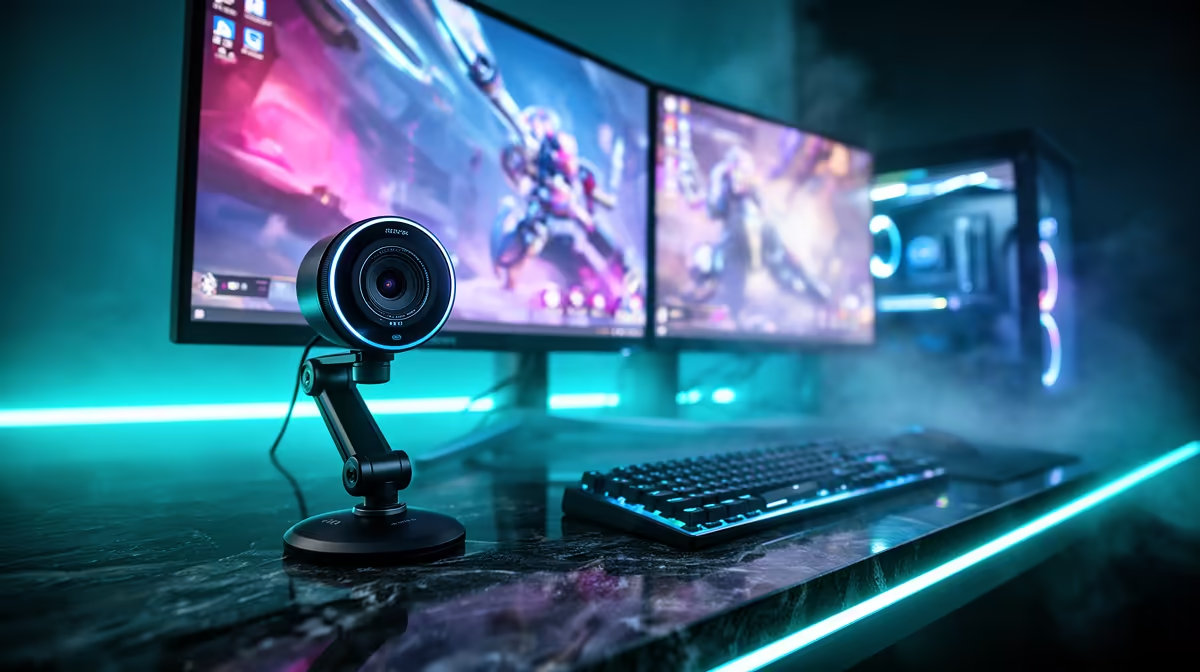
A dual-monitor desk creates a framing problem most webcam guides ignore. Your eyes and body shift between two screens throughout the day, which means a fixed-angle camera that centres you perfectly on one screen leaves you visibly off-centre on the other. An adjustable 95-degree FOV webcam solves this by giving you a wide enough field to stay in frame regardless of which display you are addressing, with the option to crop tighter when you need to appear more composed.
Quick Answer
A 95-degree field of view is wide enough to cover a two-monitor span and keep you in frame as you shift between screens. Narrowing to around 78 degrees crops out empty desk and tightens the frame when you are centred on your main display. The ability to switch between these angles from software makes one webcam serve both use cases.
📺 What a Dual-Monitor Desk Does to Your Frame
Standard webcams shipped at 78 to 80 degrees of horizontal field of view because most setups involved one monitor and one fixed sitting position. The calculation was straightforward: frame the user, fill the frame, done.
Two monitors change the geometry completely. A typical dual-monitor arrangement spans roughly 120 to 130 centimetres of horizontal width at arm's length. When your chair is centred between the screens, shifting attention to either side takes your body and eyeline well outside a narrow-angle field of view. On a 78-degree camera, you partially exit the frame every time you look at the secondary display.
A 95-degree horizontal field of view covers more horizontal ground at the same distance. With the camera mounted at the junction of the two monitors or on the bezel of the primary screen, a 95-degree angle can hold a person in frame across the full span of a two-screen arrangement, including natural rotation and lean during screen transitions.
Where 95 Degrees Becomes a Problem
Width has a cost. A 95-degree angle at a desk reveals more of the surrounding environment than a tighter angle does. The periphery of the frame picks up monitor cables, desk clutter, a door behind you, or an unlit corner. For professional video calls this can read as visually noisy or unprepared.
The fix is the angle adjustment. When you are in a structured meeting and sitting squarely at your main monitor, narrowing to 75 to 80 degrees crops the frame to your face and immediate background, removing the peripheral context that the wider angle includes. The switch takes a few seconds in your webcam control software.
🔧 Mounting Position and Alignment on a Dual-Monitor Desk
Where the camera sits determines how much work the field of view has to do. For a dual-monitor setup with screens of equal size, mounting on the top bezel of the left or right screen places the camera laterally off-centre, which means even a wide angle frames you asymmetrically when you look at the distant monitor.
The better position is the top bezel of the monitor you speak to most often during calls, or a monitor stand arm centred between the two screens. At centre mount, a 95-degree field covers both screens with roughly equal margin on each side. Your head stays near the frame centre as you shift between displays rather than drifting toward one edge.
Eye-level placement is equally important. A webcam aimed downward from a high monitor or upward from a low desk changes facial geometry regardless of FOV. The camera lens should sit at approximately the same height as your eyes when seated, which for most South African desk workers means raising the monitor slightly above default height or using a monitor arm for adjustment.
✨ Using Adjustable FOV Creatively
The adjustable 95-degree field is not only a framing utility. For tutorial content that shows a full dual-monitor workflow, the wider angle captures both screens and your hands simultaneously, letting viewers see the full workspace rather than a cropped version. Switching to a tighter angle for the talking-head sections of the same video keeps the presentation portions looking clean.
Content creators who record commentary alongside screen demonstrations benefit from this flexibility most directly. A 95-degree wide shot establishes the workspace context; a 78-degree crop tightens on the face when the point being made is verbal rather than visual.
AI auto-framing, where available, offers a third mode: dynamic tracking that adjusts in real time to keep you centred regardless of where you move. For creators who move around during recording, auto-framing combined with a 95-degree base angle gives the camera the widest possible capture area to pan across without hard edge cropping.
🎯 Choosing Between FOV Settings for Different Uses
Three use cases, three angle recommendations. For daily video meetings on a dual-monitor setup, 90 to 95 degrees keeps you framed through natural screen transitions without requiring you to stay rigidly positioned. For formal calls or interviews where you remain at one screen and background control matters, 75 to 80 degrees produces a tighter, more composed image. For tutorial recording that shows the full desk setup, maximum FOV produces the most contextually useful wide shot.
Most adjustable webcams let you save presets for each angle, so you switch between meeting mode and recording mode without manually re-entering the settings each time. Setting up these presets once and labelling them for the use case makes the workflow frictionless.
Frequently Asked Questions
Why does field of view matter specifically on a dual-monitor desk?
A dual-monitor arrangement spans significantly more horizontal distance than a single screen, and working across two displays means your body and eyeline naturally shift left and right throughout the day. A narrow webcam angle designed for a single static monitor cannot accommodate that movement without your head leaving the frame. A 95-degree angle provides enough horizontal coverage to hold you in frame during normal dual-screen working behaviour.
What angle should I use to stay centred on a two-monitor setup?
For a standard two-monitor span at normal desk depth, an angle between 85 and 95 degrees keeps most users in frame through typical screen transitions. The exact sweet spot depends on your sitting position relative to centre, the width of your specific monitors, and the camera mount position. Ninety degrees is a useful starting point to evaluate from, widening or narrowing by a few degrees until your head stays comfortably inside the frame across both displays.
Where is the best place to mount a webcam on a dual-monitor desk?
The top bezel of your primary monitor, positioned at the horizontal centre of your overall desk span if possible, gives the most useful angle for calls. At centre, a 90-plus-degree field covers both monitors symmetrically. On a side monitor, the camera faces you at an angle to the monitor you primarily speak to during calls, which creates an off-axis eyeline even when you are looking at the right screen. A monitor arm centred between screens lets you position both the height and lateral placement with precision.
Does a wider FOV reduce image quality?
Not inherently. Modern webcam optics at 95 degrees can maintain sharpness across the full frame if the lens quality is adequate. Wide-angle lenses can show barrel distortion at the edges, where straight lines appear to bow outward, but quality webcams correct this in firmware. Actual resolution and sensor quality determine overall image sharpness, and a good 1080p or 4K sensor performs well at 95 degrees.
Is AI auto-framing better than setting a fixed wide angle?
For dynamic users who move during recording or streaming, auto-framing tracks movement and adjusts the active crop in real time, keeping the subject centred even when the physical camera cannot move. A fixed 95-degree angle captures everything within that range but shows empty space when you are off to one side. Auto-framing uses the wide field as its working area and dynamically fills the output frame with the subject, which is more efficient for active presenters and less useful for multiple-person round tables where the full room view is the point.
Ready to stop losing yourself in the frame on a dual-monitor desk?
Browse the adjustable FOV webcam range and find a camera that covers your full workspace without sacrificing image quality when you crop tight.