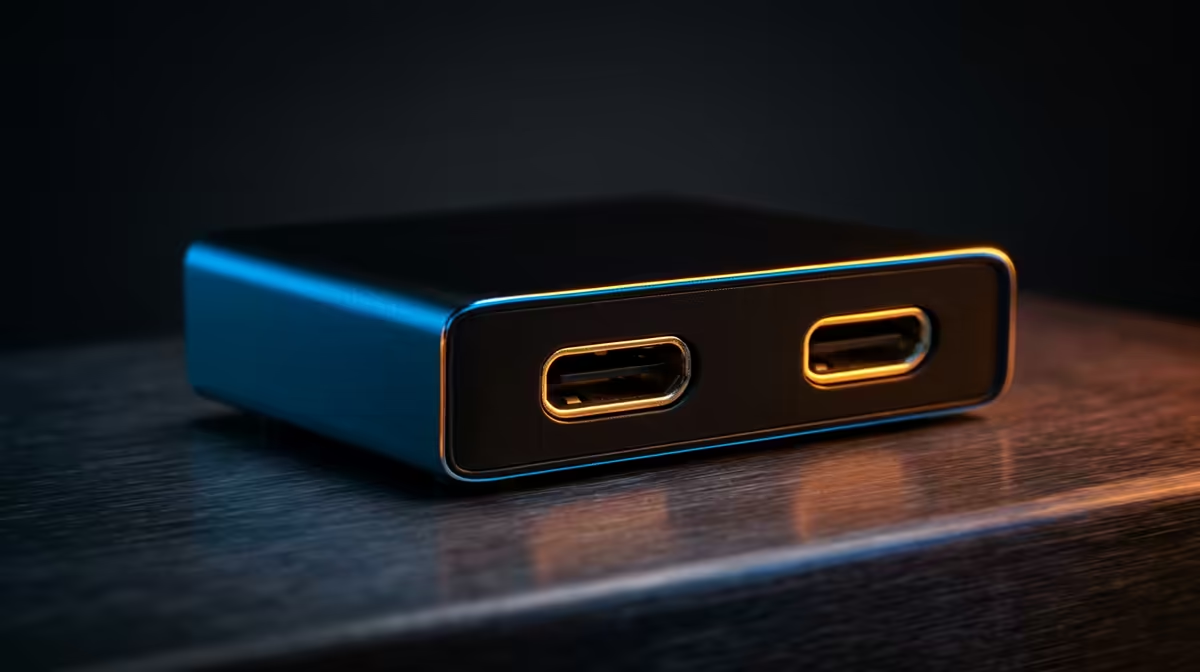
Two machines, one desk, one monitor, and a daily ritual of unplugging an HDMI cable from the gaming rig to jam it into the work laptop. That dance ends with the right KVM switch, a small box that lets a USB-C work laptop and an HDMI gaming desktop share a single screen, keyboard and mouse, swapping between them at the press of a button. For the South African work-from-home setup that doubles as a gaming corner, it is the cleanest fix on the desk.
Quick Answer
For a USB-C work laptop paired with an HDMI gaming desktop, you want a USB-C/HDMI hybrid KVM switch. It takes the laptop in over a single USB-C cable (video, data and power), takes the desktop in over HDMI plus USB, and outputs to one monitor with your keyboard and mouse attached. Switch by hotkey or front button, no cable swapping.
How a Hybrid KVM Solves the Two-Machine Desk
KVM stands for keyboard, video, mouse. The switch sits between your two computers and a single set of peripherals, and at any moment it routes one machine through to the screen, keyboard and mouse. Press the button or hit the hotkey and it flips to the other machine instantly.
The hybrid part is what makes it fit a modern desk. A work laptop almost always connects through one USB-C cable that simultaneously handles video output, data transfer, and often power delivery from a single port. A gaming desktop, by contrast, outputs video over HDMI or DisplayPort with separate USB for peripherals. A hybrid KVM accepts both input styles on the same box, so the mismatched machines meet at one common output.
Without it, sharing a monitor means physically reseating cables several times a day, which loosens ports over time and is simply tedious. The switch removes that entirely. One monitor, one keyboard, one mouse, two computers, no unplugging.
What to Check Before You Buy
The single most important spec is whether the KVM's video bandwidth matches your monitor. A KVM that tops out at 1080p 60Hz will throttle a high-refresh gaming monitor, so if you run 1440p at 144Hz or 4K at 60Hz, confirm the switch is rated to pass that resolution and refresh rate on the HDMI input. Buying a cheap switch that bottlenecks your panel defeats the point.
Next, check the USB-C input handles what your laptop expects. Look for DisplayPort Alt Mode support so the laptop can output video over USB-C, and check the power-delivery wattage if you want the switch to charge the laptop while it is connected. A laptop that needs 65W will not stay charged off a port that only delivers 20W.
Switching method and peripheral ports
Decide how you want to switch. A front-panel button is foolproof; a keyboard hotkey is faster once you learn it; some switches offer both. Then count your peripheral ports. Beyond keyboard and mouse, you may want to share a webcam, a wired headset, or an external drive across both machines, so a switch with a couple of spare USB ports earns its place.
Single monitor versus dual monitor
Most home setups run one shared screen, and a single-output hybrid KVM covers that. If you run two monitors, you need a dual-monitor KVM, which roughly doubles the price and the cabling. Be clear about your display count before buying, because a single-output switch cannot drive a second screen no matter how you wire it.
Setting It Up Without Headaches
Cable management is half the battle, and it is worth thinking about the rest of the workspace while you are at it. A switch that hides behind the monitor with cables routed neatly keeps the desk usable. While you are tidying, the surface itself matters too; the ergonomic desk range at Evetech deserves consideration if your combined work-from-home and gaming hours have outgrown the old desk propping the station up, because a KVM that keeps you at one surface all day means that desk is also carrying everything all day.
For the connections themselves, use a full-feature USB-C cable for the laptop (a charge-only cable will leave the screen blank), and a HDMI cable rated for your monitor's resolution and refresh rate. Plug the keyboard and mouse into the KVM, not the computers, then connect each machine's video and USB to the switch's input ports. Power the unit, select an input, and confirm both machines show up when you toggle.
A few practical notes. Some KVMs need a moment to re-detect USB devices when you switch, so a brief pause before typing on the freshly selected machine is normal. If a machine fails to display, check you used a video-capable USB-C cable rather than a charge-only one, the most common setup mistake. And while the desk is open, a quick browse of the best-selling workspace accessories at Evetech shows what other long-hours users are choosing to round out the same WFH-plus-gaming station.
A KVM Versus the Alternatives
It is worth knowing why a KVM beats the other ways people try to solve the two-machine problem. The cheapest workaround is just reaching behind the monitor to swap the cable several times a day, which works but loosens the port over months and is plainly tedious. Some people instead buy a second monitor input and use the monitor's own source button to flip between the two machines, but that only switches the video; your keyboard and mouse stay tied to one computer, so you still need a separate set or a fiddly software solution for the peripherals.
A second approach is software that shares one keyboard and mouse across two computers over the network. That handles the input side neatly, but it does nothing for video, so you still need two monitors or a manual screen swap, and it relies on both machines being awake and on the same network. A hardware KVM sidesteps all of that by switching keyboard, video and mouse together in one action, independent of any software, which is why it remains the cleanest fix for a single-screen desk shared by a laptop and a desktop.
Frequently Asked Questions
Will a KVM switch reduce my gaming performance?
A quality KVM rated for your monitor's resolution and refresh rate passes the signal through without meaningful impact. Performance problems come from undersized switches that cannot carry your panel's full bandwidth, so match the spec to your monitor.
Can one KVM charge my laptop while it is connected?
Yes, if it supports USB-C power delivery at a high enough wattage. Check the figure against your laptop's charger; a 65W laptop needs a switch that delivers at least that to stay topped up.
Do I need special cables for a USB-C KVM?
You need a full-feature USB-C cable for the laptop, one that carries video via DisplayPort Alt Mode, not a charge-only cable. For the desktop, use an HDMI cable rated for your monitor's resolution and refresh rate.
Can a single-monitor KVM run two screens later?
No. A single-output switch can only drive one display. If you plan to add a second monitor, buy a dual-monitor KVM from the start.
How do I switch between the two computers?
Most hybrid KVMs offer a front-panel button, a keyboard hotkey, or both. Pick the method that suits you; the button is the most reliable and the hotkey is faster day to day.
One screen, two machines, zero cable swapping. Set up a clean WFH-plus-gaming corner at Evetech, from the KVM that ties your laptop and desktop together to a chair that handles the long hours at the same desk.