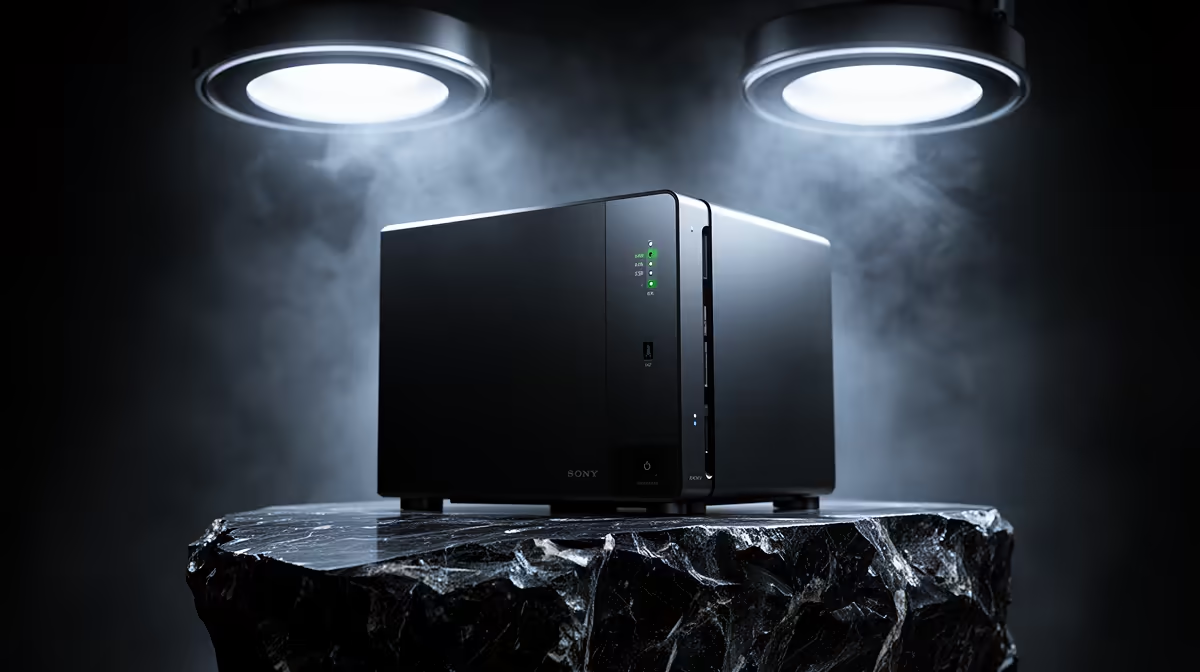
The first NAS most South African households should buy is a two-bay box running two mirrored drives. It is the cleanest starting point: enough protection to survive a single drive dying, simple enough to set up over a weekend, and cheap enough to run that you will actually leave it on. The best NAS for home beginners is not the most powerful one, it is the one you understand and trust to hold your photos, backups and media.
Quick Answer
For a first NAS, buy a 2-bay unit and run the two drives in RAID 1 (mirroring). That gives you a single copy of your data protected against one drive failing, with a setup wizard simple enough for a first-timer. Budget for the enclosure plus two matching NAS-rated drives, and expect the whole box to sip under 15W in normal use.
Why a 2-bay in RAID 1 is the right first step
A NAS is just a small always-on computer with drive bays that serves files to everything on your network. The reason a 2-bay is the standard beginner choice is the maths of redundancy.
With two drives mirrored in RAID 1, everything written to one drive is copied to the other. If a drive fails, your data is still live on the survivor; you swap in a new drive and the array rebuilds. You lose half your raw capacity to the mirror, so two 8TB drives give you 8TB usable, but that 8TB is protected. For a household's photos, documents and a media library, that trade is exactly right.
A single-bay NAS has no redundancy, so a drive failure means total loss. A four-bay is more capacity and flexibility than a beginner needs and costs more up front. Two bays is the sweet spot where protection starts and complexity stays low.
Picking the enclosure
Entry-level 2-bay NAS units from the major brands all do the core job well. The thing to look at is the software and the network port.
Software is what you live with daily
The operating system is what you touch every day, so prioritise it. Synology's DSM is the friendliest for a first-timer: the setup wizard walks you through RAID, and the first-party apps for backup, file sync and photos are genuinely good and free. TerraMaster and Asustor pack more hardware for the money (faster CPUs, extra M.2 slots, more RAM) but ask a little more of you in setup. For a true beginner, lean toward the simpler software; for someone comfortable tinkering, the value boxes reward the effort.
Network speed
The newer entry-level units have started shipping with 2.5GbE ports instead of plain gigabit, which is worth having if your router or switch supports it. It means large file transfers and backups finish faster. It is not essential on day one, but it future-proofs the box.
Drive bays and CPU
Two bays is enough. An Intel-based unit with hardware video transcoding (Quick Sync) is a bonus if you plan to stream media to a TV, but it is not required just to store files and run backups.
Choosing the drives
Do not put old desktop drives in a NAS. Buy NAS-rated drives designed to run 24/7 and handle the constant low-level vibration of sitting next to a second spinning drive. Buy two identical drives so the mirror is clean.
Size them for a few years of growth, not just today's files. If you have 2TB of data now, two 4TB or 6TB drives leave comfortable headroom. A glance at the SSD and storage best sellers is a useful gut-check on which capacities SA buyers are actually pairing with their enclosures right now.
Getting discovery and first access right
Synology makes getting started painless with its find.synology.com discovery page, which detects the NAS on your network and launches the setup wizard automatically. TerraMaster and QNAP have similar browser-based wizards. The first-run process walks you through creating a storage pool, choosing a RAID level and setting up user accounts, so you do not need any technical background to have a working NAS inside an hour.
First apps to enable
Once the storage is set up, there are three apps worth enabling before anything else. Hyper Backup keeps a versioned copy of your most important folders on an external USB drive or a cloud destination, so you have a second copy outside the NAS. Active Backup for Business (Synology) or equivalent on other platforms handles scheduled backups from your Windows and Mac machines without you needing to remember. A media server app lets any TV or streaming device on your network browse photos and videos from the NAS directly. All three install from the NAS package manager and take five minutes each to configure.
The rule beginners forget: a NAS is not a backup
This is the single most important thing to understand before you spend. RAID 1 protects against a drive dying. It does not protect against ransomware, accidental deletion, a power surge that kills the whole unit, or theft. If you delete a file or a virus encrypts it, the mirror faithfully copies that change to both drives.
So treat the NAS as your primary live copy, and still keep a separate backup of anything irreplaceable: a second external drive kept offline, or a cloud copy. The NAS makes your data convenient and resilient to hardware failure; it is one leg of a backup plan, not the whole thing. You can compare 2-bay enclosures and NAS-rated drives together in the diskless NAS and storage range at Evetech to spec the full setup in one place.
Frequently Asked Questions
How many drive bays do I need to start?
Two. A 2-bay in RAID 1 gives you protection against a single drive failure with minimal complexity. One bay has no redundancy; four bays is more than a beginner needs and costs more. Start at two and grow later if you outgrow it.
What is RAID 1 in plain terms?
RAID 1 mirrors your data across two drives, so both hold an identical copy. If one drive fails, the other keeps your files live while you replace the dead one. The cost is capacity: two 8TB drives give you 8TB usable, not 16TB.
Can I use any hard drive in a NAS?
You should use NAS-rated drives built for 24/7 operation and vibration tolerance. Ordinary desktop drives can work but fail sooner under constant duty. Buy two identical NAS drives so the mirror stays balanced.
Is a NAS a backup on its own?
No. RAID protects against hardware failure, not deletion, ransomware, theft or a dead unit. Keep a separate copy of anything you cannot lose, ideally one stored offline or off-site. The NAS is your live copy, not your only copy.
Do I need the fastest CPU and most RAM?
Not for storing files and running backups. A faster CPU and hardware transcoding help if you stream a media library to a TV. For backups, photos and document storage, an entry-level 2-bay is plenty.
Ready to set up your first home server? Pick a beginner-friendly 2-bay enclosure and a pair of matching drives from the diskless NAS and storage range at Evetech, and have protected storage running this weekend.