Photographers building a machine for Photoshop and Lightroom routinely overspend on the graphics card and underspend on the part that actually matters: the processor. The best PC for photo editing in South Africa in 2026 is built around fast single-core CPU performance and plenty of RAM, because that is what these applications genuinely reward. Get that balance right and your edits feel instant in Rand-priced builds that do not waste money on GPU tiers you will never use.
Quick Answer
For Photoshop and Lightroom, prioritise a CPU with strong single-core speed and at least 32GB of RAM, paired with a fast NVMe SSD. A mid-tier graphics card is plenty. A balanced photo-editing desktop in South Africa makes more sense around a quick processor and ample memory than around an expensive high-end GPU, which these programs barely stress.
Why Single-Core Speed Beats Core Count
Photoshop and Lightroom were built over many years, and large parts of their core editing pipeline still lean heavily on one or two threads doing the work quickly rather than dozens of threads sharing it. When you move a slider, apply a filter, or load a preview, the responsiveness you feel is driven mostly by how fast a single core can churn through that operation.
This is why a processor with very high per-core speed often feels snappier in everyday editing than one with far more cores but a lower clock. Core count helps with batch exports and a handful of multi-threaded tasks, but the moment-to-moment feel of editing rests on single-core performance. Chasing the highest core count at the expense of clock speed is a classic photo-editing mis-buy.
RAM: Where 32GB Becomes The Floor
Memory is the second pillar, and it is where many photo-editing builds fall short. Photoshop holds your image, every layer, the history states, and its scratch data in RAM, and Lightroom keeps previews and catalogue data resident while you cull. Working with high-resolution RAW files from a modern camera, especially multiple open documents or large layered composites, eats memory fast.
16GB will work but starts swapping to disk under real load, which stalls the editing flow. 32GB is the sensible floor for serious work in 2026, and photographers handling very large panoramas, focus stacks or heavy retouching benefit from 64GB. Adding more RAM is one of the cheapest ways to make a slow editing machine feel quick again.
The GPU Question: Enough, Not Excessive
A graphics card does help photo editing, but only up to a point. Photoshop and Lightroom use the GPU to accelerate certain tasks, viewport rendering, some filters, AI-driven tools, and a capable mid-tier card covers all of that comfortably.
Where it does not pay off is the top end. A flagship gaming or workstation GPU brings little extra to a Lightroom catalogue or a Photoshop layer stack, because these programs simply do not load the card the way 3D rendering or video work does. Spend the money you save on the GPU on a faster CPU and more RAM instead. That said, photographers who also touch 3D, heavy AI processing or video can justify a stronger card, and the workstation-class graphics options are worth a look for those mixed workloads.
Fast Storage Ties It Together
An NVMe SSD is the third essential. RAW files are large, catalogues grow quickly, and a fast drive cuts the time spent importing, generating previews and opening files. A two-tier setup works well: a quick NVMe drive for the operating system, applications and your active catalogue, plus a larger drive for the photo archive. This keeps the editing experience fast while giving you room for years of shoots.
Calibrating The Monitor: The Step Most Builds Skip
A photo-editing PC is only as honest as the screen attached to it. You can spend well on a fast CPU and ample RAM, then edit on a panel that shows colours nothing like the final print or the client's screen. For serious work, an IPS panel with good colour coverage matters more than a high refresh rate, since photographers need accurate, consistent colour rather than fast motion.
A calibration tool that profiles the display brings the screen in line with a known standard, so the greens and skin tones you adjust on your monitor look the same elsewhere. It is an unglamorous part of the budget, but it protects every other Rand you spend on the build. A bright, even, accurately profiled screen is the difference between confident edits and constant second-guessing.
Laptop Or Desktop For Editing On The Move
Many South African photographers shoot on location and want to cull and edit on the road, which raises the laptop question. A capable editing laptop can absolutely run Photoshop and Lightroom well, provided it carries a fast processor, at least 32GB of RAM and a quality display. The trade-off is value: a desktop delivers more performance per Rand and is far easier to upgrade later, adding RAM or storage as your archive grows.
A common and sensible setup is a desktop as the main editing station at home, with a lighter laptop for travel culling and rough edits. If your work is split between studio and field, decide where the bulk of the heavy editing happens and put the stronger machine there. The desktop almost always wins on long-term value for the serious editing workload.
Putting A Build Together
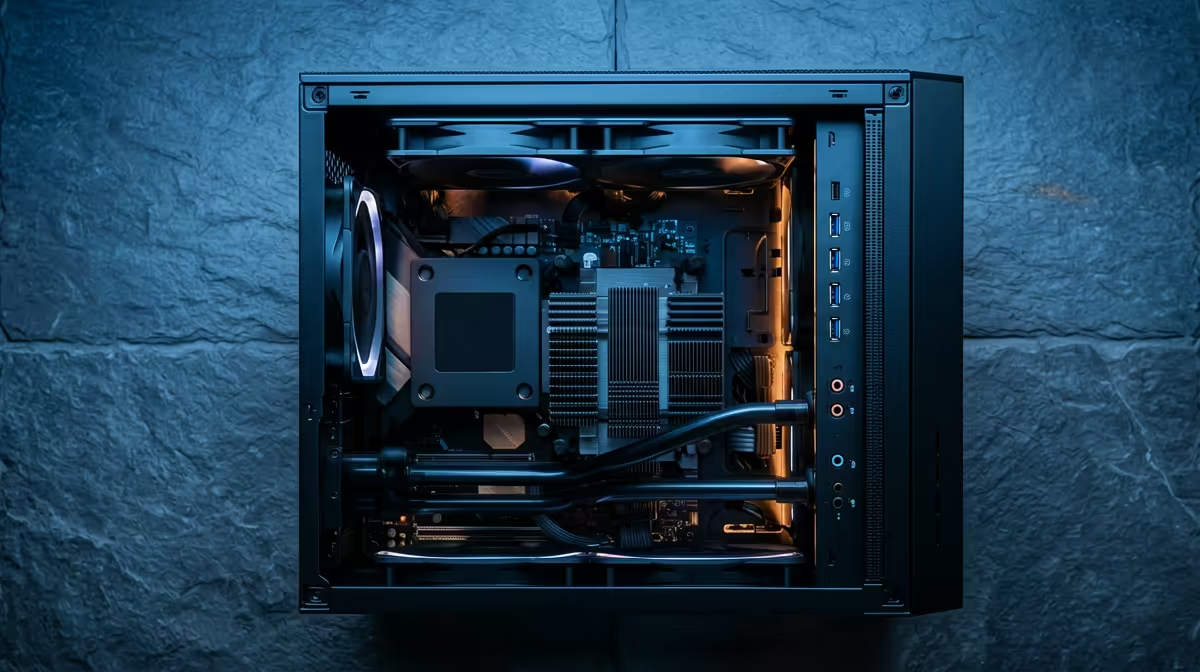
A strong SA photo-editing machine in 2026 looks like a high-clock CPU, 32GB of RAM as a minimum, a mid-tier graphics card, and a fast NVMe SSD for the working drive. That combination delivers professional responsiveness without paying for a GPU that sits idle. If you would rather not source each part yourself, the most popular pre-built desktops include balanced machines that already lean towards CPU and memory, which suits editing well.
Frequently Asked Questions
Does photo editing need a powerful graphics card?
Not really. Photoshop and Lightroom use the GPU for some acceleration, but a mid-tier card handles it well. The money is better spent on a faster CPU and more RAM, which affect editing speed far more.
How much RAM do I need for Photoshop and Lightroom?
32GB is the sensible minimum for serious work in 2026. 16GB works but slows under large RAW files and layered files, while 64GB benefits heavy retouching, panoramas and focus stacks.
Is single-core or multi-core speed more important for editing?
Single-core speed drives the responsiveness you feel when adjusting sliders and applying edits. Multi-core helps batch exports, but day-to-day editing feel depends mostly on fast per-core performance.
Do I need an SSD for photo editing?
Yes. A fast NVMe SSD speeds imports, preview generation and file opening. A common setup pairs a quick NVMe drive for the OS and active catalogue with a larger drive for archived photos.
Is a workstation graphics card worth it for photographers?
Only if you also do 3D, heavy AI processing or video work. For pure Photoshop and Lightroom editing, a mid-tier card is enough and a workstation GPU is hard to justify.
Building a machine that makes Photoshop and Lightroom feel instant? Browse the editing-focused desktops and components at Evetech and put your budget where photo work actually rewards it.