



PCIe 5.0 vs PCIe 4.0 for Video editing in 4k in SA
PCIe 5.0 vs PCIe 4.0 for video editing in 4k is mainly about fit, features, compatibility, cost, and upgrade path, not one automatic winner. SA buyers should match the choice to the setup.
Read moreA touchscreen laptop adds direct-touch and often pen input over a normal keyboard and trackpad, useful for note-taking and design work rather than gaming. Evetech stocks touchscreen models across its laptop range so SA students can match size to workflow.
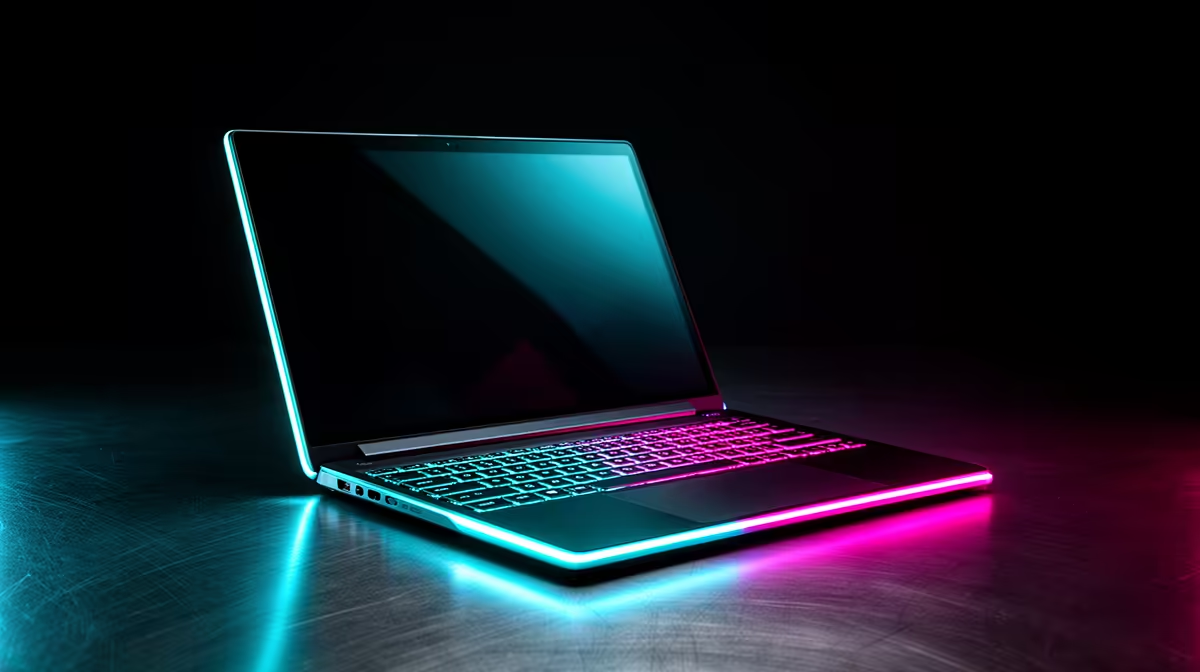
A touchscreen laptop lets you tap controls, mark a document and write with a compatible pen. That can be useful for notes, diagrams and design review. It also adds cost, reflections and hinge questions, so you should buy one for a real touch workflow rather than the novelty of scrolling by hand.
Choose a touchscreen when you will annotate PDFs, sketch, present or use the laptop in tablet or tent mode. Check active-pen support, hinge type, screen brightness and battery life on the exact model. For typing, coding or gaming at a desk, a strong non-touch display can give you better value.
Every touchscreen accepts fingers. It may not support an active pen with pressure, tilt and palm rejection. A basic capacitive stylus acts like a finger and cannot replace a drawing tablet.
Look for the named pen protocol and whether the pen is included. Even when two products use the same broad technology, feature support can differ. Check replacement nibs, charging method and a safe place to carry the pen.
Students writing equations need low visible ink delay and reliable palm rejection. Artists should inspect pressure curves, diagonal-line wobble and colour accuracy. Try the exact pen and app where possible.
A normal clamshell touchscreen is useful for taps and short annotations. The keyboard remains under your hands, and the display can wobble if you press near the top.
A 360-degree convertible folds into tablet, tent or stand positions. It is more flexible for handwriting and presentations, but it can weigh more than a dedicated tablet. Check whether the keyboard disables when folded and how the edges feel in your hands.
A detachable gives you the lightest tablet mode while relying on a kickstand and removable keyboard. It can be awkward on a lap. Choose around the places you work, not the most dramatic showroom pose.
Browse popular laptops and current laptop deals, filtering each exact listing for touch and pen details.
Touch layers often use glossy glass. It can make colours look rich while reflecting lights and windows. Brightness becomes important in a classroom or office. A screen that is comfortable indoors may struggle near a sunny window.
Fingerprints build up. Use a clean microfibre cloth and the maker's approved cleaning method. A matte protector can reduce reflections and add paper-like pen friction, but it may soften the image or affect touch response.
Check resolution, colour coverage and contrast beside touch. A touch badge does not guarantee a good panel. Designers need measured colour performance; readers may value a taller aspect ratio for documents.
The touch digitiser uses some power, while convertibles can carry extra hinge and glass weight. The difference varies by model. Compare repeatable battery tests at a stated brightness rather than assuming all touch laptops run shorter.
Include the charger and pen when checking bag weight. A compact machine that needs several adapters can lose its travel advantage.
USB-C charging can reduce the kit you carry, provided the laptop supports the correct input power. Check the exact port functions.
Touch input does not make a processor faster. Match CPU, memory and storage to your course or work. Sixteen gigabytes of memory is a comfortable target for multitasking, creative tools and a machine you plan to keep.
Integrated graphics handles notes, browsing and media. Design, 3D or engineering applications may need a discrete GPU. Confirm software requirements through the course or application provider before paying for graphics power.
Gaming on a touchscreen still depends on GPU performance and cooling. Most PC games are built for mouse, keyboard or controller, so touch adds little there.
Ask whether your notes must synchronise across phone and PC, export to PDF or remain available offline. Test search, handwriting recognition and backup. The app can matter as much as the pen.
For lectures, check fan noise, webcam, microphone and keyboard. A convertible that writes well but lasts only half your day can be frustrating. Carry a sleeve because the glass travels against other items in a bag.
If study support comes through NSFAS or an institution, eligibility, approved items and purchasing rules can change. Confirm current requirements with NSFAS or your institution before relying on a touchscreen model being covered.
Pen input is useful for masks, rough sketches and review notes. Professional drawing also needs a stable hinge, accurate colour and predictable pressure. Some artists prefer an external pen display because it offers a larger surface and leaves the laptop screen upright.
Try slow diagonal strokes and vary pressure. Check whether your palm creates marks and whether the cursor drifts near screen edges. Those details are hard to infer from a specification table.
A convertible hinge moves through a larger range than a normal lid. Open it from the centre and avoid lifting the laptop by the screen. Inspect for uneven resistance or clicks.
Read warranty terms for the pen, battery and accidental glass damage. Keep the invoice and model code. A cracked touch panel can affect both display and input, so a protective sleeve is sensible.
Write one page by hand, mark a PDF, fold the device into the position you expect to use and type for fifteen minutes. Then carry it with the charger. This short routine exposes pen delay, hinge wobble, keyboard comfort and real travel weight.
If touch does not improve one of those tasks, put the same money into screen quality, battery, memory or storage.
Direct targets, an on-screen keyboard and pen input may reduce reliance on a trackpad for some users. Test the applications and gestures you need because button size and touch support vary. Where an accommodation matters, involve the user in the trial instead of choosing from a feature list on their behalf.
No. Confirm the active-pen protocol and exact model compatibility. Finger touch alone is not enough.
Most PC games use mouse, keyboard or controller. Touch is more useful for notes, art and presentation control.
They can be excellent for handwritten notes and PDFs. Battery, weight, app support and current institutional rules still need checking.
Compare touchscreen laptops by pen support, hinge stability, screen quality and the note-taking workflow you will use every week.
No. Confirm the active-pen protocol and exact model compatibility. Finger touch alone is not enough.
Most PC games use mouse, keyboard or controller. Touch is more useful for notes, art and presentation control.
They can be excellent for handwritten notes and PDFs. Battery, weight, app support and current institutional rules still need checking.
PCIe 5.0 vs PCIe 4.0 for video editing in 4k is mainly about fit, features, compatibility, cost, and upgrade path, not one automatic winner. SA buyers should match the choice to the setup.
Read more
Wi-Fi 7 vs Wi-Fi 6e for competitive esports comes down to router support, latency goals, device compatibility, and coverage. SA buyers should match the choice to the real network setup.
Read more
ATX 3.1 vs ATX 3.0 for mMO and live-service games buyers - what changes is mostly about compatibility, budget, upgrade path, and setup fit. SA buyers should check device support and real needs before expecting a clear win from either option.
Read more
LGA 1851 vs LGA 1700 can affect Twitch and YouTube streaming when gaming and encoding share CPU resources. For SA creators, the real-world difference depends on encoder choice, memory support, motherboard cost, thermals, and upgrade plans.
Read more
X870E vs X670E for aaa single-player gaming is mainly about fit, features, compatibility, cost, and upgrade path, not one automatic winner. SA buyers should match the choice to the setup.
Read more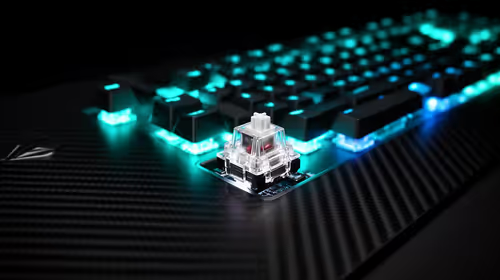
Hall Effect switches vs Mechanical switches for mMO and live-service games is mostly about compatibility, budget, upgrade path, and setup fit. SA buyers should check device support and real needs before expecting a clear win from either option.
Read more
A fake 113GB GTA VI ISO reportedly used empty padding around a small malware payload. SA gamers should delete unofficial builds, keep Windows security active and wait for official channels.

Wi-Fi 6E vs Wi-Fi 6 matters for 4K video editing when files move across a network. The real-world difference between Wi-Fi 6E and Wi-Fi 6 for video editing in 4K depends on NAS access, cloud uploads, router range, and SA creator workflows.

The difference between PCIe 5.0 and PCIe 4.0 for SA gamers is mostly bandwidth headroom. Compare GPU slot needs, NVMe speed, motherboard support, and upgrade timing before paying extra for a newer platform.

Gaming PC stuck pixel checks in South Africa should confirm the monitor fault first. Use colour tests, screenshot comparison, cable swaps, display menu checks, and clear photos before deciding on support.

Shokz OpenFit Air 2 earbuds weigh 7.2g each and use a redesigned dual-driver open-ear layout. SA buyers should choose them for comfort and awareness, not maximum isolation.

AMD's current driver now lists a Radeon RX 9050 4GB, while product coverage details a narrowed memory system. SA buyers should weigh the low VRAM ceiling against current local Radeon options.

Samsung Display has demonstrated a 16-inch 2.5K OLED laptop panel running at 300Hz. SA buyers should wait for a named notebook, full panel specifications and a local price before planning an upgrade.

Microsoft says some Windows 11 game crashes after recent updates are linked to RGB-related drivers. Affected SA gamers should confirm the update and driver before using the published registry workaround.

RTX 5090 on a 650W PSU is a tight pairing with very limited headroom. For SA gaming PCs, focus on total system draw, PSU quality, connector support, CPU choice, and avoid OC plans unless the full build is carefully power-limited.
PCIe 5.0 vs PCIe 4.0 for video editing in 4k is mainly about fit, features, compatibility, cost, and upgrade path, not one automatic winner. SA buyers should match the choice to the setup.

850W PSU safety for RTX 5090 is plausible with a quality unit and balanced parts. In SA, confirm connector support, CPU power draw, case airflow, PSU age, and spare capacity before building around 850W.
Wi-Fi 7 vs Wi-Fi 6e for competitive esports comes down to router support, latency goals, device compatibility, and coverage. SA buyers should match the choice to the real network setup.