



Marvel Rivals launch in South Africa
Marvel Rivals launch needs a balanced parts plan, not a random basket. Map the CPU, GPU, RAM, SSD, cooling, and monitor target to the budget so SA builders know where to spend first.
Read moreMatch a 1tb nvme ssd to your build by checking case size, radiator slots, and fan headers. The guide pairs each spec with a SA gamer scenario. Built for SA gaming PC buyers. Plan your build. Spec, price, and SA-builder notes covered.
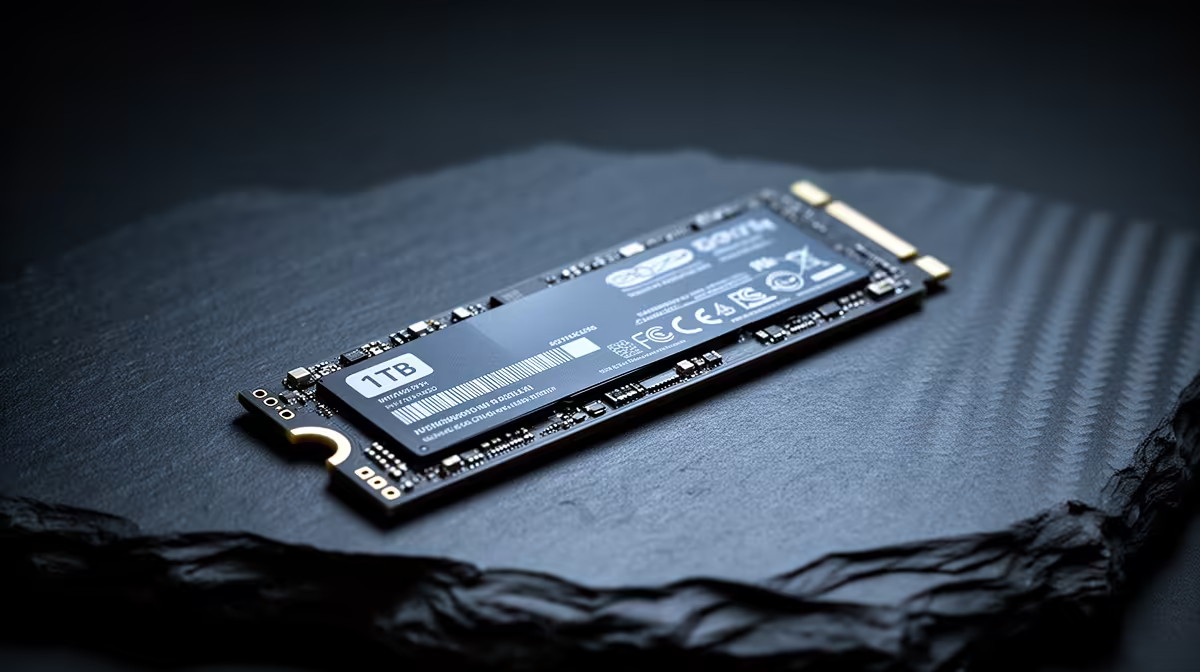
A 1TB NVMe SSD works best as a single combined OS, application, and game drive for single-drive builds, or as a dedicated game and application drive when a second device handles the OS. Expect 1TB to fill faster than anticipated: Windows 11 consumes 30 to 50GB, a single AAA game uses 60 to 150GB, and a typical application suite adds another 50 to 80GB.
For most South African gaming PC users, the simplest 1TB NVMe setup is a single unpartitioned volume. Keep Windows and all applications on one C drive and direct game installs to the same volume via Steam or the Epic Games Launcher's library settings. This eliminates cross-partition I/O overhead and keeps file system management simple. If you have a second drive, use the NVMe as C for OS and games and the secondary drive for user files, downloads, and media. Games should always be on the fastest available storage because NVMe reduces shader compile stutters in Unreal Engine 5 titles and cuts load times by 40 to 60% versus a mechanical hard drive.
Keep no more than six large AAA titles installed simultaneously, rotating out completed games. Most launchers support quick reinstallation, and South African fibre connections via Vumatel or Openserve on a 1Gbps plan redownload a 100GB game in under an hour. Move completed creative projects, video exports, and large documents to an external USB drive or secondary HDD to free NVMe capacity. Keep at least 15% of the drive free (around 150GB on 1TB) to maintain peak write performance: SSDs slow when NAND is heavily filled because the controller has fewer free cells for write caching.
For gaming and standard productivity, a PCIe 3.0 NVMe and a PCIe 4.0 NVMe deliver essentially identical in-game performance. Sequential read differences (3,500 MB/s vs 7,000 MB/s) do not translate to faster frame rates because games are CPU- and GPU-limited during play, not storage-limited. Where PCIe 4.0 matters is video editing workflows: scrubbing 4K ProRes or RED raw footage directly from the drive benefits from higher sequential read speed. For a pure gaming build, a 1TB PCIe 3.0 NVMe at R700 to R900 is nearly as good as a PCIe 4.0 drive at R1,000 to R1,400. For a dual gaming and content creation build, spend the extra for PCIe 4.0.
Windows 11 sometimes disables write caching on secondary drives by default. In Device Manager, find your NVMe under Disk Drives, open Properties, go to Policies, and confirm Write Caching is enabled. On drives used for game installations, this reduces save-file write latency and improves shader caching performance in games that write frequently to disk during gameplay.
For a focused library of 5 to 8 titles, yes. Modern AAA games average 60 to 100GB each, so 1TB holds 10 to 15 games alongside the OS and applications with active library management. For players keeping many titles installed simultaneously, plan for a second drive.
For gaming load times, differences between major NVMe brands are small, usually under 5% between fastest and slowest at equivalent interface speeds. Focus on interface generation, capacity, and warranty length rather than sequential speed benchmarks when choosing a gaming drive.
Install CrystalDiskInfo or the SSD manufacturer's own software. The interface field will show PCIe 3.0 x4 or PCIe 4.0 x4. If a PCIe 4.0 drive shows PCIe 3.0, the M.2 slot may route through chipset lanes at 3.0 speed; check the motherboard manual to confirm which M.2 slots run at full CPU-direct PCIe 4.0.
Ready to upgrade your storage? Browse 1TB and 2TB NVMe SSDs at Evetech, with PCIe 4.0 and PCIe 5.0 options for all motherboard platforms and budgets.
Marvel Rivals launch needs a balanced parts plan, not a random basket. Map the CPU, GPU, RAM, SSD, cooling, and monitor target to the budget so SA builders know where to spend first.
Read more
Path of Exile 2 launch needs a balanced parts plan, not a random basket. Map the CPU, GPU, RAM, SSD, cooling, and monitor target to the budget so SA builders know where to spend first.
Read more
Black Myth Wukong launch needs a balanced parts plan, not a random basket. Map the CPU, GPU, RAM, SSD, cooling, and monitor target to the budget so SA builders know where to spend first.
Read more
Hollow Knight PC requirements should be mapped to resolution, settings and upgrade budget before choosing a tier. Verify current requirements, then balance GPU, CPU, RAM and SSD around SA pricing.
Read more
Hollow Knight build planning should focus on the target resolution, settings and total system balance. Treat launch wording as time-sensitive, then verify requirements before choosing SA PC parts.
Read more
Fallout 4 PC requirements should be mapped to resolution, settings and upgrade budget before choosing a tier. Verify current requirements, then balance GPU, CPU, RAM and SSD around SA pricing.
Read more
Best Value Laptops South Africa 2026 — Find top picks, local prices and buy tips to maximise performance per rand. Compare deals for students, creators and gamers. 🔎💸

Struggling with a weak Desktop PC Wi-Fi signal? 📶 Discover expert tips on positioning your tower and external antennas to eliminate lag and maximize your internet speeds for gaming and streaming. 🚀

Tired of loadshedding router restarts killing your Wi-Fi? ⚡ Discover why power cuts disrupt your connection and learn expert tips to get back online faster after the lights return. 🌐

Master using a Nano SIM 4G router as your primary internet solution. Get stable speeds and seamless connectivity for gaming and streaming at home! 🌐🚀

Gauteng r30 000 needs practical checks before you choose. Compare fit, workload, support, setup needs, timing, and delivery expectations without relying on live availability or fixed 2026 claims.

Gauteng r40 000 needs practical checks before you choose. Compare fit, workload, support, setup needs, timing, and delivery expectations without relying on live availability or fixed 2026 claims.

Gauteng r50 000 needs practical checks before you choose. Compare fit, workload, support, setup needs, timing, and delivery expectations without relying on live availability or fixed 2026 claims.

Gauteng r60 000 needs practical checks before you choose. Compare fit, workload, support, setup needs, timing, and delivery expectations without relying on live availability or fixed 2026 claims.

Three-tier smart watch plan for commuting should be shortlisted around the job it must do. South African buyers should compare fit, performance, compatibility, and upgrade room, warranty path, and upgrade room before treating any pick as best.

AR Glasses buying order for commuting students should be shortlisted around the job it must do. South African buyers should compare fit, performance, compatibility, and upgrade room, warranty path, and upgrade room before treating any pick as best.

Smart Watch buying order for commuting should be shortlisted around the job it must do. South African buyers should compare fit, performance, compatibility, and upgrade room, warranty path, and upgrade room before treating any pick as best.

Smart Watch buying order for quiet PC builds needs a balanced parts plan, not a random basket. Map the CPU, GPU, RAM, SSD, cooling, and monitor target to the budget so SA builders know where to spend first.