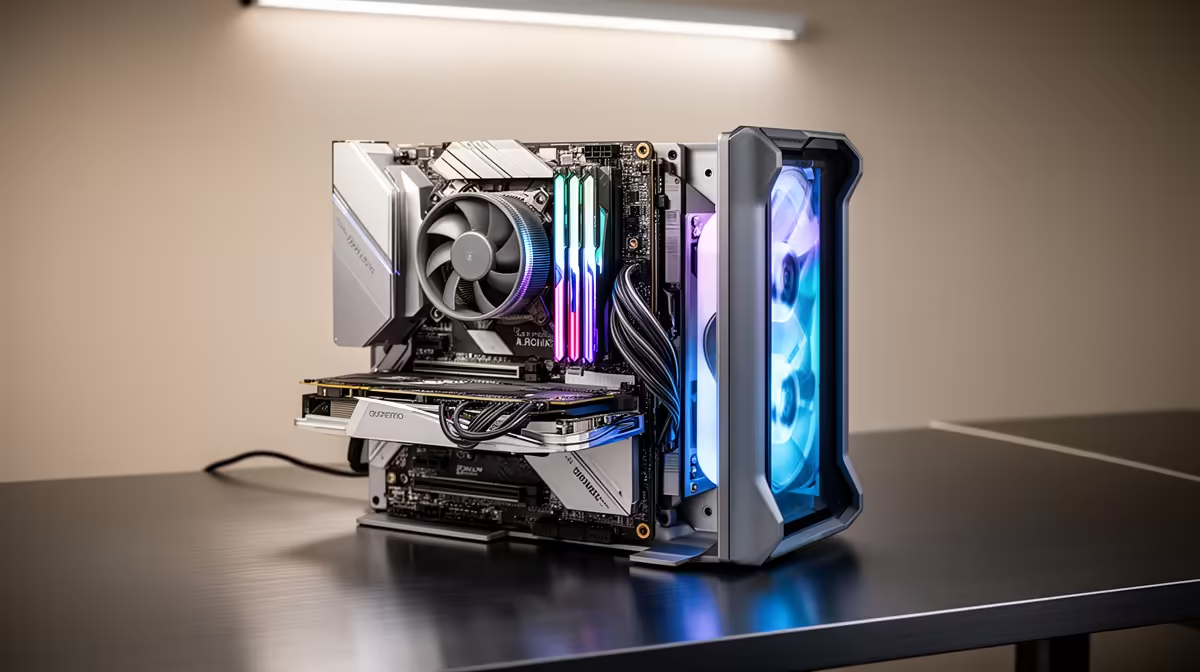
A scene that previews instantly on one machine can crawl on another with the same processor, because Blender leans on different parts of your hardware depending on what you are doing. Viewport modelling rewards a fast GPU and plenty of VRAM. Cycles rendering wants CUDA or OptiX acceleration. Sculpting and simulation hammer RAM and CPU cores. Spec a PC for Blender by matching the part of the pipeline you actually live in, not a single headline number.
Quick Answer
The bare minimum to launch Blender is 8GB RAM and a 2GB-VRAM GPU, but that ceiling is low. For comfortable, serious work the recommended target is 32GB RAM and a GPU with 8GB or more of VRAM that supports CUDA or OptiX. In ZAR terms a capable Blender workstation starts around R18,000 and climbs with VRAM and core count.
What Blender actually demands from each component
Blender is not one workload, it is several, and each one stresses a different part of the machine. A modelling session leans on viewport responsiveness, a Cycles render leans on the GPU, a fluid simulation leans on RAM and CPU, and a texture-heavy scene leans on VRAM. Understanding that split is what stops you from overspending on the wrong part and under-spending on the part that actually bottlenecks you.
GPU and VRAM
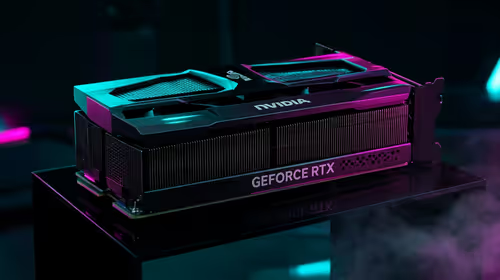
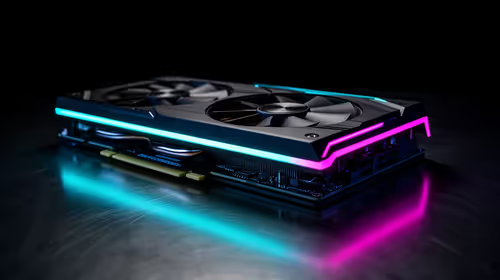
For Cycles, the render engine, an NVIDIA GPU with OptiX support is the single biggest accelerator, often cutting render times by more than half compared with CPU rendering. VRAM is the hard limit here: the entire scene, its textures and geometry must fit in GPU memory or the render falls back to slower system memory, which can turn a quick render into a long one. 8GB is a sensible floor, 12GB to 16GB is comfortable for detailed scenes, and heavy texture or simulation work pushes you toward 16GB and up. You can line up current options across the components range at Evetech to see where the VRAM tiers sit before you commit.
RAM
System memory holds your scene before it is handed to the GPU, plus undo history, simulation caches and any textures that spill over. 8GB technically runs Blender but chokes on anything substantial. 16GB is a workable starting point for hobby projects, while 32GB is the recommended sweet spot for production scenes, fluid and cloth simulations, and keeping several reference applications open alongside Blender.
CPU
The processor drives modifiers, the dependency graph, physics simulations and CPU-side rendering. More cores help with simulation bakes and Cycles CPU passes, while strong single-core speed keeps the viewport responsive during modelling. A modern 6-core to 8-core chip is a balanced choice for most users; heavy simulation and dense sculpts justify stepping up to higher core counts.
Storage
Project files, caches and asset libraries grow quickly. An NVMe SSD keeps scene loads, simulation caches and auto-saves fast, which matters more than raw capacity for day-to-day responsiveness. Pair a fast NVMe boot and project drive with a larger drive for finished renders and archives.
Minimum versus recommended, in plain numbers
The minimum spec exists to let Blender open, not to let you work. On 8GB of RAM and 2GB of VRAM you can learn the interface, follow tutorials and render small scenes, but you will hit memory walls the moment a project gains real detail. Subdivision surfaces, high-resolution textures and any simulation cache eat into both RAM and VRAM quickly, and once you exceed VRAM the render slows dramatically or fails outright.
The recommended spec, 32GB RAM and an 8GB-plus OptiX-capable GPU, is where Blender stops fighting you: viewport navigation stays smooth even in dense scenes, Cycles renders finish in a reasonable time, simulations bake without running out of memory, and you can keep reference images, a browser and a texture editor open alongside Blender without the machine swapping to disk. If you are buying once and want the build to last through more ambitious projects, target the recommended tier rather than the minimum, because the gap between "Blender runs" and "Blender is pleasant to use" is exactly that jump.
Matching a build to what you do
There is no single best Blender PC, only the best one for your part of the pipeline. Spending where your actual workload lives is what gives you the most usable machine for the money.
A motion-graphics artist or product visualiser rendering heavily in Cycles should prioritise GPU VRAM and OptiX support above almost everything else, since render time is their main cost and the GPU drives it. A modeller and sculptor benefits more from a fast CPU and 32GB of RAM for a responsive viewport, because their pain point is interactivity rather than final render speed. Someone doing fluid, smoke or cloth simulation should weight the build toward RAM and CPU cores, as bakes are memory-hungry and parallelise across cores.
A generalist juggling modelling, texturing and the occasional render wants a balanced machine: an 8-core CPU, 32GB RAM and a 12GB GPU covers most of it comfortably. Tutorial-following beginners can start lower, around 16GB RAM and a 6GB to 8GB card, and upgrade the GPU later as projects grow, since the GPU is the easiest single component to swap for a meaningful performance jump.
SA buying context
Imported GPU pricing means VRAM is the component where Rand value matters most, so it pays to compare cards by VRAM-per-Rand rather than chasing the top model. A pre-built workstation takes the guesswork out of part compatibility and PSU sizing, and what is moving through the accessories best sellers is a useful gauge of the peripherals and add-ons local creators pair with these builds. Whatever route you take, plan around the recommended spec so the machine stays useful as your scenes get heavier.
Frequently Asked Questions
Does Blender need an NVIDIA GPU specifically?
Not strictly, but OptiX, the fastest Cycles acceleration path, is NVIDIA-only and uses the RT cores on modern GeForce cards. AMD cards work through HIP, though OptiX on a comparable NVIDIA card typically renders faster, which is why NVIDIA is the common recommendation for Cycles-heavy work.
Is 16GB of RAM enough for Blender?
For hobby projects and learning, yes. For production scenes, simulations or working with large textures, 32GB is the recommended target. RAM is one of the cheaper upgrades, so erring toward 32GB is sensible if your budget allows.
Why does my render run out of memory with a good GPU?
Cycles needs the whole scene to fit in VRAM. A powerful GPU with only 8GB can still fail on a texture-heavy scene that exceeds that limit. Reducing texture resolution, using fewer subdivisions, or moving to a higher-VRAM card resolves it.
Can a laptop run Blender well?
Yes, if it has a discrete GPU with adequate VRAM, 16GB or more of RAM and good cooling so it can sustain performance during long renders. Thin laptops with shared graphics will struggle with anything beyond light scenes.
How important is the CPU versus the GPU?
It depends on your workflow. GPU and VRAM matter most for Cycles rendering, while CPU speed and core count matter more for modelling responsiveness, modifiers and physics simulation. A balanced build serves generalists best.
Building or upgrading a Blender workstation? Compare GPUs by VRAM and the rest of the components at Evetech, spec to the recommended 32GB and 8GB-plus tier, and put together a machine that renders without fighting you.