



PCIe 5.0 vs PCIe 4.0 for Video editing in 4k in SA
PCIe 5.0 vs PCIe 4.0 for video editing in 4k is mainly about fit, features, compatibility, cost, and upgrade path, not one automatic winner. SA buyers should match the choice to the setup.
Read moreThe Delta Pro Touch supports pressure input and 10-point control, enabling finger gestures and nuanced creative interaction. Accuracy depends on touch mapping, app support and the compatible tool, so both panels should be tested in the actual workflow.
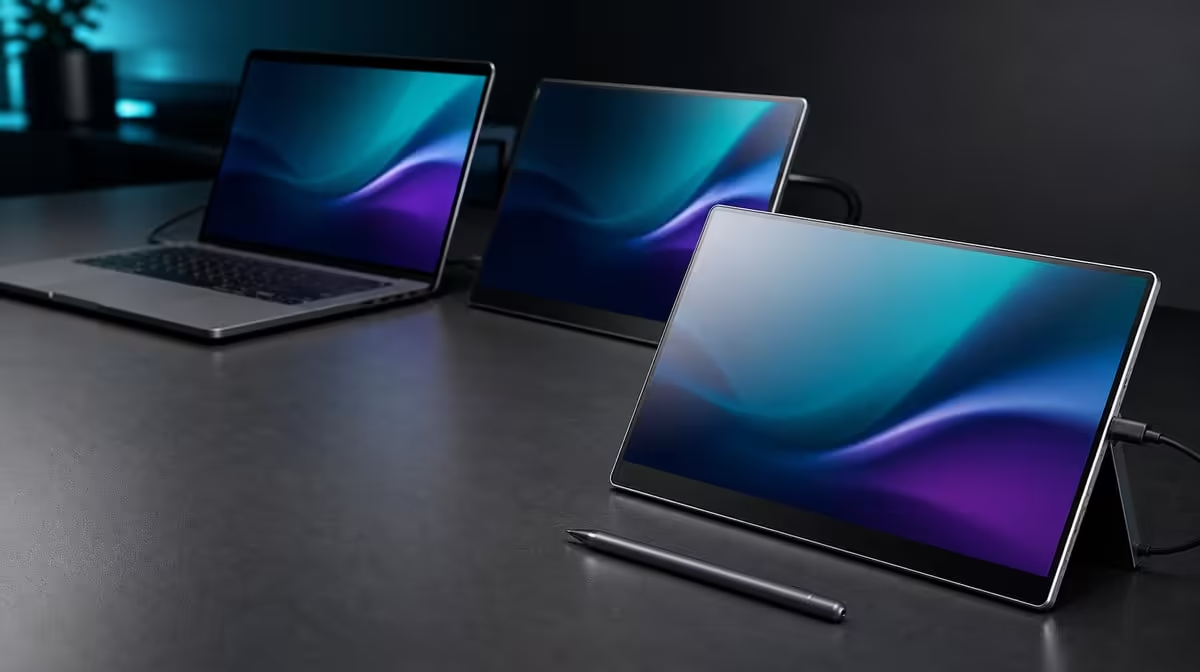
Finger taps, multi-contact gestures and pressure-aware strokes can share one dual-screen desk, but they depend on different parts of the system. Accurate pen and finger input on dual touchscreens starts with correct display mapping, then proves each tool inside the application that must respond.
The Delta Pro Touch supports 10-point control and pressure-sensitive input across both QHD panels. At R11,999, it can serve finger navigation and nuanced creative work, but accuracy depends on laptop mapping, software support and the compatible tool. Tool compatibility and force resolution need separate confirmation; an included pen is not identified.
Set both 16-inch screens to 2560 x 1600 and arrange the laptop desktop to match their physical positions. Open a plain canvas on one panel. Tap the centre and every corner, then draw slow horizontal and vertical lines.
Repeat the exact pattern on the other screen. If contact appears elsewhere, correct touch assignment without moving every display rectangle. Image placement and input mapping are related in use but should be diagnosed separately.
Evetech's portable-monitor range is most useful when each touchscreen is compared with the source and application that will drive it.
Test narrow controls and long drags near each edge. A centre point can look correct while the border reveals an offset or an unexpected jump to another display.
Move the application between panels and repeat. Record whether the behaviour follows the window, physical screen or changed orientation. This evidence narrows the next correction.
Native QHD can make default interface elements small. Increase operating-system scale or application zoom until menus and timeline handles are comfortable. Do not call a screen inaccurate when the target has been left impractically tiny.
Keep the laptop at its normal viewing distance. Accuracy includes selecting the intended control without leaning into the display.
Finger touch suits tapping, dragging, scrolling and multi-contact gestures supported by the program. Start with one contact, add two-finger actions and continue only while the software responds clearly.
The ten-point capacity does not force every application to use ten fingers. Record the useful gesture set and repeat it on both panels. Avoid testing several contacts on an important live file before their meaning is understood.
Complete a short navigation sequence with fingers, then repeat it through the pointer or keyboard. Count missed controls, mode changes and unnecessary hand travel. Direct input is valuable when it improves a recurring action.
Place frequently touched tools within an easy reach. A correct input map can still produce a poor working position if the user stretches over the laptop or across the second panel.
Drag the application to the other Delta display and use the same finger sequence. If contacts still affect the original location, preserve the visual layout and review assignment.
This check matters in dual-screen work because apps and panels often change roles. Accuracy should follow the deliberate workspace, not a one-time opening position.
Choose a creative control that visibly responds to changing force. Make several strokes from light to firmer input and compare their variation. Use the same tool, application and settings on both screens.
Force changes can appear repeatable even if a stroke misses its target, or a line can land correctly without varying. Test position and force as separate properties before declaring the workflow accurate.
Evetech's PC-monitor category provides alternatives when a fixed viewing screen and separate input device suit the work better.
Select a tool through confirmed compatibility with the laptop and creative software. Review the current box contents, then test pressure response in the intended application.
Record the exact tool and application that passed. A different program may interpret pressure in another way even though the same screen remains connected.
Pan or select with fingers, switch to the compatible tool for a pressure-aware stroke, then return to navigation. Watch for accidental marks, lost focus and unnecessary mode changes.
The best workflow may use both inputs or keep them separate. The trial should decide, rather than an assumption that more input methods always improve a task.
Move one screen into a planned rotated position, pause for gravity sensing and confirm picture direction, touch mapping and edge accuracy before repeating pressure input. Return to the main layout and check again.
Use the ergonomic support under ordinary taps and firmer creative contact. If the screen moves, correct its physical position before judging line placement.
Use Evetech's monitor best-seller page for current market context around the R11,999 choice. Recheck availability at purchase time.
For each screen, record corner taps, edge lines, finger gestures, pressure variation, application and compatible tool. Add the tested orientation and laptop display order.
After a software update, restart or relocation, repeat the short sheet. This distinguishes a changed app behaviour from a persistent panel issue.
Count the creative or business sessions that use direct input every month. Compare time, control and physical comfort with the existing method. Include the work needed to rebuild assignments after travel.
The dual-touch package makes sense when both screens contribute accurate, supported input often enough to matter. A user who only views content may gain little from its specialist layer.
Draw the same slow pattern with the panel in its normal position and in one planned rotated orientation. Keep the tool and application settings unchanged. Compare placement, pressure variation and whether the stand moves under the working hand.
Return to the baseline before altering software controls. This keeps a physical support issue from being hidden by a new brush setting or changed mapping.
When input changes, confirm the image and screen identity first, then test a finger tap, a simple line and finally pressure response. Move to the second panel only after the first passes.
Reopen the full project at the end. This order protects work and identifies the narrowest failed layer without turning every problem into a complete laptop-display reset.
Finish a small creative task using the chosen combination of finger and compatible-tool input. Count corrections and compare the exported result with the normal method.
An accurate demo line has limited value if the complete workflow requires constant remapping or awkward reach. Keep the final project, not the feature checklist, as the deciding evidence.
The Delta supports 10-point control and pressure-sensitive input.
Check current package contents and tool compatibility before choosing a pen.
Laptop display mapping, panel orientation and application behaviour all affect placement.
A compatible tool and program can vary a brush or another control through changing force.
It can handle navigation, selection, scrolling and supported multi-finger gestures.
No. It states contact capacity; mapping and software still determine behaviour.
Ready to prove finger placement and pressure response on both screens? Compare Evetech's portable touch monitors with your laptop map, compatible tool and creative application ready.
The Delta supports 10-point control and pressure-sensitive input.
Check current package contents and tool compatibility before choosing a pen.
Laptop display mapping, panel orientation and application behaviour all affect placement.
A compatible tool and program can vary a brush or another control through changing force.
It can handle navigation, selection, scrolling and supported multi-finger gestures.
No. It states contact capacity; mapping and software still determine behaviour.
PCIe 5.0 vs PCIe 4.0 for video editing in 4k is mainly about fit, features, compatibility, cost, and upgrade path, not one automatic winner. SA buyers should match the choice to the setup.
Read more
Wi-Fi 7 vs Wi-Fi 6e for competitive esports comes down to router support, latency goals, device compatibility, and coverage. SA buyers should match the choice to the real network setup.
Read more
ATX 3.1 vs ATX 3.0 for mMO and live-service games buyers - what changes is mostly about compatibility, budget, upgrade path, and setup fit. SA buyers should check device support and real needs before expecting a clear win from either option.
Read more
LGA 1851 vs LGA 1700 can affect Twitch and YouTube streaming when gaming and encoding share CPU resources. For SA creators, the real-world difference depends on encoder choice, memory support, motherboard cost, thermals, and upgrade plans.
Read more
X870E vs X670E for aaa single-player gaming is mainly about fit, features, compatibility, cost, and upgrade path, not one automatic winner. SA buyers should match the choice to the setup.
Read more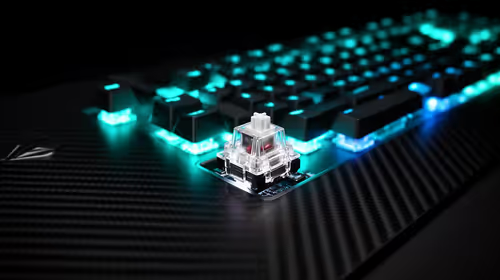
Hall Effect switches vs Mechanical switches for mMO and live-service games is mostly about compatibility, budget, upgrade path, and setup fit. SA buyers should check device support and real needs before expecting a clear win from either option.
Read more
A fake 113GB GTA VI ISO reportedly used empty padding around a small malware payload. SA gamers should delete unofficial builds, keep Windows security active and wait for official channels.

Wi-Fi 6E vs Wi-Fi 6 matters for 4K video editing when files move across a network. The real-world difference between Wi-Fi 6E and Wi-Fi 6 for video editing in 4K depends on NAS access, cloud uploads, router range, and SA creator workflows.

The difference between PCIe 5.0 and PCIe 4.0 for SA gamers is mostly bandwidth headroom. Compare GPU slot needs, NVMe speed, motherboard support, and upgrade timing before paying extra for a newer platform.

Gaming PC stuck pixel checks in South Africa should confirm the monitor fault first. Use colour tests, screenshot comparison, cable swaps, display menu checks, and clear photos before deciding on support.

Shokz OpenFit Air 2 earbuds weigh 7.2g each and use a redesigned dual-driver open-ear layout. SA buyers should choose them for comfort and awareness, not maximum isolation.

AMD's current driver now lists a Radeon RX 9050 4GB, while product coverage details a narrowed memory system. SA buyers should weigh the low VRAM ceiling against current local Radeon options.

Samsung Display has demonstrated a 16-inch 2.5K OLED laptop panel running at 300Hz. SA buyers should wait for a named notebook, full panel specifications and a local price before planning an upgrade.

Microsoft says some Windows 11 game crashes after recent updates are linked to RGB-related drivers. Affected SA gamers should confirm the update and driver before using the published registry workaround.

RTX 5090 on a 650W PSU is a tight pairing with very limited headroom. For SA gaming PCs, focus on total system draw, PSU quality, connector support, CPU choice, and avoid OC plans unless the full build is carefully power-limited.
PCIe 5.0 vs PCIe 4.0 for video editing in 4k is mainly about fit, features, compatibility, cost, and upgrade path, not one automatic winner. SA buyers should match the choice to the setup.

850W PSU safety for RTX 5090 is plausible with a quality unit and balanced parts. In SA, confirm connector support, CPU power draw, case airflow, PSU age, and spare capacity before building around 850W.
Wi-Fi 7 vs Wi-Fi 6e for competitive esports comes down to router support, latency goals, device compatibility, and coverage. SA buyers should match the choice to the real network setup.