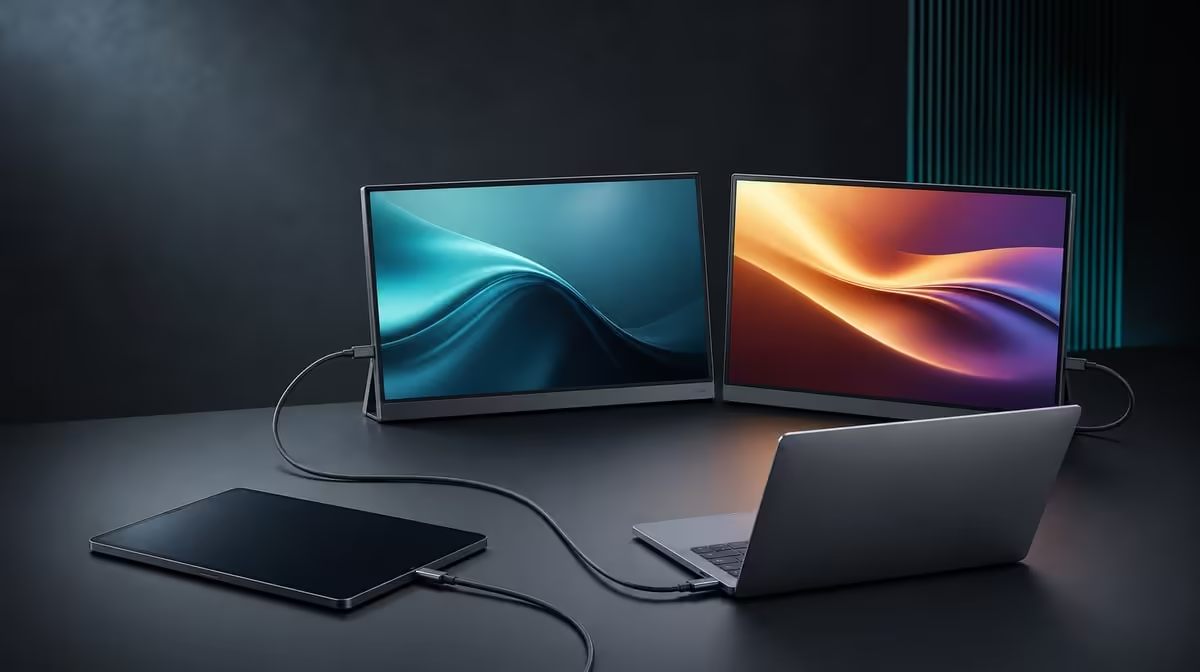
Two independent panels do not have to receive their pictures from the same computer. The UPERFECT Delta can place one compatible source on each 15.6-inch screen, making two devices on a dual portable monitor possible within its R4,299 folding assembly. The useful question is how that source split supports the work without being confused with one laptop extending a desktop across both panels.
Quick Answer
Yes, the R4,299 Delta's independent Full HD screens can connect to two separate compatible devices, one source per panel. Plan each connection, assign a specific job to each display and keep the devices' own controls and audio behaviour distinct. This differs from the monitor's compatible one-cable laptop mode, where one approved USB-C host drives both external work areas through the required video and power path.
🧭 Choose between one desktop and two sources
Draw the arrangement before connecting anything. In an extended-desktop setup, one laptop supplies both Delta panels and can move windows between them. In a two-device arrangement, each screen belongs to its own source. A window from device A does not cross into the panel showing device B because the operating systems remain separate.
That distinction determines the workflow. A professional might keep a work computer visible beside another approved source, compare output from two systems or monitor a secondary process while the main machine handles an active task. The independent panels make the views simultaneous; they do not merge the devices into one computer.
Keep the laptop companion in the physical plan. If one source is a notebook, its built-in screen may remain useful for communication or controls. The desk therefore needs enough width for the Delta, the computer, input devices and cable paths without blocking the stand.
Name the job for each panel. "Device A: active document; device B: reference dashboard" is clearer than "two devices." The detail exposes whether simultaneous visibility matters enough to justify the source split.
Once the intended device roles are clear, browse Evetech's portable monitor options to compare mobile screens.
🔌 Build each source path deliberately
Treat the panels as independent destinations. Confirm the output capability of each device and use the appropriate compatible connection for the screen assigned to it. Do not assume that success from one source proves the other device can follow the same route.
Set up the Delta on its integrated stand before attaching the leads. Keep cable slack away from the 360-degree hinge and make sure neither connection pulls the assembly off balance. A multi-source desk can create more wiring than the one-cable laptop mode, so physical routing is part of the design.
Bring up one device and confirm its panel at native 1920 x 1080. Then add the second source and verify the other screen. Changing one connection at a time makes it easier to identify which source or path is responsible if an image does not appear.
If both screens are instead meant to follow one laptop, return to the one-cable compatibility question. That host USB-C port must send both pictures and fulfil the Delta's power requirement. Connector shape by itself is not enough, and two-device support should not be used as proof of one-cable host capability.
Record the final mapping. A small label, diagram or photograph can preserve which lead belongs to which device and panel after the workstation is packed.
🖥️ Arrange the two independent experiences
Start each panel at its 1920 x 1080 native resolution and choose comfortable scale within its own source device. Because the computers are separate, their system settings, pointer movement and application zoom are controlled independently.
Decide which keyboard, pointer or touch controls belong to each source. The Delta provides the pictures; it does not make one input device automatically control two computers. A practical workstation needs a clear switching or placement routine for whatever input hardware the sources require.
Audio also belongs to the source plan. Do not assume a desired playback route from the fact that both images are visible. Test the actual devices and choose where sound should be managed as part of the session.
Use a real task. Compare a design on one system with documentation on another, keep a secondary machine visible during a main project, or present information from two sources. Observe whether the split reduces device switching or simply creates more controls on the desk.
The 25ms response applies to the Delta panels regardless of source. It favours business, productivity and creative support more than fast competitive motion. If one device is intended mainly for speed-sensitive play, test that requirement directly rather than assuming a second source changes the panel behaviour.
🧰 Troubleshoot without crossing the paths
When one screen loses its picture, leave the working source unchanged. Note which panel and device are affected, then inspect only that path. Replacing both leads or swapping both source roles at once erases the useful baseline.
Test the affected device with a simple output, restore its native resolution and confirm the compatible route. If needed, power down the optional workload before reconnecting. A demanding application can produce pauses, but it should not be confused with a screen that disappears from the source's display settings.
After both pictures are stable, test the transitions the workstation will use: sleep and wake on each device, switching an application to full screen, and disconnecting one source while the other remains visible. The independent arrangement is valuable when one side can change without unnecessarily disrupting the other.
For a permanent multi-device desk, compare fixed display options through the Evetech PC monitor range.
Pack the dual-source workstation
Close work on both devices before disconnecting. Remove every lead from the hinge area, support the panels while folding and store the source-specific cables so they are easy to identify later.
Test the complete bag. The Delta has no stated closed measurement or assurance for all backpacks. Add the monitor, laptop or other devices, chargers and leads, then check that the compartment closes normally and hard connectors cannot press into a panel.
Rebuild at a second location using the saved source map. Open the stand, connect device A and verify its screen, then add device B. Time the sequence and note whether the extra source is useful enough to justify its additional equipment.
At R4,299, the dual-device feature adds value when it replaces repeated source switching or keeps critical information visible across separate systems. If one laptop provides everything required, the compatible one-cable extended desktop may remain the simpler routine.
Check the current product listing with Evetech. After the source decision is settled, the monitor best-seller page provides wider comparison context.
Frequently Asked Questions
Can each Delta panel show a different device?
Yes. The two independent displays can each receive a separate compatible source.
Does that create one desktop across both devices?
No. Each source keeps its own operating system, windows and controls.
How is one-cable laptop mode different?
A compatible laptop host drives both panels through one approved USB-C video and power path.
Which resolution does each panel use?
The native resolution is 1920 x 1080 on both 15.6-inch IPS screens.
Do the devices automatically share a keyboard and mouse?
No. Input control has to be planned for the separate sources.
Can one source be disconnected independently?
The panels are independent, so the remaining source can stay visible; test the exact transition in the intended setup.
Is the response time different for the second source?
No. Both screens retain the monitor's stated 25ms response characteristic.
How much is the Delta?
The folding dual-screen monitor costs R4,299.
Ready to place two source devices side by side without confusing their roles?
Explore Evetech portable monitors and map every Delta panel, lead and task before building the workstation.