



80+ Gold vs 80+ Platinum for Couch co-op gaming in SA
80+ Gold vs 80+ Platinum for couch co-op gaming is about PSU efficiency, heat, fan behaviour, quality, and wattage headroom, not direct FPS. SA buyers should compare the whole build.
Read moreFacing capture card troubleshooting issues in South Africa? 😫 Don't let lag, black screens, or no signal ruin your stream. This guide covers common fixes for Elgato, AverMedia, and more, helping you get back to creating amazing content with stable, high-quality video. 🎮
You’re ready to go live. Your game is loaded, your mic is hot, and your audience is waiting. But your stream preview is just… a black screen. Or maybe it’s a stuttering, pixelated mess. Nothing kills the vibe faster. For gamers across South Africa, capture card troubleshooting can be a massive headache. Don’t stress, we’ve been there. This guide walks you through the most common fixes to get you back to creating epic content. 🚀
Let's start with the basics. Before you dive into complex settings, many capture card problems can be solved with a quick physical check. It sounds simple, but you'd be surprised how often a loose cable is the culprit in frustrating tech situations.
First, confirm your HDMI cables are in the correct ports. The HDMI IN on your capture card should come from your console or gaming PC's graphics card. The HDMI OUT should go to your monitor. Also, ensure the USB cable connecting the card to your streaming PC is plugged in securely, preferably into a USB 3.0 port (they're usually blue) for the best performance. A faulty cable can cause signal drops, so try swapping them out if you have spares.
Outdated software is a classic cause of capture card chaos. Visit the manufacturer’s website (e.g., Elgato, AVerMedia) and download the latest drivers for your specific model. While you're at it, make sure your streaming software like OBS Studio or Streamlabs is fully updated. These updates often include crucial bug fixes and compatibility improvements that are essential for smooth operation, especially if you're running on one of the latest professionally assembled pre-built PCs which come with the newest hardware.
If the hardware checks out, the next stop is your streaming software. A single incorrect setting here can prevent your capture card from being detected or cause performance issues. This is where most of the capture card troubleshooting for South African streamers happens.
In OBS or Streamlabs, make sure you’ve added your capture card as a "Video Capture Device" source. If the screen is black, try deactivating and reactivating the source. A common issue is a resolution mismatch. Your console or gaming PC might be outputting at 4K, but your capture card or stream settings are set to 1080p. Ensure the resolution and frame rate settings in your software match what the capture card is receiving.
If you're streaming from a PlayStation or Xbox, you absolutely must disable HDCP (High-bandwidth Digital Content Protection) in your console's system settings. HDCP is an anti-piracy measure that will block your capture card from receiving the video signal, resulting in a black screen. It's usually found under the System > HDMI settings menu on your console.
Sometimes, the capture card is working perfectly, but your streaming PC can't keep up. Encoding video in real-time while managing a stream is incredibly demanding on your CPU. Dropped frames in your stream are a classic sign of this.
Check your CPU usage in Task Manager while streaming. If it's hitting 100%, your processor is the bottleneck. You can try lowering your stream's output resolution or bitrate, but the real fix is a more powerful CPU. The debate between camp red and blue is fierce, but both offer fantastic options; modern AMD Ryzen PC deals are known for their excellent multi-core performance, which is ideal for streaming. Likewise, the latest chips in these all-Intel PC deals provide raw power that handles gaming and encoding simultaneously with ease.
Also, ensure your capture card isn't sharing a USB controller with too many other high-bandwidth devices like webcams and microphones. Spreading them across different USB ports on your motherboard can help. For many, a dedicated streaming rig is the ultimate solution, and you can find surprisingly capable PCs under R20k that will handle a 1080p stream without breaking a sweat. ✨
Ready for a Flawless Stream? Troubleshooting can be a pain, and sometimes your PC is the real bottleneck. For smooth, high-quality streaming without the headache, a modern gaming rig is key. Explore Evetech's massive range of gaming PCs and find the perfect machine to power your content today.
Your PC may fail to detect the capture card due to faulty USB ports, outdated drivers, or privacy settings. Ensure it's in a USB 3.0+ port and that you've allowed apps to access your camera in your OS settings.
To fix a 'no signal' error, first check that all HDMI cables are secure. You must also disable HDCP in your console's settings (e.g., on a PS5) for the signal to pass through to the capture card correctly.
A frequent capture card black screen fix is to ensure no other software is using the device. Close other camera apps, run your streaming software (like OBS) as an administrator, and re-add the source.
To fix capture card audio crackling, match the audio sample rates (e.g., 48 kHz) in your Windows sound settings and your streaming software. Using a different USB port can also sometimes resolve this issue.
Input lag is often caused by using a USB 2.0 port instead of 3.0, incorrect resolution/framerate settings, or a PC that doesn't meet the card's requirements. Lowering the capture resolution can help diagnose the problem.
If OBS is not picking up your capture card, make sure the device drivers are installed correctly. Add it as a 'Video Capture Device' source and ensure the correct device is selected from the dropdown menu in the source properties.
Yes, most capture cards require specific drivers and utility software from the manufacturer (like Elgato's 4K Capture Utility or AverMedia's RECentral) for optimal performance and firmware updates.
80+ Gold vs 80+ Platinum for couch co-op gaming is about PSU efficiency, heat, fan behaviour, quality, and wattage headroom, not direct FPS. SA buyers should compare the whole build.
Read more
80+ Platinum or 80+ Titanium for competitive should be shortlisted around the job it must do. South African buyers should compare fit, performance, compatibility, and upgrade room, warranty path, and upgrade room before treating any pick as best.
Read more
The real world difference between IPS and OLED for AAA single-player gaming is immersion versus versatility. OLED lifts contrast and dark scenes, while IPS can suit bright rooms, mixed PC use, and SA buyers watching total setup cost.
Read more
HDMI 2.1 vs HDMI 2.0 for SA MMO needs a workload-first comparison. For SA buyers, judge real performance, platform fit, warranty path, power needs, and upgrade timing before choosing either side.
Read more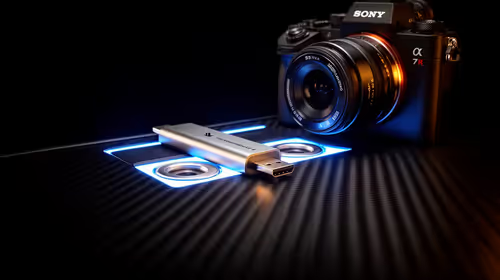
USB4 and Thunderbolt 4 differ for competitive esports through dock, display, and capture consistency. Use this real world difference between usb4 and thunderbolt 4 for competitive guide to keep SA tournament desks tidy without assuming better ping.
Read more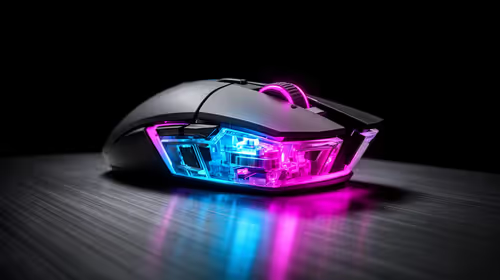
Magnetic switches vs Mechanical switches depends on Competitive esports needs, platform limits, and budget fit. Compare compatibility, latency, upgrade path, and real setup constraints before choosing for an SA build.
Read more
NVIDIA lists 550W required system power for the RTX 5060 reference specification, based on a high-end test system. A quality 550W unit can be enough, but CPU draw, transient load, connectors and ageing decide real headroom.
80+ Gold vs 80+ Platinum for couch co-op gaming is about PSU efficiency, heat, fan behaviour, quality, and wattage headroom, not direct FPS. SA buyers should compare the whole build.

Upgrade your setup with the best USB-C hubs for creators. Discover why high-capacity card readers and dual 4K output are essential for professional South African content production. 🚀💻

B850 motherboard FPS drops needs a methodical troubleshooting pass. Review drivers, thermals, power settings, background apps, cables and game settings before replacing parts in an SA gaming setup.
NVIDIA lists 550W required system power for the RTX 5060 reference specification, based on a high-end test system. A quality 550W unit can be enough, but CPU draw, transient load, connectors and ageing decide real headroom.

OpenRGB's master branch now carries changes labelled for 1.0 final, including translation and platform work, but the official tags page still lists 1.0rc3.1 as the newest packaged release. Stable users should wait for the signed release channel.

A motherboard can remain useful for many years when power, cooling and connectors stay healthy. Replace it for confirmed faults, damaged power delivery or a blocked platform need, not simply because the calendar reaches a fixed age.

The VAIO T combines a 13.3-inch display with a multi-flip mechanism for laptop, tablet and outward-facing viewing modes. Orders begin in Japan on 18 September; South African availability is unconfirmed.
NVIDIA lists 550W required system power for the RTX 5060 reference specification, based on a high-end test system. A quality 550W unit can be enough, but CPU draw, transient load, connectors and ageing decide real headroom.
The VAIO T combines a 13.3-inch display with a multi-flip mechanism for laptop, tablet and outward-facing viewing modes. Orders begin in Japan on 18 September; South African availability is unconfirmed.
OpenRGB's master branch now carries changes labelled for 1.0 final, including translation and platform work, but the official tags page still lists 1.0rc3.1 as the newest packaged release. Stable users should wait for the signed release channel.
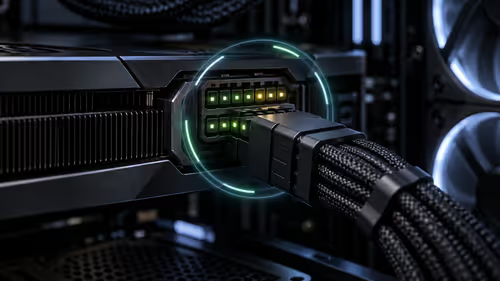
The Cooler Master GPU Shield Adapter monitors current on individual 12+4-pin contacts, adds visual and audible warnings, and can reduce system power during a severe abnormality. Local availability is unconfirmed.