South African creators need a display decision that begins with the delivery target, not an attractive demo image. To choose a colour-accurate monitor for creative work, separate stated gamut coverage from calibration, prove useful QHD space and carry a familiar project through the real laptop workflow.
Quick Answer
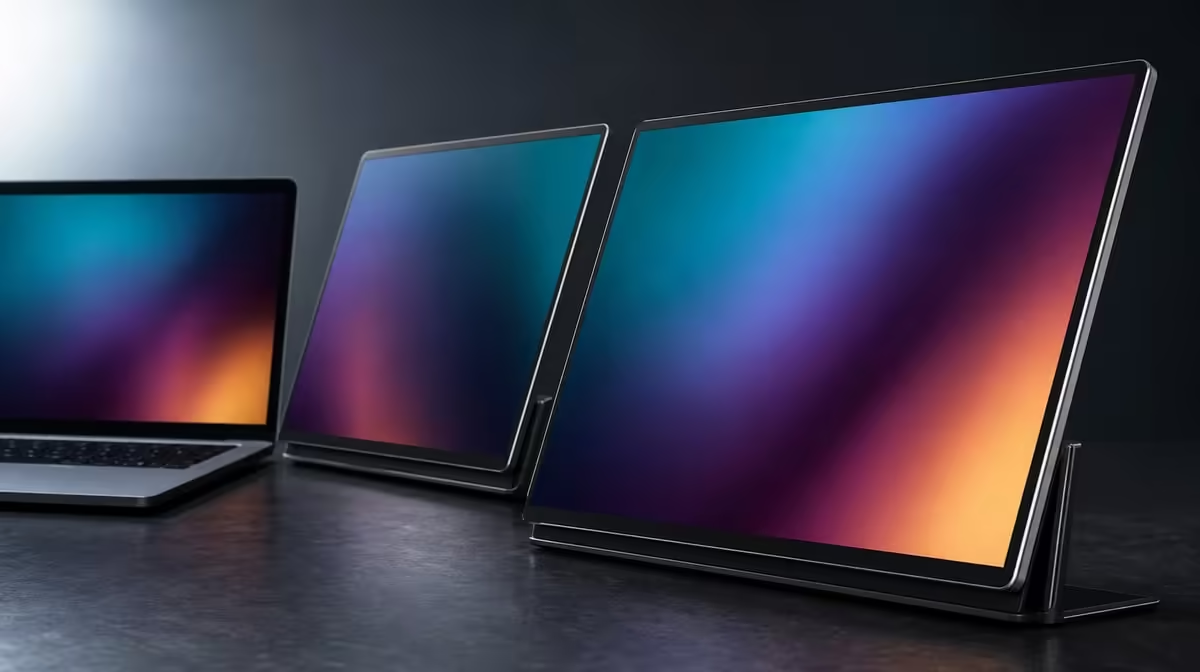
Define the required colour space, resolution and evidence of consistency before comparing screens. At R11,999, the Delta Pro Touch covers 100% sRGB across two 16-inch 2560 x 1600 IPS panels, but gamut coverage alone does not prove calibration or perfect accuracy.
🎯 Begin with the output requirement
Write down where the work will appear and which colour space the project uses. Full sRGB coverage has a direct role for photographs, video and design delivered to sRGB. A creator working to another target should not assume this figure answers that requirement.
List any need for calibration or measured accuracy separately. The product's stated gamut remains useful evidence, while those additional questions require their own proof. This distinction protects a correct claim from being stretched into a broader promise.
Evetech's portable-monitor category helps creators compare mobile choices through the colour information each one actually states.
Prepare a repeatable reference pack
Choose a familiar photograph, neutral tones, a smooth gradient and a small finished project. Keep source files and viewing applications consistent. Start both Delta panels at sensible, comparable brightness in the room where the edit occurs.
View the references on each screen and note visible differences without declaring a universal accuracy result. The observations belong to this monitor, laptop, software and settings combination.
Carry one sample through delivery
Make a controlled adjustment on the first panel, place a preview or reference on the second and export through the normal sRGB process. Inspect the finished output where the audience is expected to see it.
This end-to-end trial reveals whether the dual arrangement supports the creator's actual production chain. A beautiful on-screen reference that never survives the delivery process provides weak buying evidence.
🖼️ Make QHD serve the edit
Each Delta display runs at 2560 x 1600. Set both to native output and enlarge interface elements until tool labels, timeline controls and touch targets remain comfortable. Count the useful detail and workspace left after scaling.
Assign distinct roles. A photographer may keep the image on one panel and browser, metadata or comparison material on the other. A video editor could separate the timeline and preview. The laptop screen should remain active only when a third role justifies the additional movement.
Compare both panels with the same content
Move the reference image from one Delta screen to the other without changing its application settings. Check gradients, neutrals and familiar colour relationships. Switch the panel roles and repeat a small edit.
Visible differences should prompt investigation of brightness, viewing angle and configuration. They should not be hidden by placing unrelated images on the two screens.
Include room light and panel angle
Review the same material at another normal time of day. Control glare by adjusting the workstation before increasing brightness. Use the ergonomic stand to maintain a practical viewing angle beside the laptop.
Record the useful range of settings rather than claiming one permanent value. Creative work performed across studios, offices and home spaces needs a repeatable adaptation process.
✍️ Test input without confusing it with colour
The Delta supports 10-point control and pressure-sensitive input. First map taps to the correct screen, then try supported gestures inside the intended creative program. Use a disposable copy while learning what several contacts do.
For pressure, select a compatible tool and a function that visibly changes with force. Repeat light and firm strokes on both panels. No specific bundled pen or pressure-level count is established, so neither belongs in the purchase claim.
Evetech's wider PC-monitor range provides context for a fixed colour workspace where direct input and movement are unnecessary.
Decide whether touch changes the edit
Complete one short sequence with finger navigation and the pressure-aware tool, then repeat it with the creator's normal laptop inputs. Count errors, mode changes and time saved. Direct interaction earns budget when it improves repeated work.
Keep the colour verdict independent. Accurate placement or expressive pressure does not establish gamut, and full sRGB coverage does not guarantee that every application handles touch well.
Review stability under a creative hand
Draw near panel corners, adjust small controls and use a firmer pressure-aware stroke. Watch whether the support changes angle. Reposition the monitor if reaching across two surfaces affects posture or line control.
The complete creative station includes the laptop, working hand and available desk. A panel can display the correct space while sitting poorly for direct input.
📋 Compare evidence, price and ownership
Build a shortlist with columns for stated gamut, native resolution, demonstrated consistency, calibration evidence, input use and physical fit. Enter only claims that a product states or the creator has tested. Leave unknowns visible.
The Delta's 25ms response should be checked with representative motion if timeline playback or fast visual change matters. Do not let a still-image colour test answer that separate concern.
Use Evetech's monitor best-seller selection as another current comparison point for the R11,999 package. Confirm live availability when the decision is ready.
Rebuild the colour workspace elsewhere
Disconnect, relocate and restore the monitor beside the same laptop. Verify both QHD outputs, sensible brightness, window roles and touch assignment. Reopen the reference pack before continuing important work.
A portable creator display should produce a dependable starting point after travel. Note changes in room light separately from display configuration so the two causes do not become one vague colour complaint.
Set a final acceptance task
Choose a small project representative of paid or portfolio work. Complete the edit, review, pressure input if relevant and sRGB export within the proposed setup. Keep the files and notes for later comparison.
The screen passes when it supports that complete job at a useful scale and repeatable configuration. Buyers who never use the colour target or dual workflow may be better served by a simpler display.
Document the working colour state
Record the laptop, application, output target, panel role, brightness context and reference file used during the accepted task. Note any calibration step only when it was actually performed and supported by evidence.
Reopen this record after software changes or relocation. It cannot replace measurement, but it helps the creator restore the known conditions before deciding that the monitor's colour behaviour has changed.
Frequently Asked Questions
What colour coverage is confirmed on the Delta?
Both panels cover 100% of the sRGB gamut.
Does full sRGB coverage prove calibration?
No. Gamut coverage and calibration or measured accuracy are separate evidence.
How does QHD support detailed editing?
Each 2560 x 1600 panel can show fine content and tools when interface scale remains readable.
Why can two matched panels help creators?
They can separate canvas, preview, reference and controls while keeping the same stated gamut target.
What does pressure-sensitive touch add?
A compatible tool and application can vary creative controls through changing force.
Which users may not need the colour feature?
Buyers whose work has no defined sRGB output can give the gamut less decision weight.
Ready to choose a creator monitor from evidence rather than colour adjectives?
Compare Evetech's portable displays with your sRGB target, laptop workflow, reference pack and final export task prepared.