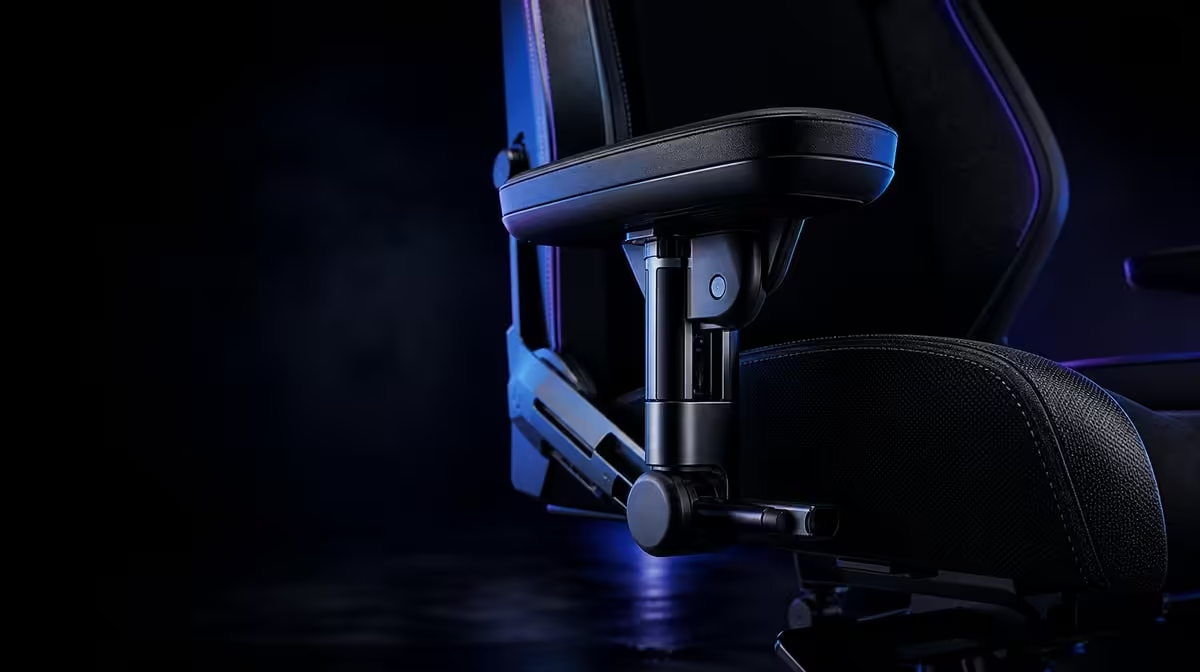
Four-way adjustment only becomes ergonomic when the pads meet the forearms where the desk actually places them. To set up 4D armrests for desk comfort, relax the shoulders, bend the elbows naturally and move each support towards that position. The R8,599 noblechairs HERO Black Edition adds enlarged pads, giving the user a broader contact surface as the controls change.
Quick Answer
Start the HERO armrests below naturally bent elbows, then refine height, forward-back position, width and angle until the forearms rest without raised shoulders or bent wrists. Test keyboard, mouse and controller layouts separately. At R8,599, the enlarged 4D pads offer positioning choice, but comfort comes from desk alignment rather than using every adjustment.
📐 Set height from relaxed shoulders
Sit back in the chair with the lower back supported and the shoulders at rest. Let the elbows bend naturally beside the torso. Bring the armrest pads up to the forearms without lifting the shoulders.
If the supports are too high, the shoulders rise and tension can appear quickly. If they sit too low, the elbows may hang and the user can lean towards one side. Correct height is the point at which contact feels available rather than forced.
Now compare the pads with the desk edge. The armrests should not trap the user away from the controls. If they collide with the desk before the hands reach the keyboard, adjust their other directions or reconsider chair-to-desk distance.
The Evetech noblechairs gaming chair page shows the relevant range for comparing arm support designs.
↔️ Refine depth and width for the task
Move the pads forward when the forearms need support closer to the keyboard or pointer position. Move them back when a controller is held nearer the body or when the desk edge would otherwise interfere.
Width should let the elbows remain near their natural line. Supports placed too far apart can make the user reach outward simply to find them. Pads too close can press the arms inward and crowd the torso.
The HERO's enlarged pads make it easier for the forearm to maintain contact through small hand movements, but a larger surface cannot correct a poor overall position. The chair still has to sit at a sensible distance from the desk.
Test one side at a time. Keyboard and mouse work can create different demands for the left and right arms. Identical-looking settings are less important than balanced shoulders and easy access to the controls.
Browse the wider Evetech gaming chair selection when comparing fixed, partially adjustable and 4D designs.
Check clearance through the whole chair movement used at the desk. A pad may fit beneath the work surface in one position but catch the edge when the user turns or moves closer. Clear contact is preferable to repeatedly knocking the support and losing the saved adjustment.
Pay attention to forearm pressure. The enlarged pad should spread contact rather than concentrate it at the wrist or elbow. Slide the support until the middle portion of the forearm has a comfortable resting area, then confirm that the hand remains free to operate the controls.
🔄 Use angle to follow the forearm
Adjust the pad angle only after height, depth and width are close. The surface should follow the direction in which the forearm naturally approaches the desk.
A mouse hand may benefit from a different orientation than a keyboard hand. A controller can bring both elbows closer and change the useful pad direction again. Save separate arrangements mentally or with a quick photograph if the chair serves several activities.
Do not rotate the pads merely to demonstrate range. Every adjustment should solve an observed problem, such as a forearm falling off the edge or a wrist approaching the controls at an awkward angle.
Check the wrists after the armrests are set. Pads support the forearms; they should not force the hands upward or downward relative to the keyboard and mouse. Move the controls as well as the chair when that produces the cleaner line.
For controller use, let the hands settle naturally before bringing the pads towards the arms. Do not force the controller to hover at desk height merely because the work setting was saved there. A separate lower or rearward position may keep both shoulders relaxed.
For writing or drawing tasks, compare the working hand with the supporting arm. One pad may need to sit further forward while the other remains closer to the torso. The independent adjustments exist to follow those differences.
🧪 Validate the setup through real work
Use the chair for a normal block of typing, pointer work and gaming rather than judging a static pose. Note the first point at which a shoulder rises, an elbow leaves the pad or the desk blocks movement.
Change only the relevant direction and repeat the same task. This avoids losing a good height setting while correcting depth, or disturbing width while testing angle.
The HERO also includes infinitely adjustable lumbar support. Tune lower-back contact before finalising the armrests because a large lumbar change can shift the torso and elbows relative to the desk.
Repeat the test after the user stands and sits again. If the elbows no longer find the pads naturally, the chair-to-desk distance or seat position may have changed. Restore the base before making a new four-way adjustment.
During a longer session, alternate between supported forearms and brief unrestricted movement. Armrests are contact points, not restraints. The user should still be able to move, reach a nearby item and return without twisting around the pads.
Steel construction, ventilation-focused PU and a user range extending to 150kg help describe the wider R8,599 package. They do not select an armrest position; personal proportions and the control surface remain decisive.
Compare premium seating through Evetech's chairs above R4,000 category and check current availability after the desk trial.
Before calling the setup finished, photograph or note the successful pad positions for each main task. Keyboard work may use a narrower, more forward alignment, while a controller can allow the elbows to settle differently. Return to both positions after a short break and watch the shoulder line rather than chasing symmetry for its own sake. The enlarged HERO pads give the forearms a broader landing area, but the useful setting is the one that supports without blocking hand movement. If the desk edge collides with a pad, adjust depth before raising the shoulders or moving the whole chair away from the screen.
Frequently Asked Questions
What is the best starting armrest height?
Start where the pads meet naturally bent forearms while the shoulders remain relaxed.
Why move the pads forward or backward?
Depth adjustment brings support towards the active control position without forcing the chair too far from the desk.
Should both sides match exactly?
Not necessarily. Keyboard and mouse tasks can place the arms differently, so balanced comfort matters more than visual symmetry.
What do enlarged pads change?
They provide a broader contact area, helping the forearm stay supported through small movements.
Should armrests touch the desk?
They may approach it, but they should not block access or hold the user away from the controls.
How can excessive height be recognised?
Raised shoulders, pressure beneath the forearms or a need to shrug are signs to lower the supports.
When should angle be adjusted?
Refine angle after height, depth and width are close, then align it with the forearm's natural route.
Can the armrests compensate for a distant keyboard?
No. Bring the controls within comfortable reach; otherwise the arms and torso may still stretch beyond the support.
Why test after standing up?
It shows whether the saved arrangement is easy to reproduce or depended on an accidental sitting position.
Ready to make four-way arm support answer to your actual controls?
Compare Evetech gaming chairs and test the HERO's enlarged pads with every desk task you use.