Couch gaming on PC fails when the controller loses range or a menu still expects a keyboard across the room. A PC couch controller setup plans wireless reliability, display connection and occasional desktop input together.
Quick Answer
A couch-gaming PC kit needs one supported controller, a dependable video and audio link to the television, and a simple way to handle login, menus, and troubleshooting. Use a wired video connection when practical. Wireless display links can add latency, compression, resolution limits, and network dependence.
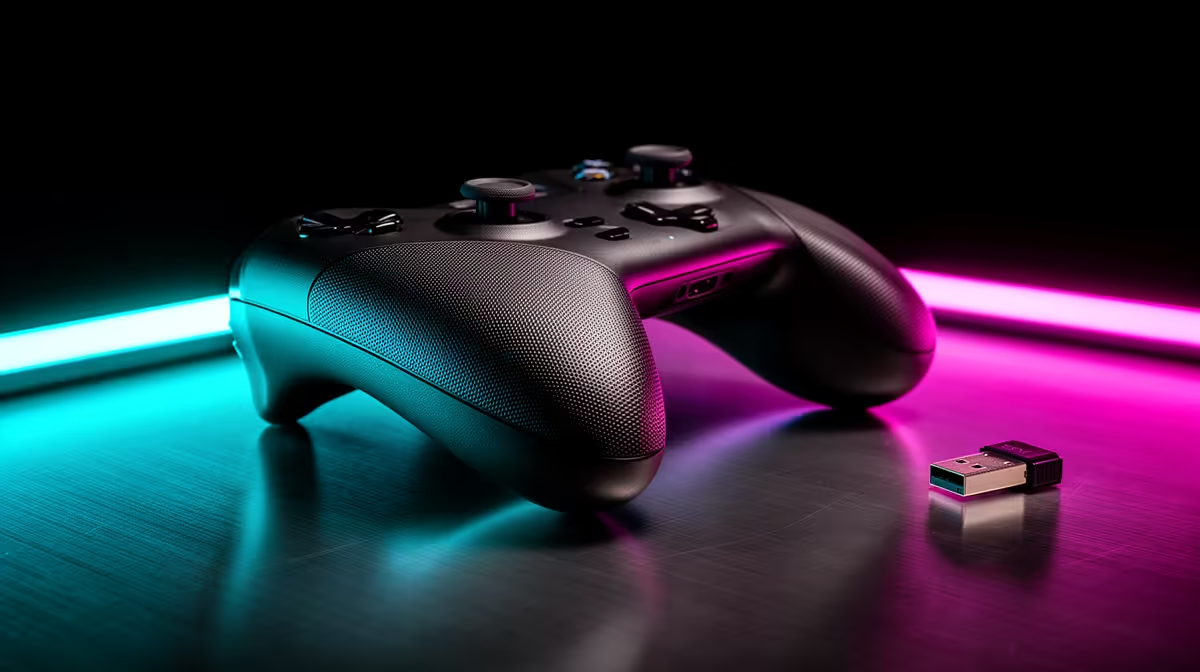
Start with model-level support in the gaming controller range, then compare devices people are using from peripheral best sellers. PC compatibility can differ across wired, receiver, and Bluetooth modes on the same controller.
Choose the controller path first
Confirm native support in the games and launchers you use. Common controllers may work through Windows, platform input layers, or current drivers. In-game button prompts, vibration, audio jacks, rear inputs, and firmware tools can vary by connection.
Wired is useful when the couch is close enough for a safe data cable. Route it along an edge and never across a walkway. A charge-only USB cable can power a controller without carrying input, so use a known data cable.
A dedicated wireless receiver may provide a different range and latency path from Bluetooth. Check whether it is included. Place it in the open with a supported extension rather than behind a metal tower.
Bluetooth reduces extra hardware when the PC supports it. Antenna placement matters. A motherboard antenna hidden behind the case may produce weak controller range even when Wi-Fi appears usable.
Run video with the fewest conversions
Check the graphics card outputs and television inputs. A direct HDMI link is common for couch play. Confirm the cable supports the intended resolution, refresh rate, HDR format, and variable-refresh mode at the required length.
Long passive cables may fail at modes that work over a short lead. Use a cable type rated for the distance and target. Active or optical solutions have direction, power, bend, and compatibility requirements. Install them according to the maker's guidance.
Set the television input to its gaming or low-latency mode. Disable picture processing that adds delay, then adjust image quality from a known baseline. Confirm the PC output uses the TV's native resolution and desired refresh rate.
Wireless display technologies can serve presentations or casual video and may introduce enough delay for games to feel disconnected. Test the exact PC, receiver, television, network, resolution, and game before building the room around them.
Carry audio over the right path
HDMI can carry audio to the television or an audio system connected through it. Select the correct output in Windows and the game. Check channel format, volume, and lip sync with a repeatable scene.
The controller audio jack may not work in every PC wireless mode. Confirm support for the exact model and connection. A wireless headset can use its own receiver, adding another USB and radio path.
Keep voice chat from feeding through television speakers into the microphone. Headphones are the simple route. If the room uses speakers, place the microphone close and use echo controls supported by the chat application.
Do not run two active copies of the game sound through the television and headset with a delay between them. Pick the intended output and mute the other.
Solve menus without building a desk on the sofa
Most games can be launched through a controller-friendly interface, but Windows login, a crash dialogue, text entry, and driver repair still need pointer and keyboard access. Keep a compact wireless keyboard with a touchpad or a small keyboard-and-mouse set within reach.
Use a stable lap surface when a separate mouse is required. It should not trap laptop or accessory ventilation, tip off the knees, or create sharp edges. A cushion alone can flex under clicks and drop the mouse.
An on-screen keyboard can handle occasional text. A phone remote-control app introduces account and network permissions; use only a trusted supported route and secure the PC.
Map one controller button to a launcher overlay only when the software supports it without conflicting with games. Keep a physical keyboard for recovery.
Build the couch connection safely
Keep the PC ventilated and off thick carpet when the case intake needs clearance. Leave access to the power button and ports without placing the tower where someone can kick it.
Route HDMI, network, power, USB, and charging cables along protected edges. Do not place mains leads under rugs or furniture. Permanent electrical or in-wall cable work belongs with someone qualified to assess the property.
Use Ethernet where a safe route exists. Wi-Fi can work when antennas have a clear position and the link remains stable under household load. Measure packet loss and latency from the couch setup rather than the router room.
Keep drinks away from the controller and lap keyboard. Store both where sticks, triggers, and keys are not held under pressure.
Configure Windows for ten-foot use
Set display scaling so text can be read from the couch. Disable unnecessary desktop notifications that may reveal private information. Use a dedicated gaming account with the permissions needed for the intended applications.
Configure the game launcher to start in its controller interface when supported. Test sleep, wake, login, launcher navigation, and shutdown. Do not enable automatic login on a shared or insecure PC merely to avoid a keyboard.
Update controller firmware, graphics drivers, and Windows before the planned session, then reboot and test. Avoid changing all three on the same evening. Save a Windows restore point ahead of replacing a core graphics driver.
Test the complete room
Sit at the furthest normal couch position. Test every controller button, wireless dropout, video mode, audio route, text entry, and a full game session. Watch for heat around the PC and receiver.
Measure input feel in a familiar game. If delay appears, compare wired controller and direct video paths separately. Changing both at once hides the source.
Ask another household user to walk through the room while the cables are in place. A technically working link is unacceptable when it creates a trip line.
FAQ
Is Bluetooth good enough for a couch controller?
It can be when the exact controller, adapter, antennas, drivers, and room provide a stable supported link. Compare it with the dedicated receiver or wired mode if inputs drop.
Can I send PC games to the TV wirelessly?
Yes through certain supported technologies, but latency, compression, resolution, network load, and compatibility vary. A direct wired display connection is the troubleshooting baseline.
Do I need a keyboard on the couch?
Keep one available for Windows login, text, crashes, and recovery. A compact wireless keyboard with a touchpad can handle occasional desktop tasks without a full desk.
Test the controller, video, audio, and menu paths from the actual couch, then keep the simplest connection that remains stable and safe.