


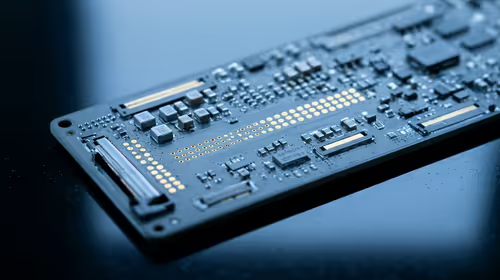
Hot-Swappable PCB Architecture in Modern Keyboards: Guide
Learn hot-swappable PCB architecture in modern keyboards—what it is, how sockets and traces work, and how to pick the right board. Speed up swaps, reduce risk, and upgrade faster 🔧⚡
Read moreCPU cooler installed correctly? Avoid common mistakes that reduce cooling efficiency—think uneven pressure, bad fan placement, and missing thermal paste. Get stable temps and quieter performance. ❄️🧠
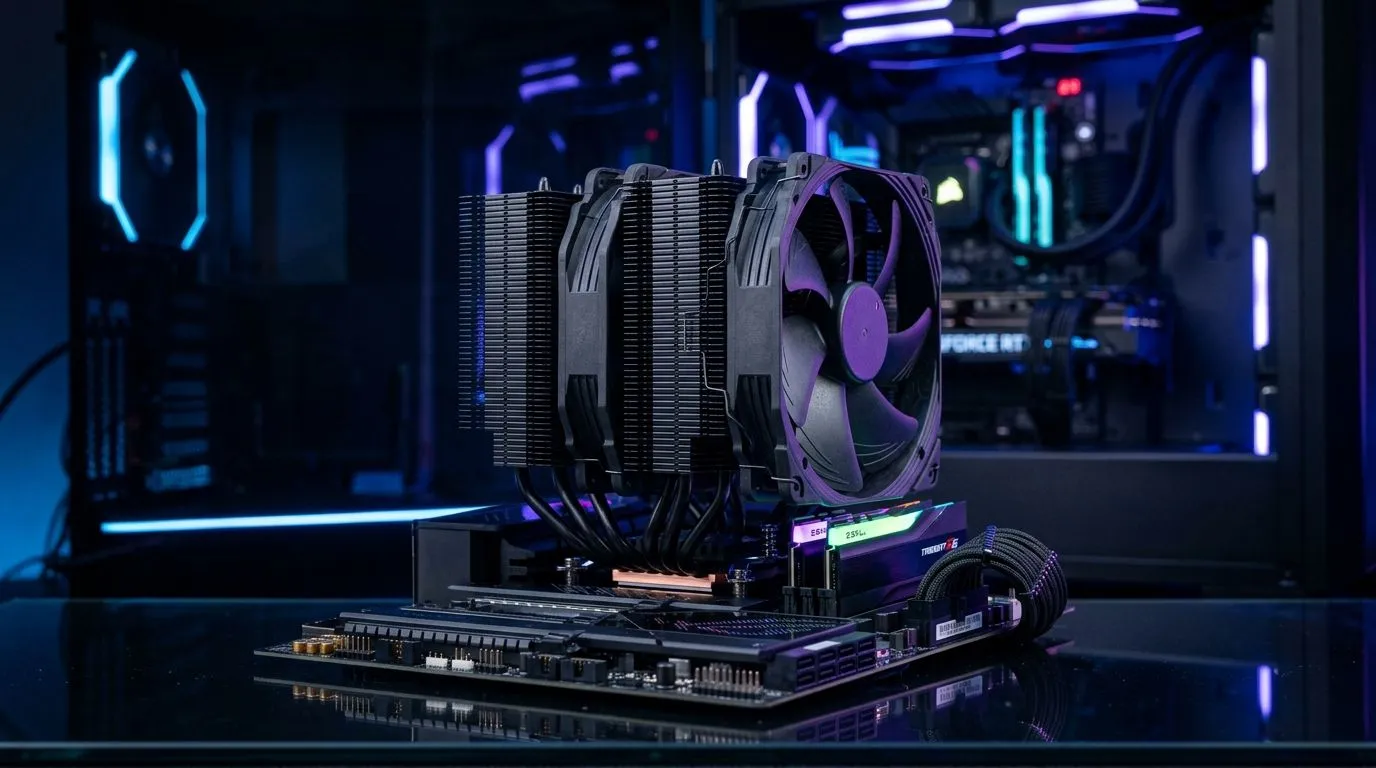
If your PC is idling hotter than it should, or your games are stuttering under load, the culprit is sometimes not the CPU… it’s the cooler install. In South Africa, where summer heat and dusty setups are real, getting your thermal setup right can mean quieter fans and better boosts. Let’s walk through the most common mistakes people make when CPU Cooler Installed Correctly: Common Mistakes to Avoid becomes a reality on your workbench.
Thermal paste bridges microscopic gaps between the CPU heat spreader and the cooler base. If you use none, or you spread it everywhere like butter on bread, heat transfer suffers.
A good rule: clean the old paste, apply a small pea-sized amount (or a thin, even layer if your cooler instructions say so), then mount the cooler. The pressure from mounting should spread it properly. If you see paste squish out massively, you may have used too much.
Old paste dries out over time. Wiping only the surface leaves residue that acts like insulation. Use isopropyl alcohol and lint-free wipes, and let it fully evaporate before you install the new cooler.
Many coolers use multiple screws. Tighten in a cross pattern, a little at a time, until snug. Going one corner down first can tilt the cold plate and create a poor contact patch.
This one happens more than you’d think. Some cooler contact plates ship with a plastic film. If it stays on, you’ll get awful temperatures and loud fans, fast.
Air coolers and AIOs both care about airflow direction. Your goal is consistent intake to the case front, and exhaust out the back/top. If your fan is facing the wrong way, you’ll fight your own airflow.
Before the first boot, do this mini routine:
On Windows, use the PowerToys FancyZones utility to create custom snap layouts for your windows. It's a lifesaver for managing multiple apps on an ultrawide monitor, letting you organise your timeline, preview window, and asset folders perfectly for video editing.
This is a big one in compact builds. Even a solid cooler can be unusable if it won’t fit your motherboard layout or case clearance. Always match cooler dimensions to your case spec, not just your CPU socket.
If you’re shopping for the right air cooler options, start here:
Once installed, test in a way that tells you what to improve:
If temperatures still look high, don’t panic. Re-check mounting pressure and confirm the CPU fan header connection. Most “mystery heat” issues come back to install details, not faulty hardware.
Ready to Find Your Perfect Match? The Mac vs Windows debate is complex, but for maximum power, choice, and value in South Africa, Windows is hard to beat. Explore our massive range of laptop specials and find the perfect machine to conquer your world.
Check for steady idle temps, full contact signs, and secure mounting. If temps spike or throttling starts quickly, your CPU cooler may be installed incorrectly.
Common CPU cooler installation mistakes include uneven pressure, wrong mounting order, missing thermal paste, incorrect fan direction, and poor airflow around the cooler.
Yes. Applying too much thermal paste can create excess squeeze-out and mess with coverage, hurting thermal transfer. Use the right amount for your paste type.
It depends on your case airflow setup. For CPU cooler efficiency, match fan direction to your overall intake/exhaust plan so heat moves out effectively.
Uneven mounting pressure can prevent proper contact, creating hot spots and raising CPU temps. Remount with correct bracket alignment and tightening sequence.
Over tightening can warp mounting pressure or damage components, worsening contact consistency. Follow the cooler’s manual for torque or tightening steps.
Most often it’s poor contact, wrong thermal paste amount, fan not connected or misdirected, or missing airflow clearance. Recheck mounting and wiring.
Clean off old thermal paste, reapply correct paste amount, align brackets, and tighten in a cross pattern. Verify fan headers and ensure proper airflow around the cooler.
Learn hot-swappable PCB architecture in modern keyboards—what it is, how sockets and traces work, and how to pick the right board. Speed up swaps, reduce risk, and upgrade faster 🔧⚡
Read more
Mechanical switch lifespan explained—what the 50 million keystroke rating really means, plus tips to extend switch life and reduce double-press issues 🔧⌨️
Read more
60-percent vs full-size mechanical keyboard layouts—learn what each layout includes, who it suits, and how to choose the right fit 🧩⌨️ for typing, gaming, and productivity.
Read more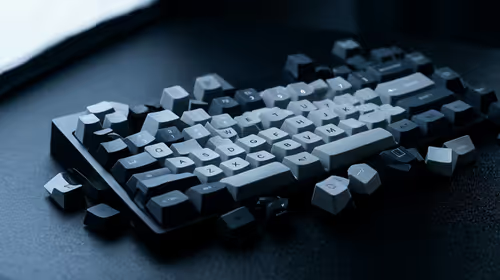
Double injection keycaps last far longer than standard printed keycaps in most setups. Learn typical lifespan ranges, what shortens them, and how to maximize durability for smoother daily typing and gaming 😊⌨️
Read more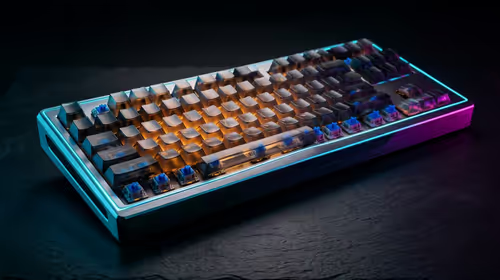
Full-key anti-ghosting: does it stop missed inputs during fast-paced gaming? We break down latency, polling, and key matrix limits so you can buy smarter 🎮⚡
Read more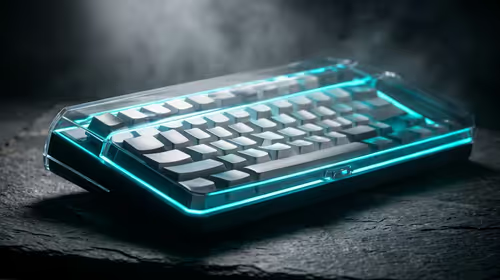
Protect mechanical keyboard switches from South African dust and summer humidity with practical cleaning and storage habits. Keep your switches smooth, reduce failures, and extend lifespan. 🌬️💧
Read more
Wondering if a TKL wireless mechanical keyboard is worth it for everyday productivity? We break down latency, battery life, comfort, and workflow gains for real work. ⚡⌨️

Maximise battery life on a fanless 15-inch laptop using efficiency core architecture. Cut idle drain, tune power profiles, and improve thermals for longer runtime. 🔋⚙️

Learn how to reduce desk clutter with a TKL wireless keyboard using fewer cables, smart placement, and tidy essentials. Get a faster, calmer workspace with better ergonomics. ✅🧼

RGB keyboard lighting too distracting? Learn how to manage backlight modes, set brightness, and reduce distraction for focus and productivity 😌🖱️

Are themed gaming keyboards worth the extra cost? Compare build quality, switch options, features, and resale value to find the best fit for your setup 🎮⌨️

Full-Size vs Tenkeyless mechanical keyboards for gaming: find out if a smaller layout truly improves aim, speed, and comfort. We break down layout, desk space, latency-feel, and keybinds 🎮⌨️

Dedicated media rollers vs function key shortcuts: learn which setup gives you better workflow control, faster media access, and fewer mistakes. 🖱️🎧

Best Mechanical Switch Type for Gaming: Clicky vs Linear vs Tactile. Find your feel, speed, and noise balance with practical guidance for FPS, MOBA, and productivity 😄🎮

Direct mouse answer: Mouse not keeping up with your work? Everything that matters about dual-mode 2.4GHz + BT 5.0: DPI behaviour, channel switching, battery curves and per-app button mapping. Covers when 2.4GHz USB wins (low-latency desk) and when BT 5.0 wins (laptop, d

Plain wireless mouse guide: Mouse not keeping up with your work? Everything that matters about wireless productivity mouse: DPI behaviour, channel switching, battery curves and per-app button mapping. Includes DPI tuning tips, channel switch shortcuts, and ZAR-aware fea

Real productivity numbers: Set up your wireless mouse in this order: everything that matters about wireless productivity mouse: DPI behaviour, channel switching, battery curves and per-app button mapping. Includes DPI tuning tips, channel switch shortcuts, and ZAR-aware

Pen not feeling like paper? Stylus lag and skipping usually trace to old drivers, dirty nibs, or display refresh mismatches, not the pen itself. Covers pressure curve tuning, tilt thresholds, nib swap timing, and SA pricing brackets.