You do not need a dock to extend your desk. Daisy chain support across modern monitors and USB-C devices lets you string together multiple outputs and peripherals from a single cable, keeping your workspace tidy and your bag lighter. The key is knowing which link goes where in the chain.
Quick Answer
Monitors with DisplayPort MST (Multi-Stream Transport) can be chained so the second screen draws its signal from the first. USB-C devices that support upstream passthrough can similarly extend connectivity without adding a dedicated dock. The result is a single cable from laptop to the first monitor, which then carries data and video to the rest of your chain.
🖥️ Monitor MST Chains: One Cable, Two Screens
DisplayPort MST allows a single video output to carry multiple independent display streams, splitting them across chained monitors. Your laptop connects to monitor one via USB-C or full-size DisplayPort. That monitor passes the second stream through its DisplayPort out port to monitor two. The host GPU must support MST, and each monitor in the chain must have a DisplayPort input and a DisplayPort output, not just an HDMI port. Most business-class and creator monitors support this; gaming monitors vary.
The total bandwidth available is shared between both screens, so resolution and refresh rate choices matter. Two 1080p monitors at 60 Hz sit comfortably within the bandwidth envelope. Pushing two 4K panels at high refresh rates demands more than most single-cable connections can provide without compromising one of the displays.
🔗 USB-C Device Chaining for a Dock-Free Workflow
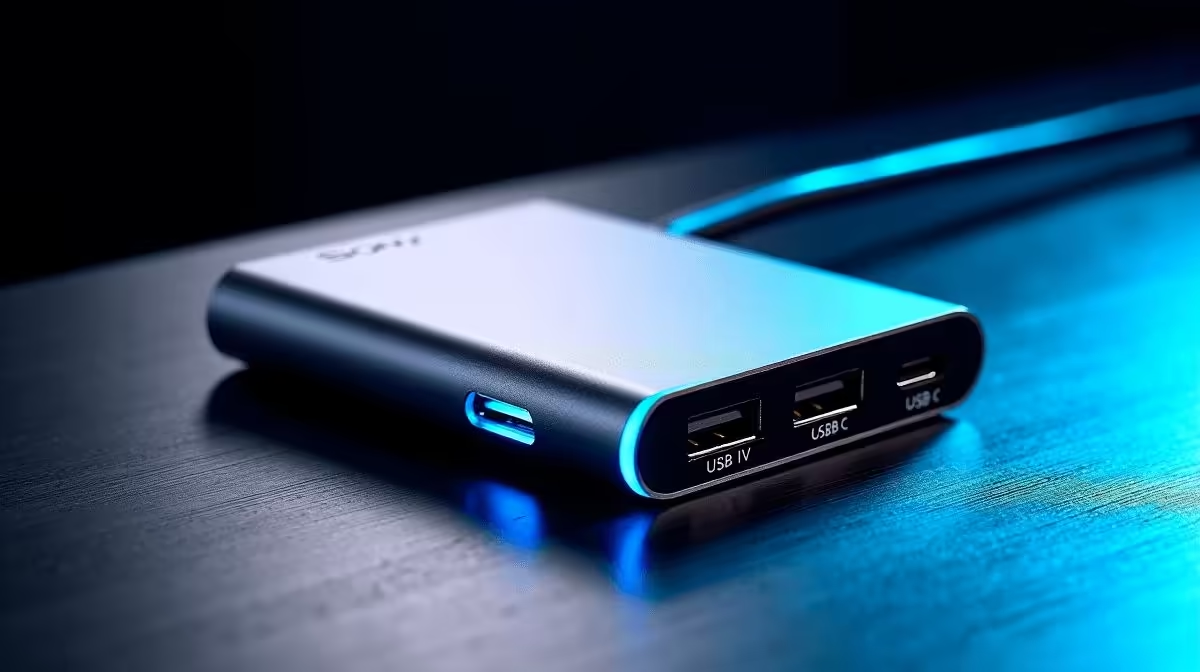
Beyond video, USB-C passthrough chaining lets you connect peripherals without buying a dedicated docking station. Some USB-C hubs include an upstream port so a secondary hub can draw bandwidth from the first. A practical workflow looks like this: laptop USB-C to a primary hub, which provides your keyboard, mouse, and webcam; the upstream port on the primary hub then feeds a secondary hub holding your card reader and charging brick. The desk stays uncluttered, cable runs stay short, and you only disconnect one plug when you leave.
This approach suits students working between a res room and the library, or remote workers who alternate between home and an office hotdesk. You carry the primary hub, which reconnects everything in one step. The secondary hub can stay at the desk permanently. Cable management improves because each chain segment is short, compared to running individual cables from the laptop directly.
📐 Keeping the Chain Clean and Stable
Stability across a daisy chain depends on two things: the quality of the cables and the power available at each link. Passive cables degrade signal quality across longer runs or multiple connectors. For USB-C chains carrying both data and video, use cables rated for the speed you need. A USB4 or Thunderbolt 4 certified cable at 40 Gbps is more reliable across the full chain than a generic USB-C cable that only declares "5 Gbps".
Power is the second variable. If a device mid-chain does not receive adequate current, it may disconnect during high-demand moments. Inserting a powered hub at the first link solves this. The powered hub draws from the mains and supplies each port independently, so downstream devices are not competing for what the laptop can spare. The rest of the chain remains stable even when you plug in a drive or a webcam under load.
Frequently Asked Questions
Which monitors support MST for daisy chaining?
Most monitors aimed at productivity and creative work include DisplayPort MST. Check for a DisplayPort output port on the first monitor, not just an input. Gaming monitors and budget panels often skip the output port, making them chain endpoints rather than chain links.
Can I daisy chain USB-C hubs without a dock?
Yes, if each hub has an upstream USB-C port that accepts input from another hub. Not all hubs support this. Look for hubs explicitly described as chainable or passthrough-compatible in the specifications.
Does chaining monitors reduce display quality?
Not at the resolutions most monitors display. The signal passing through a properly rated DisplayPort cable remains digital and lossless. The only constraint is bandwidth: if the combined resolution of both screens exceeds the connection's capacity, one display will be forced to a lower resolution or refresh rate.
What cable type should I use for a daisy chain setup?
Use cables certified for the bandwidth your chain requires. For video plus data over USB-C, a cable rated at 40 Gbps gives the most headroom. Avoid generic unlabelled cables, which may work at low speeds but become unreliable under sustained load.
Will a daisy chain work if my laptop only has one USB-C port?
Yes, that is precisely the scenario daisy chaining addresses. The single USB-C port connects to the first hub or monitor, and the chain extends from there. A powered hub at the first link prevents the downstream devices from overloading the laptop's output current limit.
Want a cleaner desk without the bulk of a dock?
Explore Evetech's selection of USB-C hubs with passthrough support, giving you the flexibility to extend your setup one link at a time.