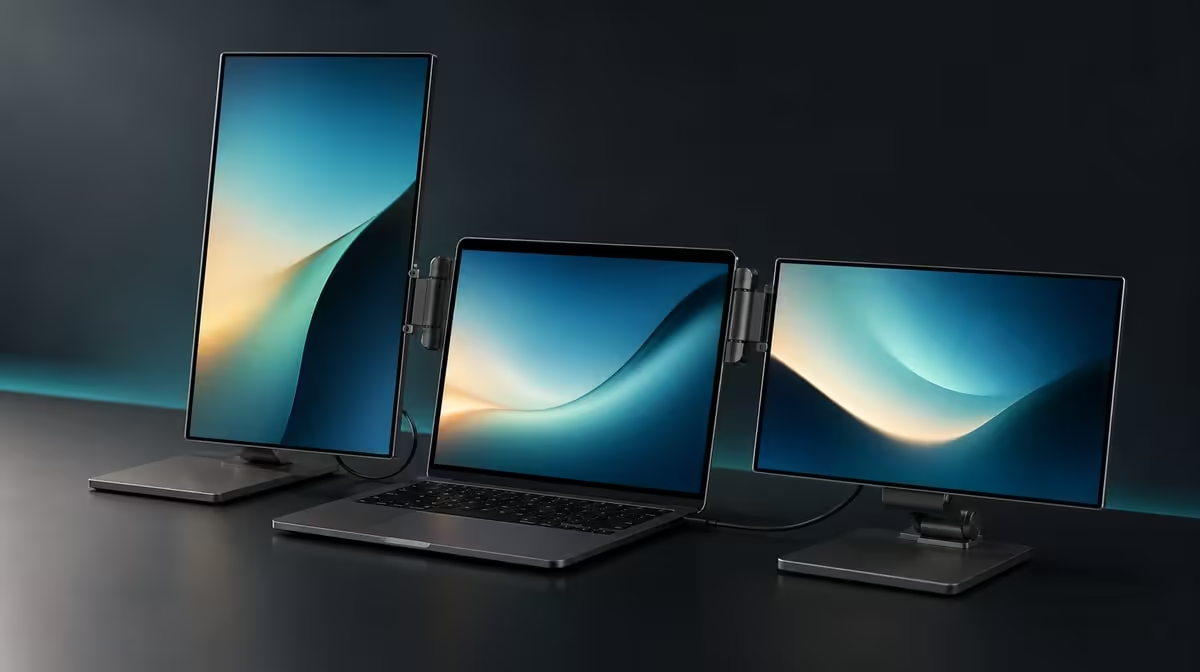
Rotation can turn one dual-screen system into a landscape production desk, portrait review station or shared presentation surface. The value of 180-degree auto-rotation for work appears when the picture, touch map and applications all recover after the Delta panel moves.
Quick Answer
Gravity sensing changes image orientation as the Delta Pro Touch moves through its 180-degree range, reducing manual display steps. At R11,999, that flexibility is useful only when the laptop keeps window roles, input assignment and physical support coherent in the positions the work actually uses.
🧭 Build a known landscape baseline
Place both 16-inch screens in the normal working position beside the laptop. Set them to 2560 x 1600, make the desktop map mirror their physical order and open a differently labelled window on each active display.
Tap the centre and corners of both Delta panels. This establishes the picture and input state before anything rotates. If the baseline is already wrong, movement will make the diagnosis harder.
Evetech's portable-monitor range can be compared by the orientations a real laptop workflow uses, not by the mere presence of a rotating hinge or sensor.
Record screen roles
Write down which panel holds the main application, reference material and any laptop-only controls. Mark the primary display and where new windows appear. This note becomes the recovery map after movement.
Keep interface scaling readable. A portrait screen may use application zoom differently from a landscape canvas even though both remain at native QHD.
Move only one panel
Rotate the selected screen while leaving the other display and laptop in place. Pause for gravity sensing and observe the image before dragging windows or changing settings.
If the picture does not settle correctly, return to landscape and inspect orientation locks. Change one control at a time, then repeat the physical movement.
📄 Use portrait mode for vertical work
Open a long document, code view, page layout or tall canvas that benefits from vertical space. Place tools or source material on the second Delta panel and check whether the laptop display still has a useful role.
Read and interact at the normal seating distance. The mode adds value when it reduces scrolling or presents a more natural page view without shrinking controls.
Verify the new touch coordinates
Tap every corner after portrait orientation appears. Drag along the edges and confirm that contact does not jump into the other panel. Repeat a short check on the stationary screen.
Finger placement should pass before multi-contact or pressure work begins. A correct picture can coexist with an old or wrong input assignment.
Reopen the actual application
Some programs preserve a previous window size or tool position after the desktop changes. Move the application deliberately, enlarge its interface where needed and save a mode-specific layout if the software supports one.
Do not blame gravity sensing when the image turns correctly but the program refuses to reorganise itself. Sensor response and application behaviour are separate.
🤝 Turn rotation into a presentation tool
Angle the shared screen for the audience, keeping private notes or controls on the laptop or second Delta panel. Move a labelled window into the presentation role and confirm touch affects the shared content.
Rehearse entering the arrangement from the normal desktop and leaving it without closing the project. This tests whether rotation improves a meeting instead of creating a long recovery afterwards.
Evetech's wider PC-monitor category provides a useful comparison when presentation movement is rare and a fixed screen is sufficient.
Check several contacts carefully
If the meeting application supports touch, begin with one user's taps and add multi-finger gestures gradually. Ten-point hardware capacity does not guarantee independent multi-user behaviour.
Use a safe presentation file during the test. Several contacts can trigger commands that differ from the user's expectation.
Protect privacy during mode changes
Decide where notifications, private messages and speaker controls should appear before rotating the shared screen. Check the primary-display setting and where new windows open.
Return sensitive work to the intended panel after the meeting. The physical ability to face a screen towards others does not manage application privacy automatically.
🧱 Make the moving setup repeatable
Use the ergonomic stand at every planned angle and apply normal taps near the outer corners. Watch for creeping, wobble or cable pull. Move the complete monitor-and-laptop arrangement if the chosen orientation competes for desk space.
Clear the path before rotating. Gravity sensing can direct the image, but it cannot protect a connector or laptop lid from poor physical positioning.
Check Evetech's monitor best sellers when comparing the R11,999 Delta with current alternatives. Confirm availability when ready to buy.
Return to the baseline
Move the screen back to landscape, allow the image to settle and restore the recorded window roles. Repeat the corner-touch pattern. The value of a work mode includes the ability to leave it.
Restart the laptop and rehearse the most-used transition once more. A temporary state that disappears after reboot is not a dependable routine.
Time three complete transitions
Measure the move into portrait or presentation, the work performed there and the return. Repeat on another normal desk. Note manual repairs to touch assignment or application placement.
Rotation earns its share of R11,999 when it saves steps across these complete cycles. A buyer who keeps both panels fixed should reduce its weight.
Preserve a mode card
For every useful position, record panel angle, application role, readable scale, successful touch points and support check. Include the laptop arrangement.
Use the card after travel or software changes. It helps distinguish a failed sensor response from a changed desktop configuration.
Match orientation to creative tools
Place a tall canvas or long layer stack on the portrait panel and keep its controls on the second screen. Use finger navigation and, where relevant, a compatible pressure tool. Check whether the new angle improves reach as well as vertical space.
Return the same project to landscape and compare scrolling, zoom and hand movement. The better orientation should be demonstrated through the edit, not chosen because portrait looks more specialised.
Audit repeated physical movement
Complete several transitions in succession and inspect the stand position, cable slack and laptop placement afterwards. Touch near the screen edges in every settled mode.
A small amount of creeping can accumulate across a day. Reposition or change the planned angle before important work if the complete station no longer matches its recorded baseline.
Include sleep and wake
Leave the panel in the most-used alternate orientation, allow the laptop to sleep and then restore the session. Confirm the image direction, screen order and touch assignment before continuing.
Repeat after returning to landscape. This checks an ordinary workstation event that a continuous rotation demonstration never reaches.
Frequently Asked Questions
What does the gravity sensor respond to?
It responds to physical panel movement and changes image orientation.
How can portrait orientation help work?
It can show more vertical content for documents, code or tall creative layouts.
What does rotation add to presentations?
It can reposition a shared view while other screens retain private controls or reference material.
Why check touch mapping after movement?
The image can rotate while the laptop still assigns contacts to an old screen position.
Does auto-rotation rearrange every window?
No. Application placement and layout still need review.
What physical check follows rotation?
Confirm stand stability, safe clearance and cable movement under normal touch.
Ready to make every orientation a recoverable work mode?
Compare Evetech's portable monitors with your laptop layouts, presentation roles and touch checks already planned.