


Marvel Rivals launch in South Africa
Marvel Rivals launch needs a balanced parts plan, not a random basket. Map the CPU, GPU, RAM, SSD, cooling, and monitor target to the budget so SA builders know where to spend first.
Read more- Flight stick compatibility overview - Setup steps for Xbox Series, Xbox One, PC - Adapter, driver and troubleshooting tips ✈️🔌 Flight stick compatibility explained so you can use one controller across consoles and PC with clear setup and fixes.
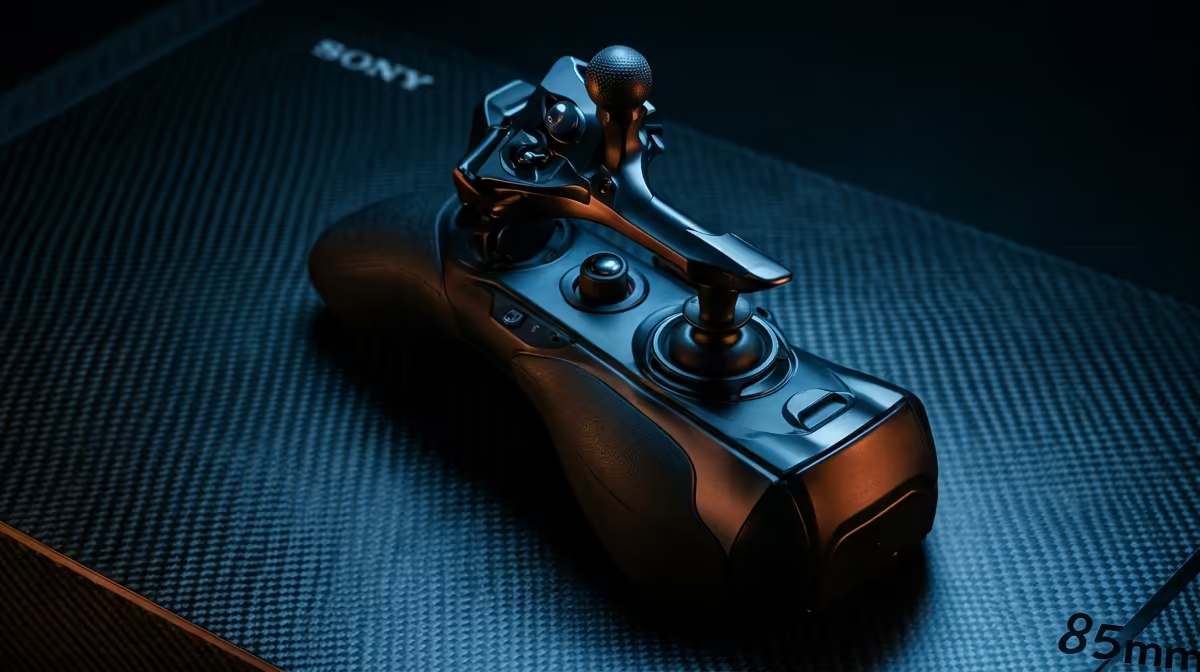
Ever tried landing a Boeing 747 at Cape Town International using nothing but a standard controller? It is a recipe for a bumpy arrival. To truly master the virtual skies, you need the right hardware. But before you drop your hard-earned Rands, you must ensure your gear actually works. Navigating flight stick compatibility: Xbox Series, Xbox One & PC can feel like flying through a heavy storm without radar... let us clear the clouds. ✈️
PC gamers generally have the easiest path when it comes to hardware. Windows 10 and 11 are designed to recognise almost any HID-compliant USB device. Whether you are looking for a budget-friendly joystick or a professional-grade HOTAS (Hands On Throttle-And-Stick) setup, our extensive range of flight simulator gear offers plug-and-play simplicity.
On PC, the main hurdle is software mapping rather than hardware handshakes. Most modern titles like Microsoft Flight Simulator or Star Wars: Squadrons have pre-set profiles for popular sticks. If you are using older gear, you might need to spend a few minutes manually assigning your axes and buttons... but the hardware itself will almost always be detected.
When setting up a new stick on PC, always check for a 'Deadzone' setting in your game menus. Small physical movements in older sticks can cause 'drift' in-game. Setting a 3% to 5% deadzone ensures your plane stays level even if the stick is slightly worn.
Consoles are a different beast entirely. For a peripheral to function on an Xbox Series X|S or Xbox One, it must house a specific security chip licensed by Microsoft. This means a flight stick designed exclusively for PC will not register on your console.
If you are a multi-platform pilot, look for "Universal" models. These units often feature a physical toggle switch... this allows you to swap the internal logic between PC and Xbox modes. Always look for the "Designed for Xbox" branding on the box to guarantee that your investment will work the moment you plug it into your console's USB port. 🔧
While taking to the air is a unique thrill, many South African sim enthusiasts find that their passion extends to the tarmac. If you are building a dedicated home cockpit, you might find that high-end sim racing setups and flight rigs share similar mounting footprints.
A sturdy desk or a dedicated racing seat can often be adapted to hold your flight yoke or throttle quadrant. This versatility is great for saving space in your study or gaming room. Just ensure your mounting solution is rigid... there is nothing worse than your stick sliding across the desk during a high-G turn over the Magaliesberg.
A flight stick is the heart of your setup, but it is rarely the whole story. To truly immerse yourself, you should explore various simulation gear and accessories such as rudder pedals or multi-panel displays. ⚡
On PC, these extras usually connect via their own USB cables. However, on Xbox, peripherals like rudder pedals often need to plug directly into the base of your flight stick via a proprietary port. This "daisy-chain" method is required because consoles have a limited number of logical USB assignments for controllers. Always verify that your chosen pedals are compatible with your specific stick model if you are flying on a console.
Ready to Take to the Skies? Whether you are a PC purist or a console captain, having the right gear makes all the difference in your flight experience. Explore our massive range of flight simulator gear and specials and find the perfect hardware to earn your wings today.
Check the manufacturer for Xbox Series compatibility. Some sticks work natively, others need an adapter or firmware update to enable Xbox Series support.
Yes—many sticks support both. Use USB or official adapters and install flightstick drivers on PC for full functionality.
Often yes. Install flightstick drivers or vendor software for calibration and axis mapping on Windows 10.
Plug supported USB sticks directly or use a console adapter. Confirm the joystick uses Xbox-compatible HID or XInput profiles.
Sometimes. Adapters bridge non-Xbox hardware to consoles or translate signals between PC and Xbox for cross-platform use.
Choose flight sticks listed as multi-platform or Xbox-certified models; compatibility info usually appears in product specs and reviews.
Update firmware, reinstall drivers, and recalibrate in-game. Use vendor tools for mapping when flight controller cross platform setup fails.
Marvel Rivals launch needs a balanced parts plan, not a random basket. Map the CPU, GPU, RAM, SSD, cooling, and monitor target to the budget so SA builders know where to spend first.
Read more
Path of Exile 2 launch needs a balanced parts plan, not a random basket. Map the CPU, GPU, RAM, SSD, cooling, and monitor target to the budget so SA builders know where to spend first.
Read more
Black Myth Wukong launch needs a balanced parts plan, not a random basket. Map the CPU, GPU, RAM, SSD, cooling, and monitor target to the budget so SA builders know where to spend first.
Read more
Hollow Knight PC requirements should be mapped to resolution, settings and upgrade budget before choosing a tier. Verify current requirements, then balance GPU, CPU, RAM and SSD around SA pricing.
Read more
Hollow Knight build planning should focus on the target resolution, settings and total system balance. Treat launch wording as time-sensitive, then verify requirements before choosing SA PC parts.
Read more
Fallout 4 PC requirements should be mapped to resolution, settings and upgrade budget before choosing a tier. Verify current requirements, then balance GPU, CPU, RAM and SSD around SA pricing.
Read more
Best Value Laptops South Africa 2026 — Find top picks, local prices and buy tips to maximise performance per rand. Compare deals for students, creators and gamers. 🔎💸

Struggling with a weak Desktop PC Wi-Fi signal? 📶 Discover expert tips on positioning your tower and external antennas to eliminate lag and maximize your internet speeds for gaming and streaming. 🚀

Tired of loadshedding router restarts killing your Wi-Fi? ⚡ Discover why power cuts disrupt your connection and learn expert tips to get back online faster after the lights return. 🌐

Master using a Nano SIM 4G router as your primary internet solution. Get stable speeds and seamless connectivity for gaming and streaming at home! 🌐🚀

Gauteng r30 000 needs practical checks before you choose. Compare fit, workload, support, setup needs, timing, and delivery expectations without relying on live availability or fixed 2026 claims.

Gauteng r40 000 needs practical checks before you choose. Compare fit, workload, support, setup needs, timing, and delivery expectations without relying on live availability or fixed 2026 claims.

Gauteng r50 000 needs practical checks before you choose. Compare fit, workload, support, setup needs, timing, and delivery expectations without relying on live availability or fixed 2026 claims.

Gauteng r60 000 needs practical checks before you choose. Compare fit, workload, support, setup needs, timing, and delivery expectations without relying on live availability or fixed 2026 claims.

Three-tier smart watch plan for commuting should be shortlisted around the job it must do. South African buyers should compare fit, performance, compatibility, and upgrade room, warranty path, and upgrade room before treating any pick as best.

AR Glasses buying order for commuting students should be shortlisted around the job it must do. South African buyers should compare fit, performance, compatibility, and upgrade room, warranty path, and upgrade room before treating any pick as best.

Smart Watch buying order for commuting should be shortlisted around the job it must do. South African buyers should compare fit, performance, compatibility, and upgrade room, warranty path, and upgrade room before treating any pick as best.

Smart Watch buying order for quiet PC builds needs a balanced parts plan, not a random basket. Map the CPU, GPU, RAM, SSD, cooling, and monitor target to the budget so SA builders know where to spend first.