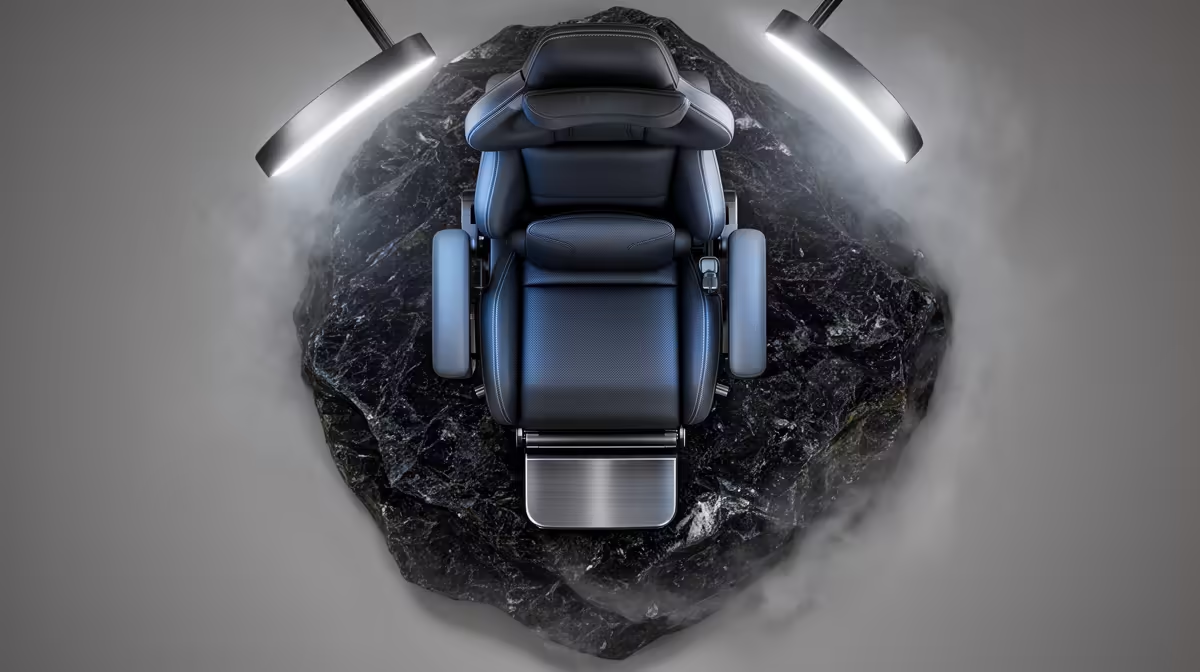
A gaming chair can support Revit and AutoCAD work when its seat, back and armrests fit the designer and clear the desk. The applications gain no benefit from gaming styling. Long modelling sessions need supported feet, reachable input devices and enough movement to shift between keyboard shortcuts, mouse work and printed drawings.
Fit the CAD station
Set seat height for relaxed shoulders and a comfortable mouse reach. Measure seat depth against the legs, place lumbar support correctly and test the full armrest travel. The R4,750 AutoFull A4 RGB serves as a verified entry comparison within the available gaming-chair stock. Compare its current dimensions with the user and desktop. Armrests that strike the desk can force the chair too far from precise controls.
Test a real modelling block
Open a representative project, navigate views and annotate sheets for at least an hour. Notice pressure behind the knees, reaching and whether the backrest supports changes of position. Confirm the load rating, wheel type, material and warranty. A footrest can help when the correct desk height leaves the feet unsupported.
Stand between tasks and move during long renders. Seek qualified assessment when pain, numbness or weakness continues after ordinary position changes. Buy after the chair proves it fits the CAD desk, not because its shape resembles a performance product.
Place the monitor at a comfortable text height before asking the chair to solve neck position.
Improving a CAD workspace? > Explore Evetech chairs and compare their dimensions with the user, desk and input devices.