Quick Answer
SmartSwitch audio technology automatically detects which wireless source (2.4 GHz or Bluetooth) is delivering audio and routes it without manual input. To get the most from it: keep both channels paired, set your game audio device to 2.4 GHz in PC settings, and route notification audio through Bluetooth so interruptions blend into your session without a button press.
How SmartSwitch Works in the Audio Chain 🎧
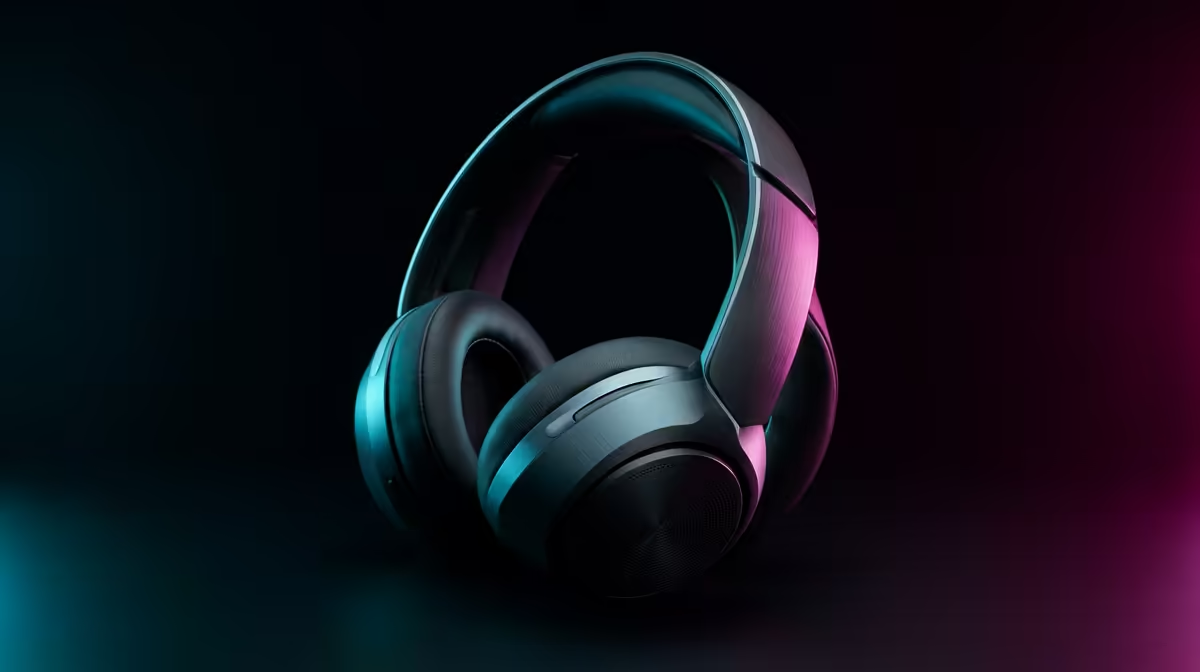
Traditional dual-wireless headsets require you to manually toggle between 2.4 GHz and Bluetooth. SmartSwitch-capable headsets monitor both channels simultaneously and mix incoming audio from whichever is active. When your phone rings over Bluetooth while you game on 2.4 GHz, the headset blends both streams without a mode change. This is valuable for SA remote workers and students who game in the evening but keep their phone connected for WhatsApp and family calls. The key technical requirement is that the headset's internal DSP has sufficient processing headroom to mix two independent audio streams without introducing latency artefacts on either channel.
Optimising Your Device Settings for SmartSwitch Performance 🔧
Configure your PC to use the 2.4 GHz connection as the default audio output and microphone input. In Windows 11, open Settings, navigate to System, then Sound, and set the headset's wireless device as both the output and input device. On your phone, ensure Bluetooth is connected and media audio (not just call audio) is enabled in the Bluetooth device settings. Some headsets require the companion app to enable simultaneous mixing; check whether your model needs a firmware update or software toggle to activate dual-stream mode. Battery drain increases slightly in SmartSwitch mode since both radios stay active.
Real-World SmartSwitch Use Cases for SA Users 🇿🇦
For a Wits or UCT student attending a Zoom lecture on a laptop while monitoring a group WhatsApp on their phone, SmartSwitch eliminates the need to switch modes when a voice note arrives. For remote workers on Vumatel fibre connecting to a Microsoft Teams meeting while gaming lightly during mute periods, SmartSwitch keeps both audio streams active. The trade-off is modest: expect 10 to 20 percent shorter battery life compared to single-mode operation, which reduces a 40-hour headset to roughly 32 to 36 hours in dual-active mode.
Set Per-App Volume Priorities ⚡
In Windows 11 Volume Mixer, lower notification apps like Teams or Discord to 40 to 60 percent relative to your game audio. SmartSwitch blends both streams at their current output volumes, so without balancing, a loud Discord notification can jolt you mid-game. Setting call-source apps lower creates a natural mix where game audio dominates and notifications are audible but not jarring.
FAQ
Does SmartSwitch work without the companion app installed?
Basic SmartSwitch functionality often works at the hardware level without the app. However, advanced settings like individual stream volume balancing and audio priority rules typically require the manufacturer's software to configure properly.
Is there latency introduced when SmartSwitch blends two audio sources?
Well-implemented SmartSwitch adds negligible latency (under 1 ms) to the mixing process since it operates in the headset's DSP at hardware speed. The 2.4 GHz channel maintains its sub-5 ms latency; Bluetooth operates at its standard 15 to 30 ms for multimedia audio.
Can SmartSwitch handle microphone input as well as audio output?
Most SmartSwitch implementations cover output audio only. Microphone routing typically remains fixed to either 2.4 GHz (for game voice chat) or Bluetooth (for phone calls) depending on the active call source.
Want a headset that handles gaming audio and phone calls without interrupting your session?
Browse Evetech's range of dual-wireless gaming headsets, including models with automatic source switching, available online with SA delivery.