Quick Answer
To sync ARGB lighting on a Chameleon Panel GPU (a multi-display output panel design with integrated ARGB elements), connect the GPU's ARGB header to a compatible 3-pin 5V ARGB header on your motherboard, then use the motherboard's RGB sync software such as ASUS Aura Sync, MSI Mystic Light, or Gigabyte RGB Fusion to control colour and effects across the GPU and other ARGB components simultaneously.
Understanding the Chameleon Panel Design 🖥️
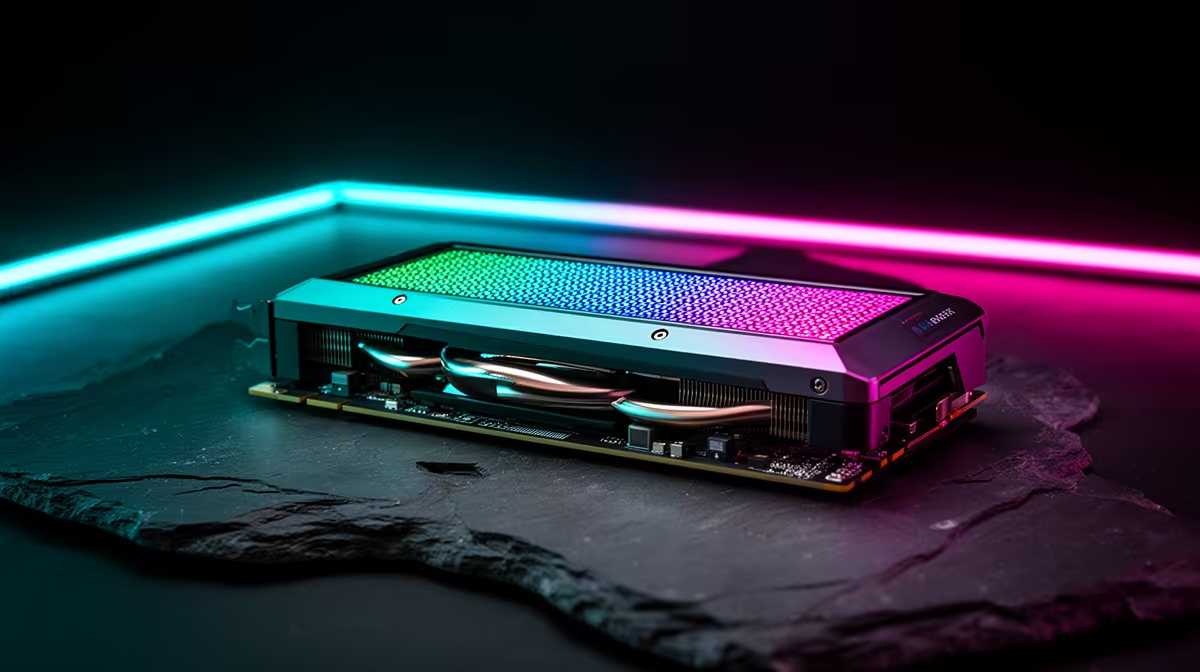
The term Chameleon Panel refers to GPU designs where the display output section or backplate features customisable lighting or interchangeable accent panels. Some models combine this with an ARGB header connector on the PCB, linking the panel's LEDs to the rest of the system's RGB ecosystem. This design is primarily cosmetic but meaningfully affects build aesthetics when the GPU is visible through a tempered glass side panel. In South Africa, mid-to-high-end GPUs with this feature currently retail from around R12,000 to R40,000 depending on the tier.
Connecting the ARGB Header Correctly 🔧
Locate the 3-pin 5V ARGB header on the GPU PCB (not the larger 4-pin 12V RGB header; connecting ARGB components to a 12V header permanently damages the LEDs). Match it to a 3-pin 5V ARGB header on the motherboard, clearly labelled ARGB or ADD_HEADER on the PCB silkscreen. If your motherboard has no free ARGB headers, use an ARGB splitter hub or an ARGB controller board with its own USB header connection. Route the ARGB cable behind the motherboard tray through the cable management channels to keep it away from GPU fan intakes. Most modern mid-to-high-end Z890 and X870E motherboards include two to four ARGB headers, typically sufficient for GPU, fans, and RAM.
Using RGB Sync Software for Unified Control 🌈
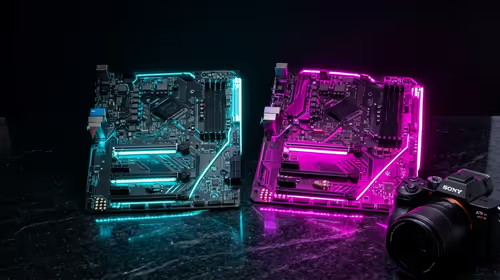
With the header connected, open your motherboard's RGB sync utility: ASUS Aura Sync, MSI Mystic Light, Gigabyte RGB Fusion 2.0, or ASRock Polychrome Sync depending on your board brand. The GPU's Chameleon Panel LEDs should appear as a controllable device within the application. Enable Sync mode to apply a single colour scheme across all connected ARGB components, or create custom effects per zone. If the GPU's LEDs do not appear automatically, check that the motherboard firmware is on the latest version, as older BIOS versions sometimes lack ARGB device detection support.
Check Header Polarity Before Connecting ⚡
ARGB 3-pin 5V headers are polarity-sensitive. Look for the triangle or arrow marking on the connector that indicates the positive pin direction. If the first LED in the chain shows the wrong colour or does not light at all, the connector is likely reversed. Flip it 180 degrees; ARGB connectors are physically reversible on many headers, but only the correct orientation powers the LEDs correctly.
FAQ
Does syncing the GPU's ARGB lighting affect GPU performance or temperatures?
No. The ARGB LEDs on a GPU backplate or panel draw a negligible amount of power, typically less than 1W total, and have no effect on GPU core temperatures or boost clock behaviour.
Can I control Chameleon Panel lighting without the motherboard's RGB software?
Some GPUs with ARGB panels ship with their own GPU software that manages lighting independently of motherboard software. Check whether the GPU manufacturer provides a standalone RGB control utility, which is useful if the motherboard is from a different brand than the GPU.
What happens if I accidentally connect the ARGB header to a standard 4-pin 12V RGB header?
The LEDs will likely be permanently damaged by the voltage difference. Always verify header type before connecting. A 3-pin ARGB header operates at 5V; a 4-pin RGB header operates at 12V. The physical connectors look similar, so checking the label and voltage specification on the motherboard PCB is essential.
Building a fully synced RGB gaming PC?
Evetech stocks ARGB-compatible graphics cards, motherboards, and accessories with local warranty across South Africa. Browse the components range at Evetech for your next build.