Quick Answer
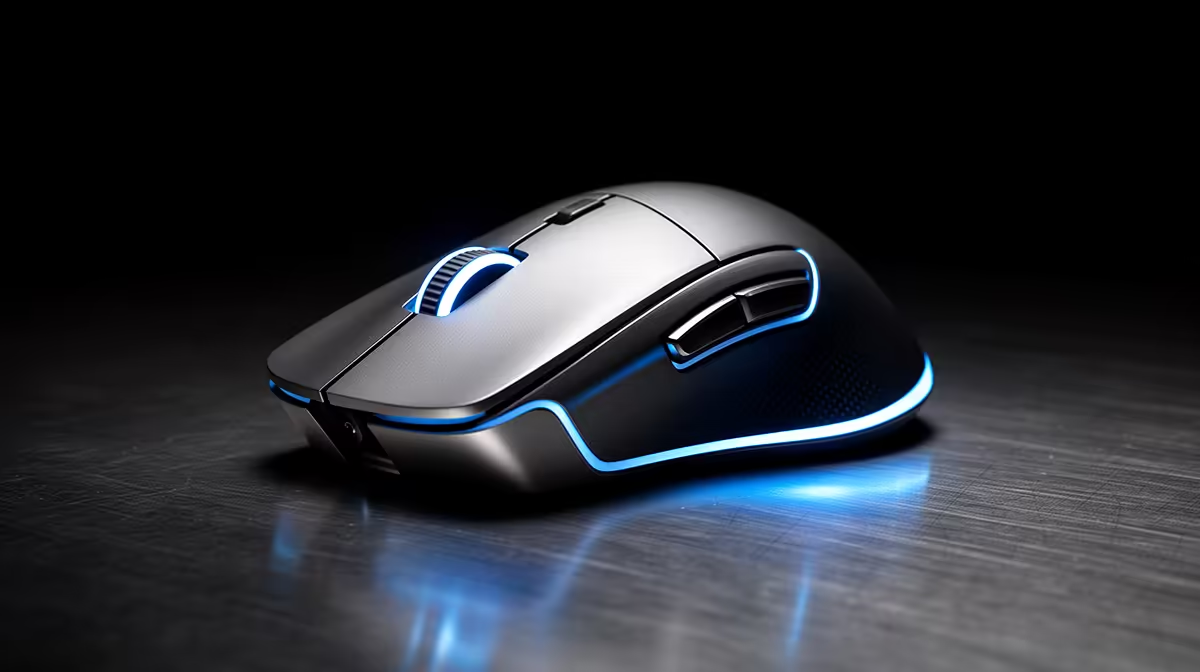
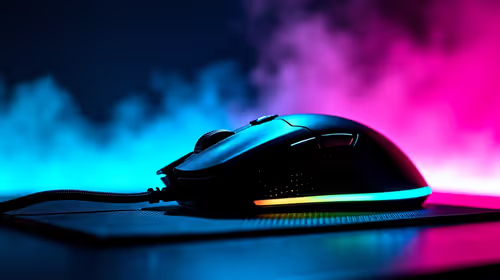
A 4000 DPI optical mouse is rarely used at its maximum setting for productivity. The most practical productivity DPI range is 800 to 1,600 DPI, where cursor movement is precise enough for clicking small UI elements but fast enough to cross a large monitor without excessive wrist movement. Reserve 4000 DPI for large multi-monitor setups or specific tasks that benefit from fast screen traversal.
Understanding DPI and What It Means for Productivity 🖱️
DPI (dots per inch) measures how many pixels the cursor moves for every physical inch the mouse travels on the desk. At 4000 DPI, a 10mm mouse movement translates to 1,575 pixels of cursor travel. On a 1080p 27-inch monitor, that 10mm of hand movement moves the cursor the full width of the screen twice over. This is useful for snapping between multiple monitors quickly but counterproductive for tasks requiring clicking on specific UI elements like dropdown menus or text cursors. For Microsoft 365 work on a single 1080p or 1440p monitor, most productivity users find 800 to 1,200 DPI optimal.
How to Set Your DPI to the Right Productivity Level 🔧
DPI is adjusted either through the mouse's hardware DPI toggle button or through companion software. Hardware DPI buttons cycle through preset steps (for example: 400, 800, 1600, 3200, 4000). Press the button until the indicator LED matches the step you want, referring to the mouse manual for which colour or blink pattern corresponds to which DPI. For precise control, use the manufacturer's companion software (Logitech Options+, Razer Synapse, SteelSeries GG) to set an exact DPI value.
Calibrating for Precision Work on SA Monitors 📐
For detailed work like photo retouching in Lightroom, precise cell selection in large Excel datasets, or fine-grain cursor placement in academic research documents, 800 DPI combined with slow deliberate hand movements gives the best control. If you are working on a 4K monitor at native resolution, 1,600 to 2,400 DPI is appropriate because the higher pixel density means UI elements are physically smaller on screen. South African students and professionals often use laptop displays at 1080p or 1440p as their primary screen.
Create Two DPI Profiles: Productivity and Navigation ⚡
Set one DPI profile at 1,000 to 1,200 for precision tasks like editing and spreadsheet work, and a second profile at 2,400 to 3,200 for fast browser navigation and multi-monitor switching. Assign the DPI toggle button to switch between them. This takes 30 seconds to configure in companion software and noticeably improves both comfort and accuracy across your full workday.
FAQ
Is 4000 DPI ever useful for office and study work?
Yes in specific scenarios: a triple-monitor setup spanning 6,000 or more horizontal pixels, a 4K display at native scaling, or assistive contexts where limited hand mobility means maximising cursor distance per movement. For most single or dual-monitor SA students and office users, 1,200 to 1,600 DPI is the more comfortable ceiling.
Does higher DPI improve mouse accuracy for productivity tasks?
Not inherently. DPI affects sensitivity, not accuracy. A quality optical sensor at 1,200 DPI is more accurate for precision clicks than a budget sensor at 4,000 DPI, because accuracy depends more on reducing pointer speed in Windows and avoiding pointer acceleration.
How do I reset my DPI to default if I have changed too many settings?
In companion software, most profiles have a Reset to default or Factory settings option within the DPI configuration panel. For hardware-only mice without software, pressing and holding the DPI button for five seconds resets most models to the factory default DPI step. Check your mouse manual for the exact method as it varies by model.
Looking for a precise optical mouse for your SA office or study setup?
Evetech stocks a full range of optical mice across DPI classes from everyday productivity options to high-precision models. Browse the mouse range and find the right sensor for your workflow.