Quick Answer
Customising 7 programmable mouse buttons for office and study workflows is done through the mouse manufacturer's companion software. Assign the most frequently used shortcuts to buttons you can reach without repositioning your hand: copy, paste, undo, and switch application or window are the four highest-impact assignments for most office and student users.
Mapping Buttons to High-Impact Office Shortcuts 🖱️
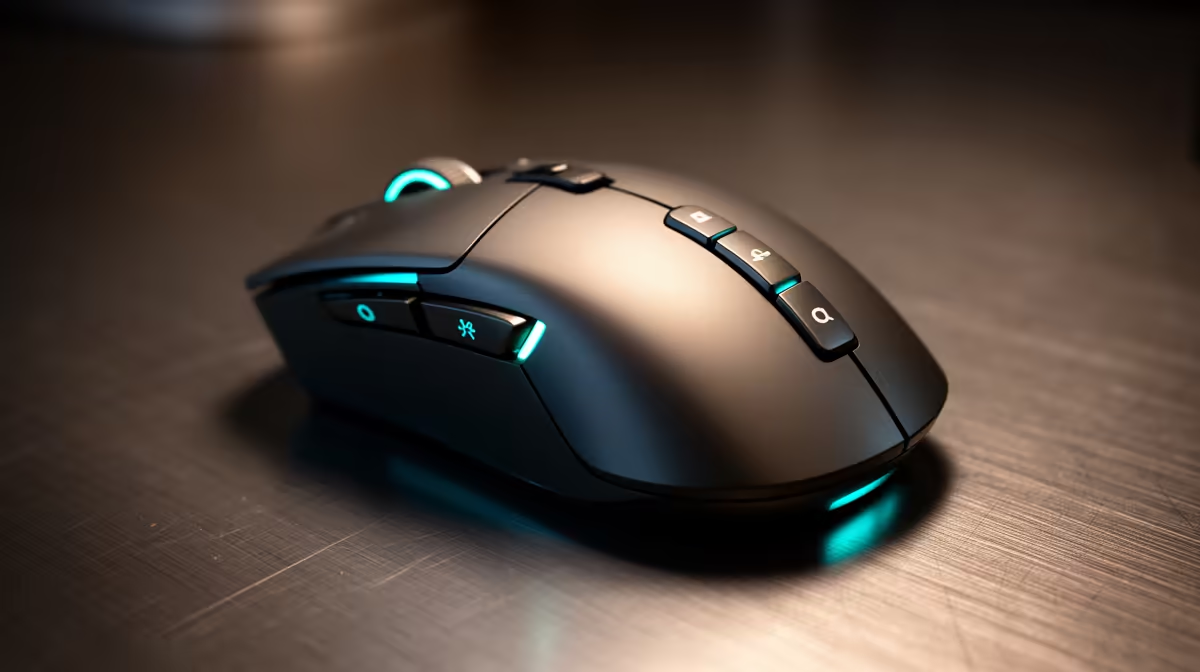
A 7-button mouse typically has: left click, right click, scroll click (middle button), two side thumb buttons, a DPI toggle, and a forward or back button pair. For an office workflow in Microsoft 365, assign the thumb buttons to Ctrl+Z (undo) and Ctrl+C (copy), as these are the two shortcuts executed most often across Word, Excel, and Outlook. Assign the forward and back buttons to Alt+Tab (switch window) and Ctrl+V (paste). This cluster of four assignments eliminates the most common keyboard interruptions during mouse-heavy tasks like email management, document navigation, and spreadsheet editing.
Setting Up Profiles in Manufacturer Software 🔧
Most 7-button mice store button assignments either on the device's onboard memory or in software profiles. To configure: download and install the companion software (Logitech Options+, Razer Synapse, SteelSeries GG, or equivalent). Open the software and navigate to the button assignment section. Click on the button you want to remap and choose from the predefined shortcut list or enter a custom keystroke combination. Save the profile with a descriptive name such as Office or Study. If the mouse has onboard memory, also save the profile to the device itself so assignments work on any computer, useful for students moving between a home PC and a university computer lab.
Study Workflow-Specific Assignments 📚
For students managing research, writing, and browser-heavy studying, customise with different intent. Assign browser back and forward to the side buttons for fast navigation between research tabs. Map the middle button to open a new tab (Ctrl+T). Assign one thumb button to the Windows Snap feature (Win+Left arrow) for quick side-by-side document viewing. Assign the remaining programmable button to Ctrl+F (Find in page or document) for fast searching in PDFs, Word documents, and browser tabs. These six custom assignments cover the most repeated interactions in a typical South African student study session without requiring muscle memory rewiring.
Create Application-Specific Profiles for Best Results ⚡
In Logitech Options+ and Razer Synapse, you can create profiles that activate automatically when a specific application is in focus. Create one profile for Word, another for your browser, and a third for Zoom or Teams. Each set of button assignments activates without manual switching, so your mouse buttons always match what you are doing.
FAQ
Do I need the software installed permanently for custom button assignments to work?
It depends on the mouse. Many 7-button productivity mice have onboard memory that stores assignments on the device itself, working without the software running. Gaming-oriented 7-button mice often rely on the software staying active in the background, especially for complex macros and per-application profiles.
Can I assign Windows 11 virtual desktop switching to a mouse button?
Yes. Assign Ctrl+Win+Left or Ctrl+Win+Right to thumb buttons to switch between virtual desktops instantly. This is useful for students keeping one desktop for research, one for writing, and one for communications, eliminating Alt+Tab clutter across all tasks.
What if two programmable mice have conflicting software installed?
Most major mouse software platforms are compatible running simultaneously. Logitech Options+ and Razer Synapse both run in the background without conflict on Windows 10 and 11.
Want a 7-button programmable mouse that fits your office or study setup?
Evetech stocks a range of programmable mice suited to SA office professionals and students. Browse the mouse range and find the right one for your workflow.