Quick Answer
Inconsistent stylus pressure is usually a worn nib, incorrect pressure curve setting, or an outdated driver. Skipping lines are caused by a damaged nib, a dirty tablet surface, or an interference source near the tablet. Poor palm control is fixed by enabling palm rejection in both the driver and the drawing app. All three problems are solvable in under 10 minutes.
Diagnosing and Fixing Inconsistent Pressure 🔧
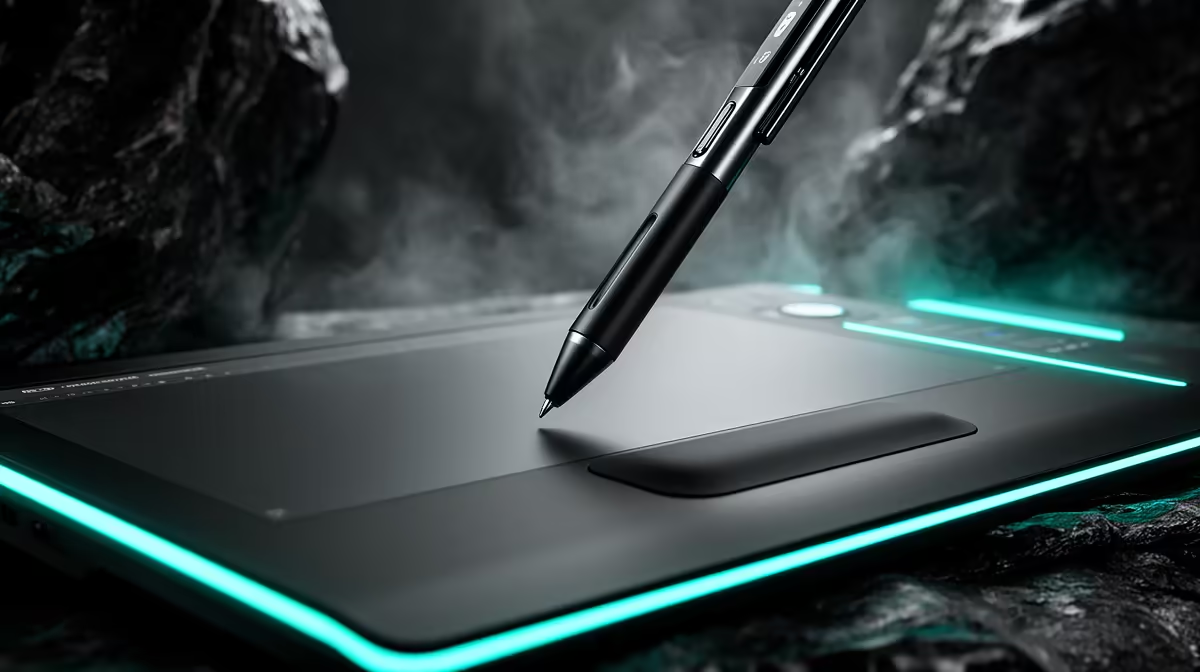
Open your tablet's driver pressure test tool (available in Wacom, Huion, and XP-Pen driver panels) and draw a slow diagonal stroke from light to firm. If the output is stepped rather than smooth, your pressure curve is misconfigured; open the curve editor and soften it until the gradient is continuous. If the curve looks correct but strokes still vary randomly, the nib is worn flat, which causes inconsistent sensor contact; replace the nib. If replacing the nib does not fix it, reinstall the driver completely. On Windows 11, driver conflicts after OS updates are a common cause of pressure inconsistency, and a fresh driver install resolves them in most cases.
Stopping Skipping Lines in Their Tracks ✏️
Skipping lines appear when the tablet loses contact with the pen nib mid-stroke. The most common cause is a worn or chipped nib with a flat spot that breaks contact at light pressure. Replace the nib first. If the problem persists on a fresh nib, clean the tablet surface with a dry microfibre cloth; dust and residue create contact gaps. Check for interference: metal objects, other electronics, or a USB hub under the tablet can disrupt the EMR or AES field and cause skipping. Move the tablet away from USB hubs and smartphones. If your tablet is connected via USB 3.0 and the cable is unshielded, try a different cable or port; USB 3.0 interference is a documented cause of stylus signal dropout.
Palm Control: Driver and App Settings That Actually Work 📝
Palm rejection is managed at two levels: the driver and the application. In Wacom, Huion, and XP-Pen drivers, locate palm rejection settings and enable reject palm while pen is in range. In the drawing app, find the palm rejection option: Clip Studio Paint places it under preferences, Krita under stylus settings, OneNote under input settings. Enable it in both places. If stray marks persist, Windows may still process palm contact as touch events despite the driver rejecting it. Disabling the Windows touch input service via Device Manager resolves this on dedicated drawing machines.
Test Surface Cleanliness Regularly ⚡
Wipe your tablet surface with a slightly damp microfibre cloth every two to three days if you use it daily. Oils from your hand leave a residue that does not cause visible smearing but creates micro-gaps in stylus-to-surface contact that produce skipping lines. Do not use alcohol on matte tablet surfaces; it removes the texture coating permanently.
FAQ
Why do my lines skip only in specific areas of the tablet surface?
Area-specific skipping usually indicates a dead zone in the tablet's sensor grid. This is a hardware fault. Check the tablet's warranty; if it is within the warranty period (typically one year in SA), contact the retailer for a replacement.
Can a screen protector fix inconsistent stylus pressure?
No. A screen protector adds a gap between the nib and the screen, which can worsen pressure consistency. Use a matte paper-feel protector designed specifically for drawing tablets; these are textured for grip and thin enough not to affect sensor accuracy significantly.
My palm rejection works in one app but not another. Why?
Each app manages its own touch input layer. An app that does not natively support pen input will process palm contact as regular touch events, bypassing the stylus driver's rejection logic. Use apps that explicitly support active stylus input for consistent palm rejection behaviour.
Still struggling with pressure, skipping, or palm issues after troubleshooting?
Evetech stocks replacement drawing tablets and stylus accessories locally, with options for every budget and a local warranty for South African buyers.